The tidymodels framework in R is a collection of packages for modeling.
Within tidymodels, the parsnip package is primarily responsible for specifying models in a way that is independent of the underlying modeling engines. The set_engine() function in parsnip allows users to specify which computational engine to use for modeling, enabling the same model specification to be used across different packages and implementations.
In this blog series, we will look at some commonly used models and engines within the tidymodels package
Linear Regression (lm): The classic linear regression model, with the default engine being stats, referring to the base R stats package.
Logistic Regression (logistic_reg): Used for binary classification problems, with engines like stats for the base R implementation and glmnet for regularized regression.
Random Forest (rand_forest): A popular ensemble method for classification and regression tasks, with engines like ranger and randomForest.
Boosted Trees (boost_tree): Used for boosting tasks, with engines such as xgboost, lightgbm, and catboost.
Decision Trees (decision_tree): A base model for classification and regression, with engines like rpart and C5.0.
K-Nearest Neighbors (nearest_neighbor): A simple yet effective non-parametric method, with engines like kknn and caret.
Principal Component Analysis (pca): For dimensionality reduction, with the stats engine.
Lasso and Ridge Regression (linear_reg): For regression with regularization, specifying the penalty parameter and using engines like glmnet.
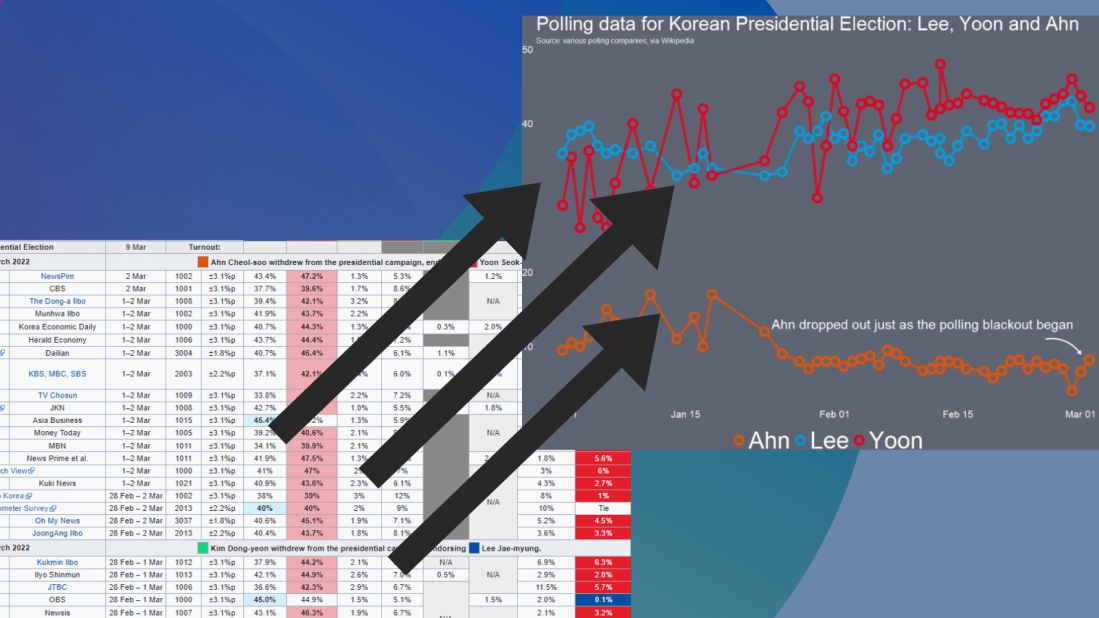
If we look at the table, some of the surveys started in Feb but ended in March. We want to extract the final section (i.e. the March section) and use that.
So we use grepl() to find rows that have both Feb AND March, and just extract the March section. If it only has one of those months, we leave it as it is.
Following that, we use the parse_number() function from tidyr package to extract the first number found in the string and create a day_number varible (with integer class now)
We want to take these two variables we created and combine them together with the unite() function from tidyr again! We want to delete the variables after we unite them. But often I want to keep the original variables, so usually I change the argument remove to FALSE.
We indicate we want to have nothing separating the vales with the sep = "" argument
And we convert this new date into Date class with as.Date() function.
Here is a handy cheat sheet to help choose the appropriate % key so the format recognises the dates. I will never memorise these values, so I always need to refer to this site.
We have days as numbers (1, 2, 3) and abbreviated 3 character month (Jan, Feb, Mar), so we choose %d and %b
After than, we need to clean the actual numbers, remove the percentage signs and convert from character to number class. We use the str_extract() and the regex code to extract the number and not keep the percentage sign.
Some of the different polls took place on the same day. So we will take the average poll favourability value for each candidate on each day with the group_by() function
We can create variables to help us filter different groups of candidates. If we want to only look at the largest candidates, we can makes an important variable and then filter
We can lump the candidates that do not have data from every poll (i.e. the smaller candidate) and add them into the “other_undecided” category with the fct_lump_min() function from the forcats package
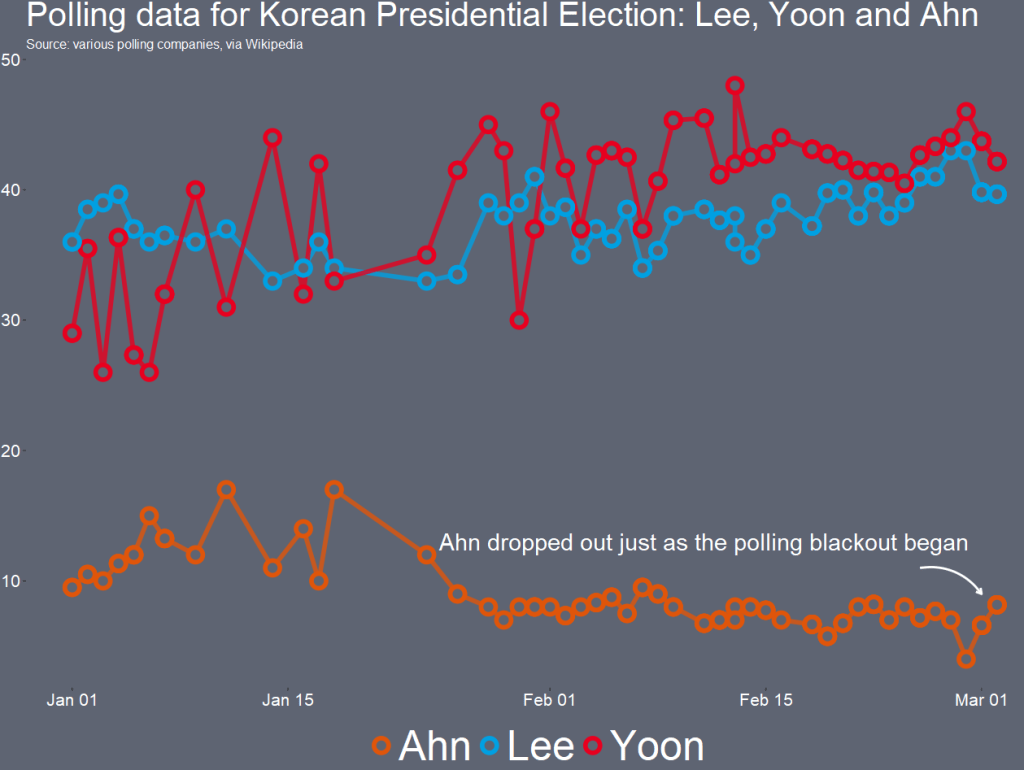
I want to only look at the main two candidates from the main parties that have been polling in the 40% range – Lee and Yoon – as well as the data for Ahn (who recently dropped out and endorsed Yoon).
Last, with the annotate() functions, we can also add an annotation arrow and text to add some more information about Ahn Cheol-su the candidate dropping out.
  annotate("text", x = as.Date("2022-02-11"), y = 13, label = "Ahn dropped out just as the polling blackout began", size = 10, color = "white") +
  annotate(geom = "curve", x = as.Date("2022-02-25"), y = 13, xend = as.Date("2022-03-01"), yend = 10,
    curvature = -.3, arrow = arrow(length = unit(2, "mm")), size = 1, color = "white")
We will just have to wait until next Wednesday / Thursday to see who is the winner ~
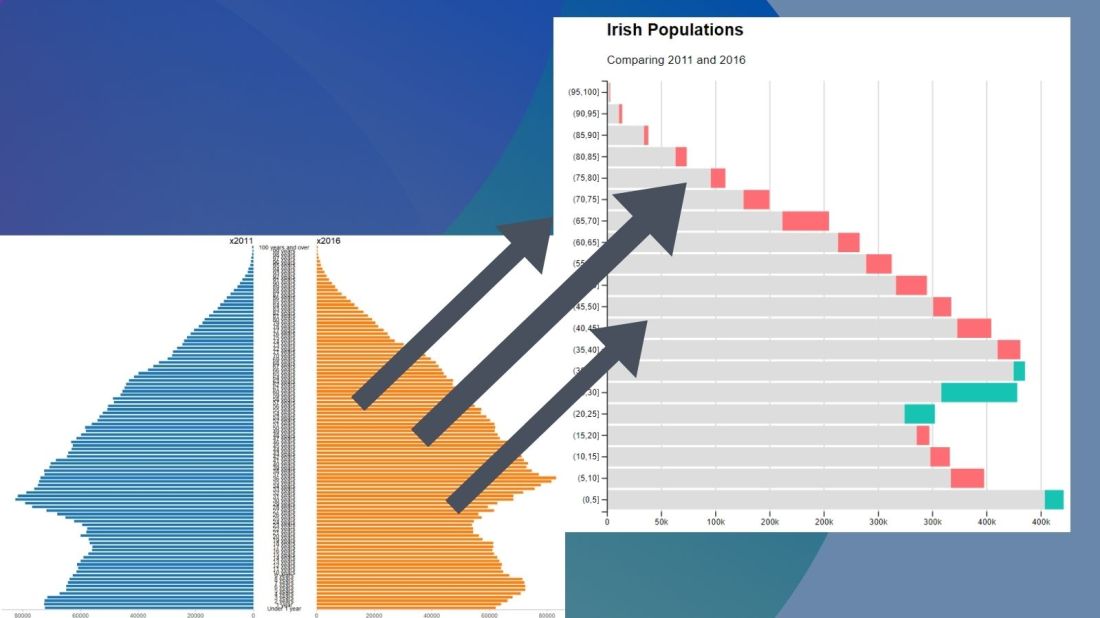
No we can create our pyramid chart with the pyramid_chart() from the ggcharts package. The first argument is the age category for both the 2011 and 2016 data. The second is the actual population counts for each year. Last, enter the group variable that indicates the year.
One problem with the pyramid chart is that it is difficult to discern any differences between the two years without really really examining each year.
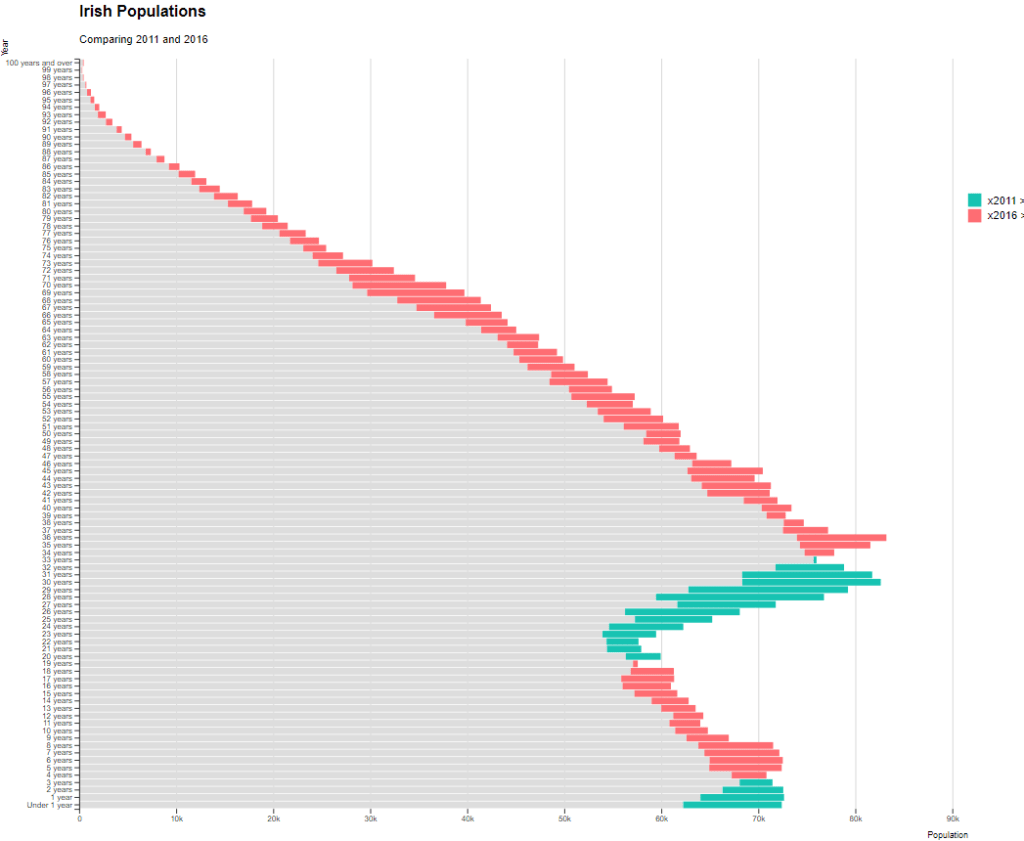
One way to more easily see the differences with the compareBars function
The compareBars package created by David Ranzolin can help to simplify comparative bar charts! It’s a super simple function to use that does a lot of visualisation leg work under the hood!
First we need to pivot the data.frame back to wide format and then input the age, and then the two groups – x2011 and x2016 – in the compareBars() function.
We can add more labels and colors to customise the graph also!
We can see that under the age of four-ish, 2011 had more at the time. And again, there were people in their twenties in 2011 compared to 2016.
However, there are more older people in 2016 than in 2011.
Similar to above it is a bit busy! So we can create groups for every five age years categories and examine the broader trends with fewer horizontal bars.
First we want to remove the word “years” from the age variable and convert it to a numeric class variable. We can easily do this with the parse_number() function from the readr package
Next we can group the age years together into five year categories, zero to 5 years, 6 to 10 years et cetera.
We use the cut() function to divide the numeric age_num variable into equal groups. We use the seq() function and input age 0 to 100, in increments of 5.
Next, we can use group_by() to calculate the sum of each population number in each five year category.
And finally, we use the distinct() function to remove the duplicated rows (i.e. we only want to keep the first row that gives us the five year category’s population count for each category.















 R Functions and Packages for Political Science Analysis