across() function appreciation

Wrangle and change multiple columns with the across() function from dplyr.

library(tidyverse)
library(gapminder)
library(ggthemes)

So quick! So simple!

library(dplyr)

# Assuming df is your dataframe and it includes columns mission_1 to mission_4
df <- tibble(
  mission_1 = c("MissionA", NA, "MissionC", "MissionD"),
  mission_2 = c(NA, "MissionE", "MissionF", NA),
  mission_3 = c("MissionG", "MissionH", NA, "MissionJ"),
  mission_4 = c(NA, NA, "MissionK", "MissionL")
)
df <- df %>%
  rowwise() %>%
  mutate(non_na_string_count = sum(!is.na(c_across(mission_1:mission_4)) & nchar(c_across(mission_1:mission_4)) > 0)) %>%
  ungroup()

print(df)

tcc %<>%  
janitor::clean_names() %>% 
  group_by(year, contributor) %>% 
  summarise(across(c(experts_on_mission, formed_police_units, 
                     inidividual_police, civilian_police, troops,
                     observers, total), ~sum(.x, na.rm = TRUE))) -> tcc_sum

pema %>% 
  mutate(across(c(signature, namepko, country), as.factor)) %>%
  mutate(date = as.Date(date, format = "%d/%m/%Y")) %>%    # 18/06/1998
  select(!c(mandate_renewal:mandate_completeadjustment,
            comments)) %>% 
  select(where(~ !all(is.na(.)))) %>% 
  mutate(across(where(is.character), ~ if_else(nchar(.) > 0, 1, 0))) %>% 
  mutate(across(where(is.numeric), ~replace_na(., 0))) %>% 
  mutate(across(where(is.numeric), ~if_else(. != 0, 1, 0))) %>% 
  mutate(year = year(date)) -> pema_check

Mutate all numeric variables and calculate the country mean across all years in the dataset.

Then use .names = argument to give a new column variable name!

gapminder%>%
  group_by(continent) %>% 
  mutate(across(where(is.numeric), ~ replace_na(., 0))) %>%  
  mutate(across(where(is.numeric), mean, na.rm = TRUE,
                   .names = "avg_{col}")) %>% 
  mutate(across(where(is.numeric), log,
                   .names = "ln_{col}")) %>% 
  ggplot(aes(x = ln_avg_gdpPercap, 
             y = ln_avg_lifeExp, 
             group = continent)) + 
  geom_point() +  geom_label(aes(label = continent, 
                                 fill = continent), 
                             color = "#f0f0f0", 
                             size = 8) -> my_plot 

And optional code if you want to make the graph a bit prettier.

First dark hex colors:

my_palette <- c("570211","7e3110","004540","032c4d","360825")

add_hashtag <- function(my_vec){
  hash_vec <-  paste0('#', my_vec)
  return(hash_vec)
}

pal_hash <- add_hashtag(my_palette)

And some labelling and adjusting the look of the plot

my_plot + ggtitle("Scatterplot of average GDP and life expectancy, 1952-2007") +
  xlab("Average GDP per capita (logged)") +
  ylab("Average life expectancy (logged)") + 
  ggthemes::theme_fivethirtyeight() + xlim(7.5, 10.1) + 
    scale_fill_manual(values = pal_hash) +
  theme(legend.position = "none",
        plot.title = element_text(size = 25),
        text = element_text(family = "Arial")) 

Replicating Eurostat graphs in R

Packages we will need:

library(eurostat)
library(tidyverse)
library(maggritr)
library(ggthemes)
library(forcats)

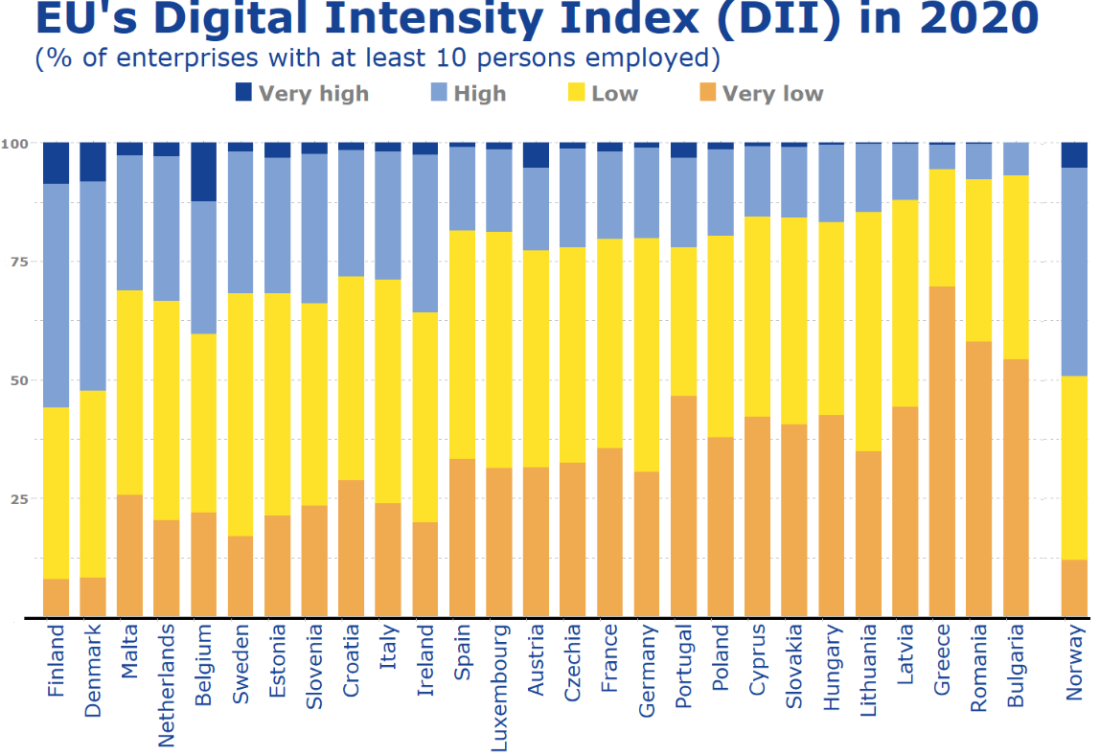
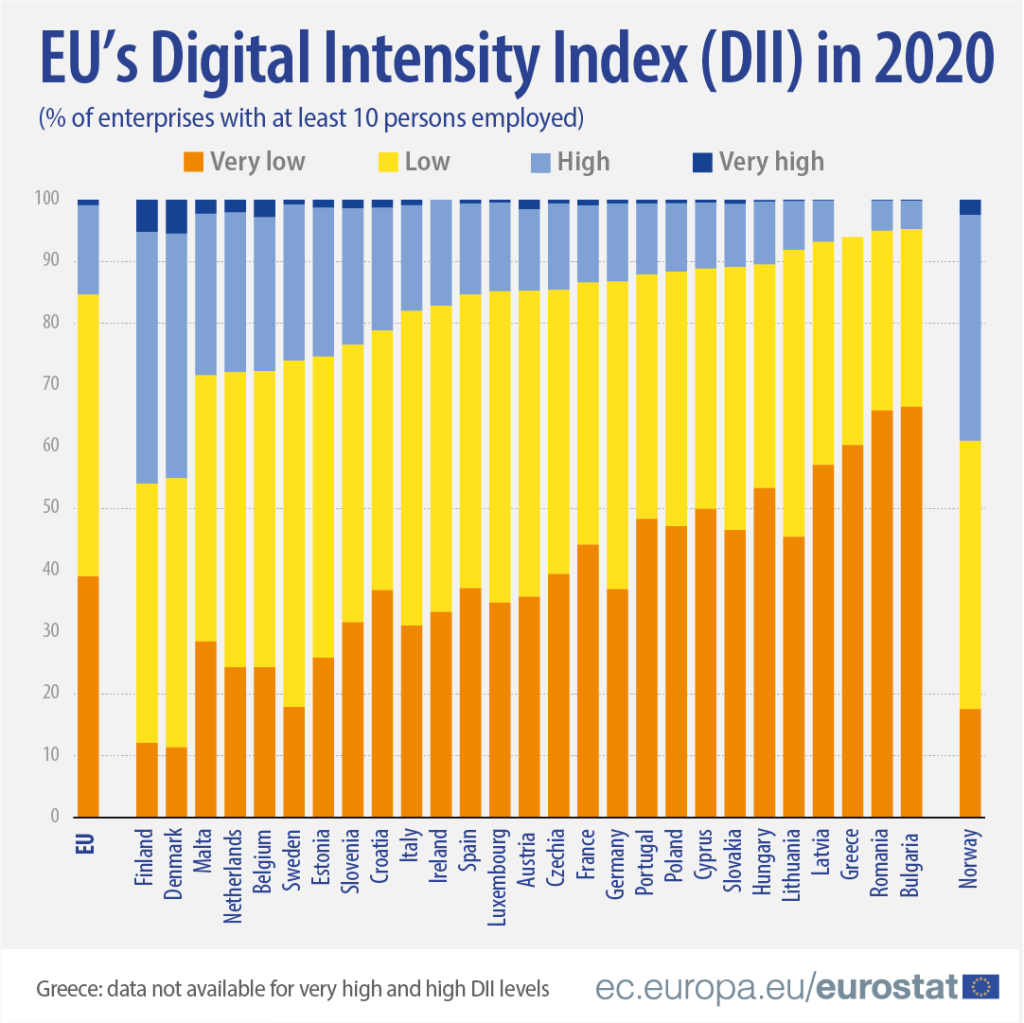
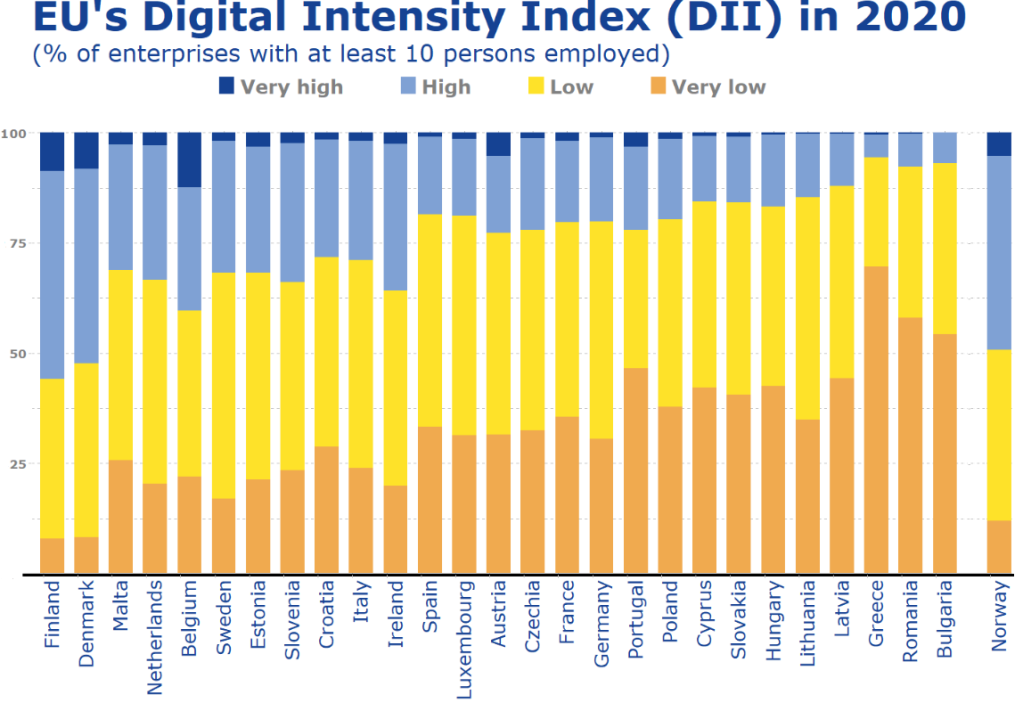
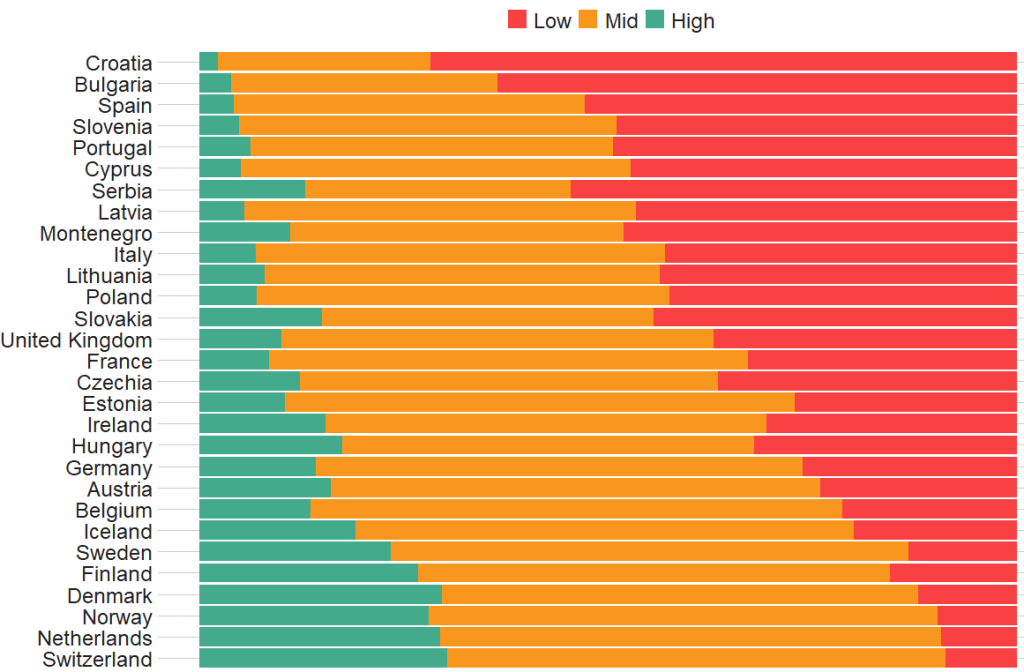
In this blog, we will try to replicate this graph from Eurostat!

It compares all European countries on their Digitical Intensity Index scores in 2020. This measures the use of different digital technologies by enterprises.

The higher the score, the higher the digital intensity of the enterprise, ranging from very low to very high. 

For more information on the index, I took the above information from this site: https://ec.europa.eu/eurostat/web/products-eurostat-news/-/ddn-20211029-1

First, we will download the digital index from Eurostat with the get_eurostat() function.

Click here to learn more about downloading data on EU from the Eurostat package.

Next some data cleaning. To copy the graph, we will aggregate the different levels into very low, low, high and very high categories with the grepl() function in some ifelse() statements.

The variable names look a bit odd with lots of blank space because I wanted to space out the legend in the graph to replicate the Eurostat graph above.

dig <- get_eurostat("isoc_e_dii", type = "label")

dig %<>% 
   mutate(dii_level = ifelse(grepl("very low", indic_is), "Very low        " , ifelse(grepl("with low", indic_is), "Low        ", ifelse(grepl("with high", indic_is), "High        ", ifelse(grepl("very high", indic_is), "Very high        ", indic_is)))))

Next I fliter out the year I want and aggregate all industry groups (from the sizen_r2 variable) in each country to calculate a single DII score for each country.

dig %>% 
  select(sizen_r2, geo, values, dii_level, year) %>%  
  filter(year == 2020) %>% 
  group_by(dii_level, geo) %>% 
  summarise(total_values = sum(values, na.rm = TRUE)) %>% 
  ungroup() -> my_dig

I use a hex finder website imagecolorpicker.com to find the same hex colors from the Eurostat graph and assign them to our version.

dii_pal <- c("Very low        " = "#f0aa4f",
             "Low        " = "#fee229",
             "Very high        " = "#154293", 
             "High        " = "#7fa1d4")

We can make sure the factors are in the very low to very high order (rather than alphabetically) with the ordered() function

my_dig$dii_level <- ordered(my_dig$dii_level, levels = c("Very Low        ", "Low        ", "High        ","Very high        "))

Next we filter out the geo rows we don’t want to add to the the graph.

Also we can change the name of Germany to remove its longer title.

my_dig %>% 
  filter(geo != "Euro area (EA11-1999, EA12-2001, EA13-2007, EA15-2008, EA16-2009, EA17-2011, EA18-2014, EA19-2015)") %>% 
  filter(geo != "United Kingdom") %>% 
  filter(geo != "European Union - 27 countries (from 2020)") %>% 
  filter(geo != "European Union - 28 countries (2013-2020)") %>% 
  mutate(geo = ifelse(geo == "Germany (until 1990 former territory of the FRG)", "Germany", geo)) -> my_dig 

And also, to have the same order of countries that are in the graph, we can add them as ordered factors.

my_dig$country <- factor(my_dig$geo, levels = c("Finland", "Denmark", "Malta", "Netherlands", "Belgium", "Sweden", "Estonia", "Slovenia", "Croatia", "Italy", "Ireland","Spain", "Luxembourg", "Austria", "Czechia", "France", "Germany", "Portugal", "Poland", "Cyprus", "Slovakia", "Hungary", "Lithuania", "Latvia", "Greece", "Romania", "Bulgaria", "Norway"), ordered = FALSE)

Now to plot the graph:

my_dig %>% 
  filter(!is.na(country)) %>% 
  group_by(country, dii_level) %>% 
  ggplot(aes(y = country, 
             x = total_values,
             fill = forcats::fct_rev(dii_level))) +
  geom_col(position = "fill", width = 0.7) + 
  scale_fill_manual(values = dii_pal) + 
  ggthemes::theme_pander() +
  coord_flip() +
  labs(title = "EU's Digital Intensity Index (DII) in 2020",
       subtitle = ("(% of enterprises with at least 10 persons employed)"),
       caption = "ec.europa/eurostat") +
  xlab("") + 
  ylab("") + 
  theme(text = element_text(family = "Verdana", color = "#154293"),
        axis.line.x = element_line(color = "black", size = 1.5),
        axis.text.x = element_text(angle = 90, size = 20, color = "#154293", hjust = 1),
        axis.text.y = element_text(color = "#808080", size = 13, face = "bold"),
        legend.position = "top", 
        legend.title = element_blank(),
        legend.text = element_text(color = "#808080", size = 20, face = "bold"),
        plot.title = element_text(size = 42, color = "#154293"),
        plot.subtitle = element_text(size = 25, color = "#154293"),
        plot.caption = element_text(size = 20, color = "#154293"),
        panel.background = element_rect(color = "#f2f2f2"))

It is not identical and I had to move the black line up and the Norway model more to the right with Paint on my computer! So a bit of cheating!

Click to read Part 1, Part 2 and Part 3 of the blog series on visualising Eurostat data

For information on the index discussed in this blog post: https://ec.europa.eu/eurostat/web/products-eurostat-news/-/ddn-20211029-1

Bump charts for ranking with ggbump package in R

library(eurostat)
library(tidyverse)
library(magrittr)
library(ggthemes)
library(ggpbump)
library(ggflags)
library(countrycode)

Click here for Part 1 and here for Part 2 of the series on Eurostat data – explains how to download and visualise the Eurostat data

In this blog, we will look at government expenditure of the European Union!

Part 1 will go into detail about downloading Eurostat data with their package.

govt <- get_eurostat("gov_10a_main", fix_duplicated = TRUE)

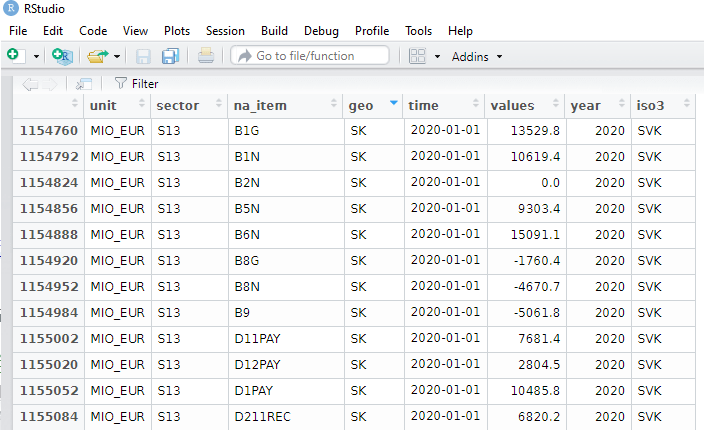
Some quick data cleaning and then we can look at the variables in the dataset.

govt$year <- as.numeric(format(govt$time, format = "%Y"))
View(govt)

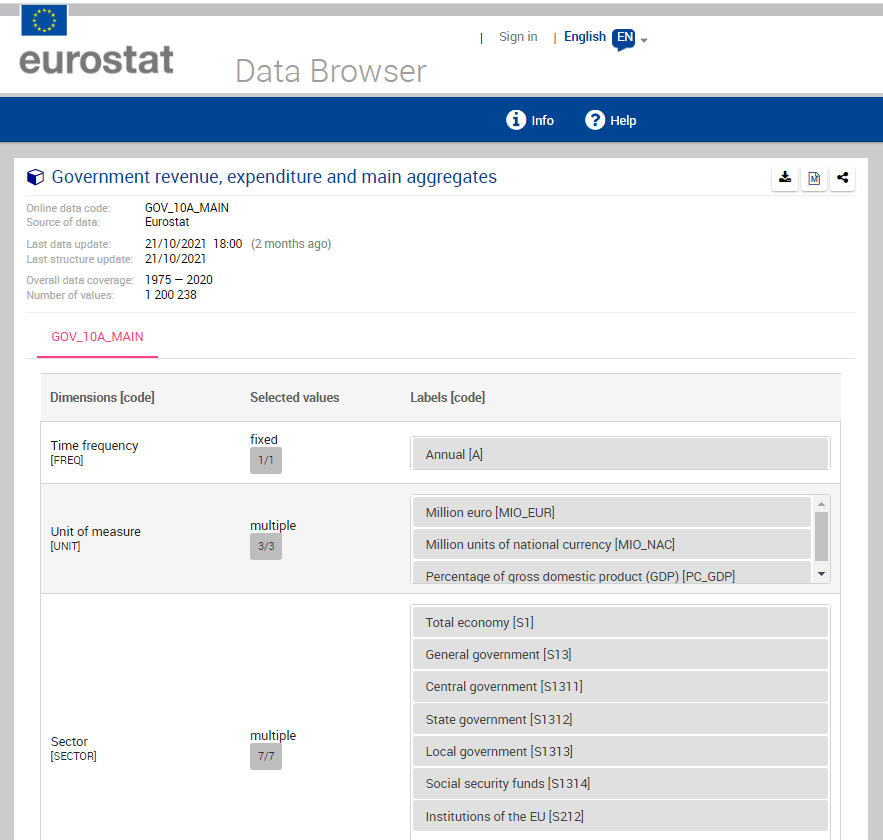
The numbers and letters are a bit incomprehensible. We can go to the Eurostat data browser site. It ascts as a codebook for all the variables we downloaded:

https://ec.europa.eu/eurostat/databrowser/product/page/GOV_10A_MAIN

I want to take the EU accession data from Wikipedia. Check out the Part 1 blog post to scrape the data.

govt$iso3 <- countrycode(govt$geo, "iso2c", "iso3c")

govt_df <- merge(govt, eu_members, by.x = "iso3", by.y = "iso_3166_1_alpha_3", all.x = TRUE)

We will look at general government spending of the countries from the 2004 accession.

Also we will choose data is government expenditure as a percentage of GDP.

govt_df %<>%
  filter(sector == "S13") %>%      # General government spending
  filter(accession == 2004) %>%    # For countries that joined 2004
  filter(unit == "PC_GDP") %>%     # Spending as percentage of GDP
  filter(na_item == "TE")          # Total expenditure

A little more data cleaning! To use the ggflags package, the ISO 2 character code needs to be in lower case.

Also we will use some regex to remove the strings in the square brackets from the dataset.

govt_df$iso2_lower <- tolower(govt_df$iso_3166_1_alpha_2)

govt_df$name_clean <- gsub("\\[.*?\\]", "", govt_df$name)

To put the flags at the start of the graph and names of the countries at the end of the lines, create mini dataframes with only information for the last year and first year:

last_time <- govt_df %>%
  group_by(geo) %>% 
  slice(which.max(year)) %>% 
  ungroup()

first_time <- govt_df %>%
  group_by(geo) %>% 
  slice(which.min(year)) %>% 
  ungroup()

I choose some nice hex colours from the coolors website. They need # in the strings to be acknowledged as hex colours by ggplot

add_hashtag <- function(my_vec){
  hash_vec <-  paste0('#', my_vec)
  return(hash_vec)
}

pal <- c("0affc2","ffb8d1","05e6dc","00ccf5","ff7700",
         "fa3c3b","f50076","b766b4","fd9c1e","ffcf00")

pal_hash <- add_hashtag(pal)

Now we can plot:

govt_df %>% 
  filter(geo != "CY" | geo != "MT") %>% 
  filter( year < 2020) %>% 
  ggplot(aes(x = year,
             y = values, group = name)) + 
  geom_text_repel(data = last_time, aes(label = name_clean, 
                                        color = name), 
                  size = 6, hjust = -3) +
  geom_point(aes(color = name)) + 
  geom_line(aes(color = name), size = 3, alpha = 0.8) +
  ggflags::geom_flag(data = first_time,
                     aes(x = year,
                         y = values,
                         country = iso2_lower),
                     size = 8) +
   scale_color_manual(values = pal_hash) +
  xlim(1994, 2021) + 
   ggthemes::theme_fivethirtyeight() +
  theme(panel.background = element_rect(fill = "#284b63"),
        legend.position = "none",
        axis.text.x = element_text(size = 20),
        axis.text.y = element_text(size = 20),
        
        panel.grid.major.y = element_line(color = "#495057",
                                          size = 0.5,
                                          linetype = 2),
        panel.grid.minor.y = element_line(color = "#495057",
                                          size = 0.5,
                                          linetype = 2)) +
  guides(colour = guide_legend(override.aes = list(size=10)))

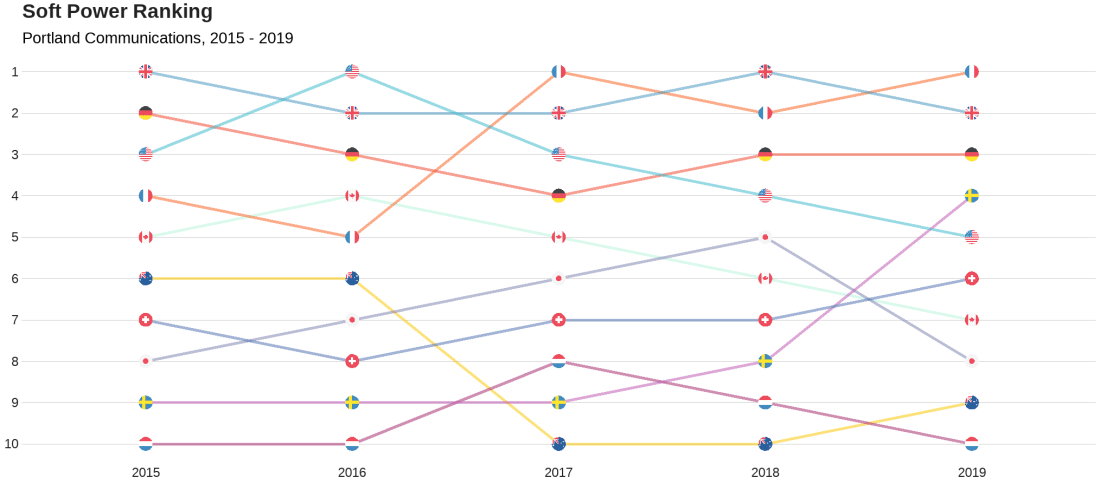
Sometimes a simple line graph doesn’t easily show us the ranking of the countries over time.

The last graph was a bit cluttered, so we can choose the top average highest government expenditures to compare

govt_rank %>% 
  distinct(geo, mean_rank) %>% 
  top_n(6, mean_rank) %>%
  pull(geo) -> top_rank

We can look at a bump chart that ranks the different positions over time

govt_df %>% 
  filter(geo %in%  top_rank) %>% 
  group_by(year) %>%
  mutate(rank_budget = rank(-values, ties.method = "min")) %>%
  ungroup() %>% 
  group_by(geo) %>% 
  mutate(mean_rank = mean(values)) %>% 
  ungroup()  %>% 
  select(geo, iso2_lower, year, fifth_year, rank_budget, mean_rank) -> govt_rank

We recreate the last and first dataframes for the flags with the new govt_rank dataset.

last_time <- govt_rank %>%
  filter(geo %in% top_rank ) %>% 
  group_by(geo) %>% 
  slice(which.max(year)) %>% 
  ungroup()

first_time <- govt_rank %>%
  filter(geo %in% top_rank ) %>% 
  group_by(geo) %>% 
  slice(which.min(year)) %>% 
  ungroup()

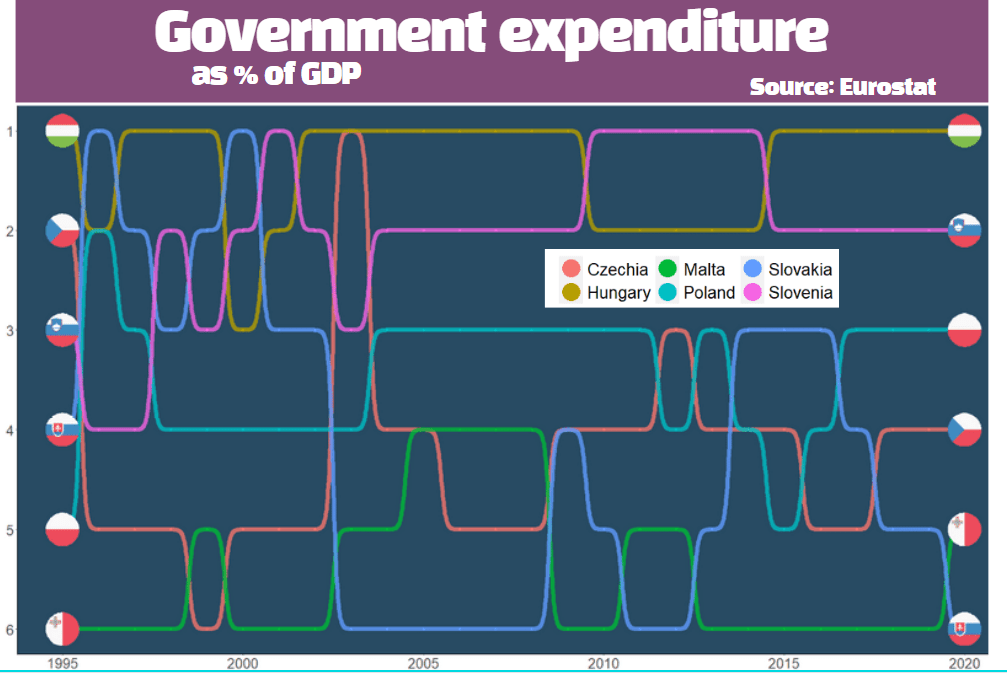
All left to do is code the bump plot to compare the ranking of highest government expenditure as a percentage of GDP

govt_rank %>% 
  ggplot(aes(x = year, y = rank_budget, 
             group = country,
             color = country, fill = country)) +
  geom_point() +
  geom_bump(aes(), 
            size = 3, alpha = 0.8,
            lineend = "round") + 
  geom_flag(data = last_time %>%
              filter(year == max(year)),
            aes(country = iso2_lower ),
            size = 20,
            color = "black") +
  geom_flag(data = first_time %>%
              filter(year == max(year)),
            aes(country = iso2_lower),
            size = 20,
            color = "black") -> govt_bump

Last we change the theme aesthetics of the bump plot

govt_bump + theme(panel.background = element_rect(fill = "#284b63"),
      legend.position = "bottom",
      axis.text.x = element_text(size = 20),
      axis.text.y = element_text(size = 20),
      axis.line = element_line(color='black'),
      axis.title.x = element_blank(), 
      axis.title.y = element_blank(), 
      legend.title = element_blank(),
      legend.text = element_text(size = 20),
      panel.grid.major = element_blank(),
      panel.grid.minor = element_blank()) + 
  guides(colour = guide_legend(override.aes = list(size=10))) + 
  scale_y_reverse(breaks = 1:100)

I added the title and moved the legend with canva.com, rather than attempt it with ggplots! I feel bad for cheating a bit.

Visualize EU data with Eurostat package in R: Part 2 (with maps)

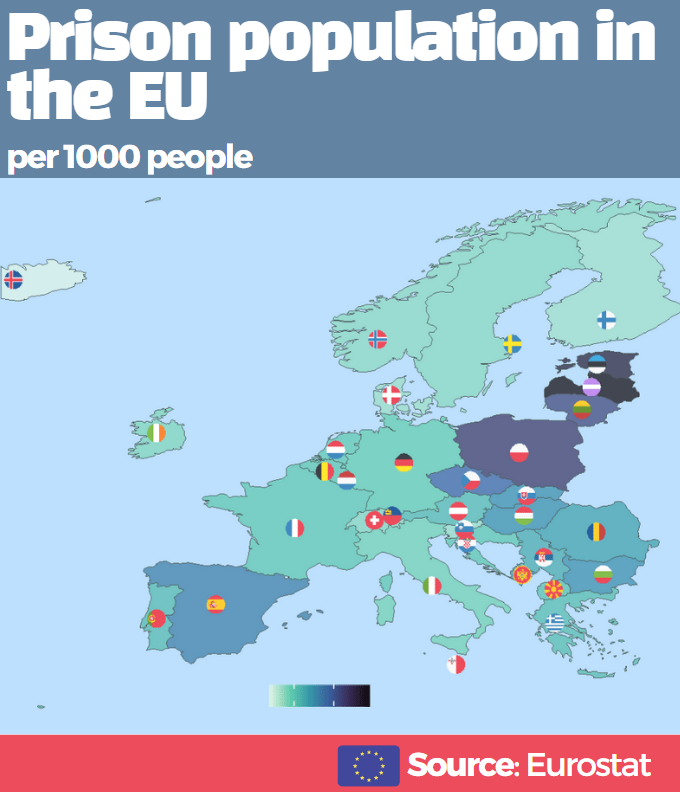
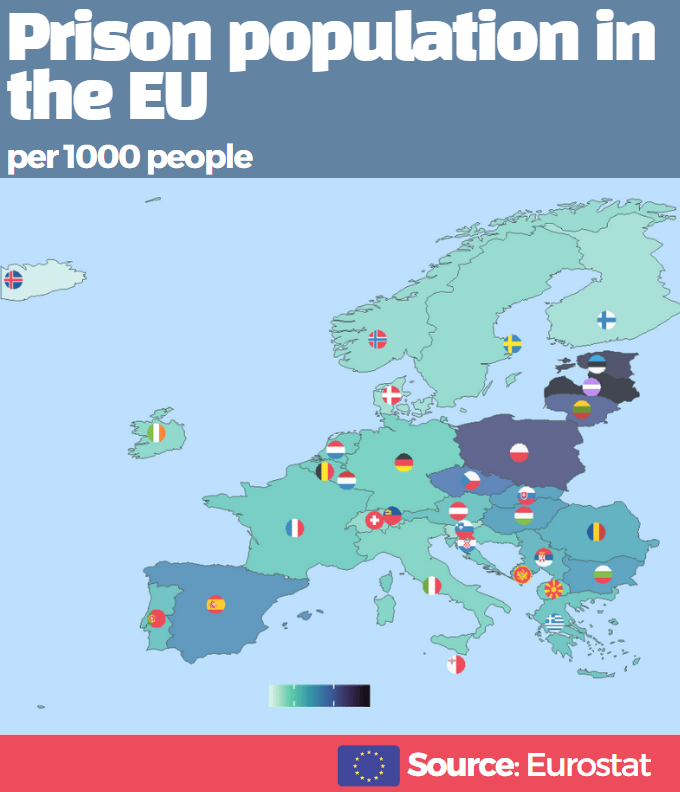
In this post, we will map prison populations as a percentage of total populations in Europe with Eurostat data.

library(eurostat)
library(tidyverse)
library(sf)
library(rnaturalearth)
library(ggthemes)
library(countrycode)
library(ggflags)
library(viridis)
library(rvest)

Click here to read Part 1 about downloading Eurostat data.


prison_pop <- get_eurostat("crim_pris_pop", type = "label")

prison_pop$iso3 <- countrycode::countrycode(prison_pop$geo, "country.name", "iso3c")

prison_pop$year <- as.numeric(format(prison_pop$time, format = "%Y"))

Next we will download map data with the rnaturalearth package. Click here to read more about using this package.

We only want to zoom in on continental EU (and not include islands and territories that EU countries have around the world) so I use the coordinates for a cropped European map from this R-Bloggers post.

map <- rnaturalearth::ne_countries(scale = "medium", returnclass = "sf")

europe_map <- sf::st_crop(map, xmin = -20, xmax = 45,
                          ymin = 30, ymax = 73)

prison_map <- merge(prison_pop, europe_map, by.x = "iso3", by.y = "adm0_a3", all.x = TRUE)

We will look at data from 2000.

prison_map %>% 
  filter(year == 2000) -> map_2000

To add flags to our map, we will need ISO codes in lower case and longitude / latitude.

prison_map$iso2c <- tolower(countrycode(prison_map$geo, "country.name", "iso2c"))

coord <- read_html("https://developers.google.com/public-data/docs/canonical/countries_csv")

coord_tables <- coord %>% html_table(header = TRUE, fill = TRUE)

coord <- coord_tables[[1]]

prison_map <- merge(prison_map, coord, by.x= "iso_a2", by.y = "country", all.y = TRUE)

Nex we will plot it out!

We will focus only on European countries and we will change the variable from total prison populations to prison pop as a percentage of total population. Finally we multiply by 1000 to change the variable to per 1000 people and not have the figures come out with many demical places.

prison_map %>% 
  filter(continent == "Europe") %>% 
  mutate(prison_pc = (values / pop_est)*1000) %>% 
  ggplot() +
  geom_sf(aes(fill = prison_pc, geometry = geometry), 
          position = "identity") + 
  labs(fill='Prison population')  +
  ggflags::geom_flag(aes(x = longitude, 
                         y = latitude+0.5, 
                         country = iso2_lower), 
                     size = 9) +  
  scale_fill_viridis_c(option = "mako", direction = -1) +
  ggthemes::theme_map() -> prison_map

Next we change how it looks, including changing the background of the map to a light blue colour and the legend.

prison_map + 
  theme(legend.title = element_text(size = 20),
        legend.text = element_text(size = 14), 
         legend.position = "bottom",
        legend.background = element_rect(fill = "lightblue",
                                         colour = "lightblue"),
        panel.background = element_rect(fill = "lightblue",
                                        colour = "lightblue"))

I will admit that I did not create the full map in ggplot. I added the final titles and block colours with canva.com because it was just easier! I always find fonts very tricky in R so it is nice to have dozens of different fonts in Canva and I can play around with colours and font sizes without needing to reload the plot each time.

How to download EU data with Eurostat package in R: Part 1 (with pyramid graphs)

library(eurostat)
library(tidyverse)
library(janitor)
library(ggcharts)
library(ggflags)
library(rvest)
library(countrycode)
library(magrittr)

Eurostat is the statistical office of the EU. It publishes statistics and indicators that enable comparisons between countries and regions.

With the eurostat package, we can visualise some data from the EU and compare countries. In this blog, we will create a pyramid graph and a Statista-style bar chart.

First, we use the get_eurostat_toc() function to see what data we can download. We only want to look at datasets.

available_data <- get_eurostat_toc()

available_datasets <- available_data %>% 
  filter(type == "dataset")

A simple dataset that we can download looks at populations. We can browse through the available datasets and choose the code id. We feed this into the get_eurostat() dataset.

demo <- get_eurostat(id = "demo_pjan", 
                     type = "label")

View(demo)

Some quick data cleaning. First changing the date to a numeric variable. Next, extracting the number from the age variable to create a numeric variable.

demo$year <- as.numeric(format(demo$time, format = "%Y"))

demo$age_number <- as.numeric(gsub("([0-9]+).*$", "\\1", demo$age))

Next we filter out the data we don’t need. For this graph, we only want the total columns and two years to compare.


demo %>%
  filter(age != "Total") %>%
  filter(age != "Unknown") %>% 
  filter(sex == "Total") %>% 
  filter(year == 1960 | year == 2019 ) %>% 
  select(geo, iso3, values, age_number) -> demo_two_years

I want to compare the populations of the founding EU countries (in 1957) and those that joined in 2004. I’ll take the data from Wikipedia, using the rvest package. Click here to learn how to scrape data from the Internet.

eu_site <- read_html("https://en.wikipedia.org/wiki/Member_state_of_the_European_Union")

eu_tables <- eu_site %>% html_table(header = TRUE, fill = TRUE)

eu_members <- eu_tables[[3]]

eu_members %<>% janitor::clean_names()  %>% 
filter(!is.na(accession))

Some quick data cleaning to get rid of the square bracket footnotes from the Wikipedia table data.

eu_members$accession <- as.numeric(gsub("([0-9]+).*$", "\\1",eu_members$accession))

eu_members$name_clean <- gsub("\\[.*?\\]", "", eu_members$name)

We merge the two datasets, on the same variable. In this case, I will use the ISO3C country codes (from the countrycode package). Using the names of each country is always tricky (I’m looking at you, Czechia / Czech Republic).

demo_two_years$iso3 <- countrycode::countrycode(demo_two_years$geo, "country.name, "iso3c")

my_pyramid <- merge(demo_two_years, eu_members, by.x = "iso3", by.y = "iso_3166_1_alpha_3", all.x = TRUE)

We will use the pyramid_chart() function from the ggcharts package. Click to read more about this function.

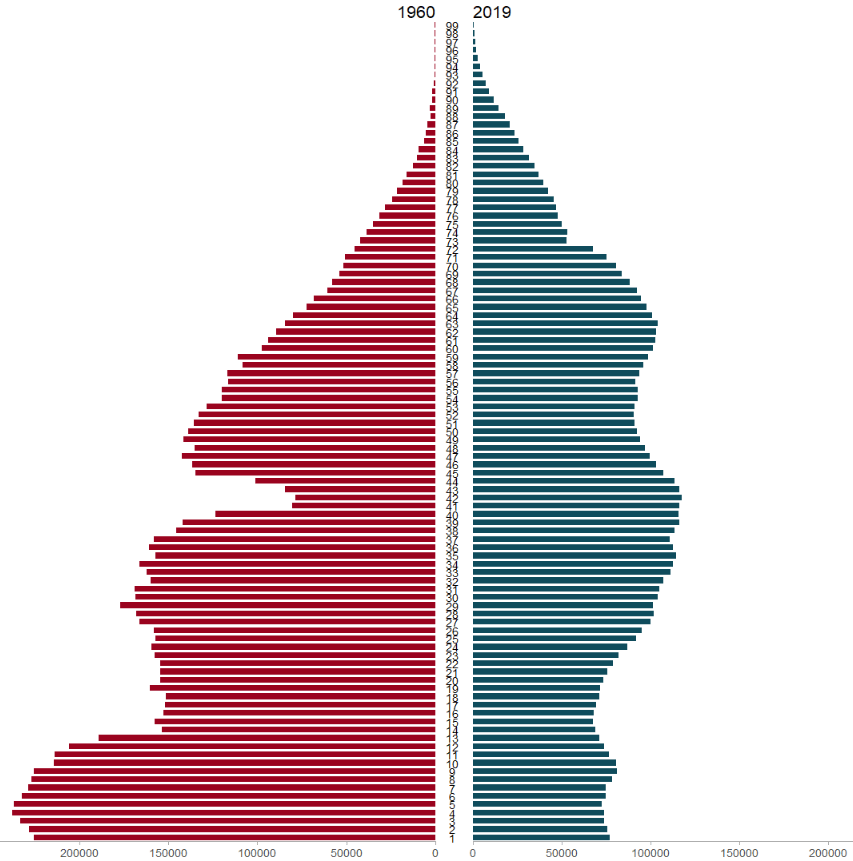
The function takes the age group (we go from 1 to 99 years of age), the number of people in that age group and we add year to compare the ages in 1960 versus in 2019.

The first graph looks at the countries that founded the EU in 1957.

my_pyramid %>%  
  filter(!is.na(age_number)) %>%  
  filter(accession == 1957 ) %>% 
  arrange(age_number) %>% 
  group_by(year, age_number) %>% 
  summarise(mean_age = mean(values, na.rm = TRUE)) %>% 
  ungroup() %>% 
  pyramid_chart(age_number, mean_age, year,
                bar_colors = c("#9a031e", "#0f4c5c")) 
Source: Eurostat

The second graph is the same, but only looks at the those which joined in 2004.

my_pyramid %>%  
  filter(!is.na(age_number)) %>%  
  filter(accession == 2004 ) %>% 
  arrange(age_number) %>% 
  group_by(year, age_number) %>% 
  summarise(mean_age = mean(values, na.rm = TRUE)) %>% 
  ungroup() %>% 
  pyramid_chart(age_number, mean_age, year,
                bar_colors = c("#9a031e", "#0f4c5c")) 

Next we will use the Eurostat data on languages in the EU and compare countries in a bar chart.

I want to try and make this graph approximate the style of Statista graphs. It is far from identical but I like the clean layout that the Statista website uses.

Similar to above, we add the code to the get_eurostat() function and claen the data like above.

lang <- get_eurostat(id = "edat_aes_l22", 
                     type = "label")

lang$year <- as.numeric(format(lang$time, format = "%Y"))

lang$iso2 <- tolower(countrycode(lang$geo, "country.name", "iso2c"))

lang %>% 
  mutate(geo = ifelse(geo == "Germany (until 1990 former territory of the FRG)", "Germany", 
                      ifelse(geo == "European Union - 28 countries (2013-2020)", "EU", geo))) %>% 
  filter(n_lang == "3 languages or more") %>% 
  filter(year == 2016) %>% 
  filter(age == "From 25 to 34 years") %>% 
  filter(!is.na(iso2)) %>% 
  group_by(geo, year) %>% 
  mutate(mean_age = mean(values, na.rm = TRUE)) %>% 
  arrange(mean_age) -> lang_clean

Next we will create bar chart with the stat = "identity" argument.

We need to make sure our ISO2 country code variable is in lower case so that we can add flags to our graph with the ggflags package. Click here to read more about this package

lang_clean %>%
  ggplot(aes(x = reorder(geo, mean_age), y = mean_age)) + 
  geom_bar(stat = "identity", width = 0.7, color = "#0a85e5", fill = "#0a85e5") + 
  ggflags::geom_flag(aes(x = geo, y = -1, country = iso2), size = 8) +
  geom_text(aes(label= values), position = position_dodge(width = 0.9), hjust = -0.5, size = 5, color = "#000500") + 
  labs(title = "Percentage of people that speak 3 or more languages",
       subtitle = ("(% of overall population)"),
       caption = "         Source: Eurostat ") +
  xlab("") + 
  ylab("") -> lang_plot 
  

To try approximate the Statista graphs, we add many arguments to the theme() function for the ggplot graph!

lang_plot + coord_flip() + 
  expand_limits(y = 65) + 
  ggthemes::theme_pander() + 
  theme(plot.background = element_rect(color = "#f5f9fc"),
        panel.grid = element_line(colour = "#f5f9fc"),
        # axis.title.x = element_blank(),
        axis.text.x = element_blank(),
        axis.text.y = element_text(color = "#000500", size = 16),
        # axis.title.y = element_blank(),
        axis.ticks.x = element_blank(),
        text = element_text(family = "Gadugi"),
        plot.title = element_text(size = 28, color = "#000500"),
        plot.subtitle = element_text(size = 20, color = "#484e4c"),
        plot.caption = element_text(size = 20, color = "#484e4c") )

Next, click here to read Part 2 about visualizing Eurostat data with maps

Alternatives to pie charts: coxcomb and waffle charts

Packages we will need

library(tidyverse)
library(rnaturalearth)
library(countrycode)
library(peacesciencer)
library(ggthemes)
library(bbplot)

If we want to convey nuance in the data, sometimes that information is lost if we display many groups in a pie chart.

According to Bernard Marr, our brains are used to equal slices when we think of fractions of a whole. When the slices aren’t equal, as often is the case with real-world data, it’s difficult to envision the parts of a whole pie chart accurately.

Below are some slight alternatives that we can turn to and visualise different values across groups.

I’m going to compare regions around the world on their total energy consumption levels since the 1900s.

First, we can download the region data with information about the geography and income levels for each group, using the ne_countries() function from the rnaturalearth package.

map <- ne_countries(scale = "medium", returnclass = "sf")

Click here to learn more about downloading map data from the rnaturalearth package.

Next we will select the variables that we are interested in, namely the income group variable and geographic region variable:

map %>% 
  select(name_long, subregion, income_gr) %>% as_data_frame() -> region_var

And add a variable of un_code that it will be easier to merge datasets in a bit. Click here to learn more about countrycode() function.

region_var$un_code <- countrycode(region_var$name_long, "country.name", "un") 

Next, we will download national military capabilities (NMC) dataset. These variables – which attempt to operationalize a country’s power – are military expenditure, military personnel, energy consumption, iron and steel production, urban population, and total population. It serves as the basis for the most widely used indicator of national capability, CINC (Composite Indicator of National Capability) and covers the period 1816-2016.

To download them in one line of code, we use the create_stateyears() function from the peacesciencer package.

What, Like It'S Hard? Reese Witherspoon GIF - Find & Share on GIPHY
states <- create_stateyears(mry = FALSE) %>% add_nmc() 

Click here to read more about downloading Correlates of War and other IR variables from the peacesciencer package

Next we add a UN location code so we can easily merge both datasets we downloaded!

states$un_code <- countrycode(states$statenme, "country.name", "un")
states_df <- merge(states, region_var, by ="un_code", all.x = TRUE)

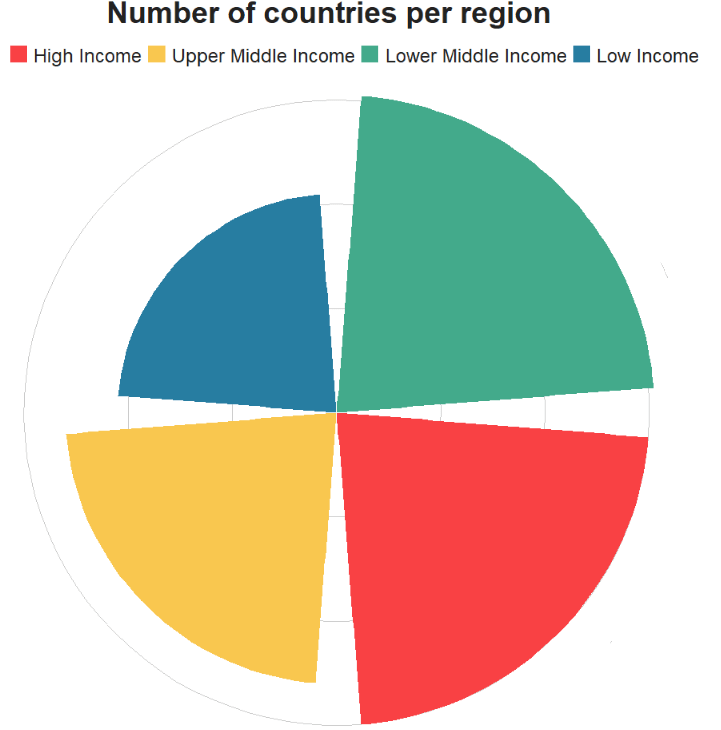
Next, let’s make the coxcomb graph.

First, we will create one high income group. The map dataset has a separate column for OECD and non-OECD countries. But it will be easier to group them together into one category. We do with with the ifelse() function within mutate().

Next we filter out any country that is NA in the dataset, just to keep it cleaner.

We then group the dataset according to income group and sum all the primary energy consumption in each region since 1900.

When we get to the ggplotting, we want order the income groups from biggest to smallest. To do this, we use the reorder() function with income_grp as the second argument.

To create the coxcomb chart, we need the geom_bar() and coord_polar() lines.

With the coord_polar() function, it takes the following arguments :

  • theta – the variable we map the angle to (either x or y)
  • start – indicates the starting point from 12 o’clock in radians
  • direction – whether we plot the data clockwise (1) or anticlockwise (-1)

We feed in a theta of “x” (this is important!), then a starting point of 0 and direction of -1.

Next we add nicer colours with hex values and label the legend in the scale_fill_manual() function.

I like using the fonts and size stylings in the bbc_style() theme.

Last we can delete some of the ticks and text from the plot to make it cleaner.

Last we add our title and source!

states_df %>% 
  mutate(income_grp = ifelse(income_grp == "1. High income: OECD", "1. High income", ifelse(income_grp == "2. High income: nonOECD", "1. High income", income_grp))) %>% 
  filter(!is.na(income_grp)) %>% 
  filter(year > 1899) %>% 
  group_by(income_grp) %>% 
  summarise(sum_pec = sum(pec, na.rm = TRUE)) %>% 
  ggplot(aes(x = reorder(sum_pec, income_grp), y = sum_pec, fill = as.factor(income_grp))) + 
  geom_bar(stat = "identity") + 
  coord_polar("x", start = 0, direction = -1)  + 
  ggthemes::theme_pander() + 
  scale_fill_manual(
    values = c("#f94144", "#f9c74f","#43aa8b","#277da1"), 
    labels = c("High Income", "Upper Middle Income", "Lower Middle Income", "Low Income"), name = "Income Level") +
  bbplot::bbc_style() + 
  theme(axis.text = element_blank(),
            axis.title.x = element_blank(),
            axis.title.y = element_blank(),
            axis.ticks = element_blank(),
            panel.grid = element_blank()) + 
  ggtitle(label = "Primary Energy Consumption across income levels since 1900", subtitle = "Source: Correlates of War CINC")

Happy Legally Blonde GIF - Find & Share on GIPHY

We can compare to the number of countries in each region :

states_df %>% 
  mutate(income_grp = ifelse(income_grp == "1. High income: OECD", "1. High income",
 ifelse(income_grp == "2. High income: nonOECD", "1. High income", income_grp))) %>% 
  filter(!is.na(income_grp)) %>% 
  filter(year == 2016) %>% 
  count(income_grp) %>% 
  ggplot(aes(reorder(n, income_grp), n, fill = as.factor(income_grp))) + 
  geom_bar(stat = "identity") + 
  coord_polar("x", start = 0, direction = - 1)  + 
  ggthemes::theme_pander() + 
  scale_fill_manual(
    values = c("#f94144", "#f9c74f","#43aa8b","#277da1"), 
    labels = c("High Income", "Upper Middle Income", "Lower Middle Income", "Low Income"), 
    name = "Income Level") +
  bbplot::bbc_style() + 
  theme(axis.text = element_blank(),
        axis.title.x = element_blank(),
        axis.title.y = element_blank(),
        axis.ticks = element_blank(),
        panel.grid = element_blank()) + 
  ggtitle(label = "Number of countries per region")

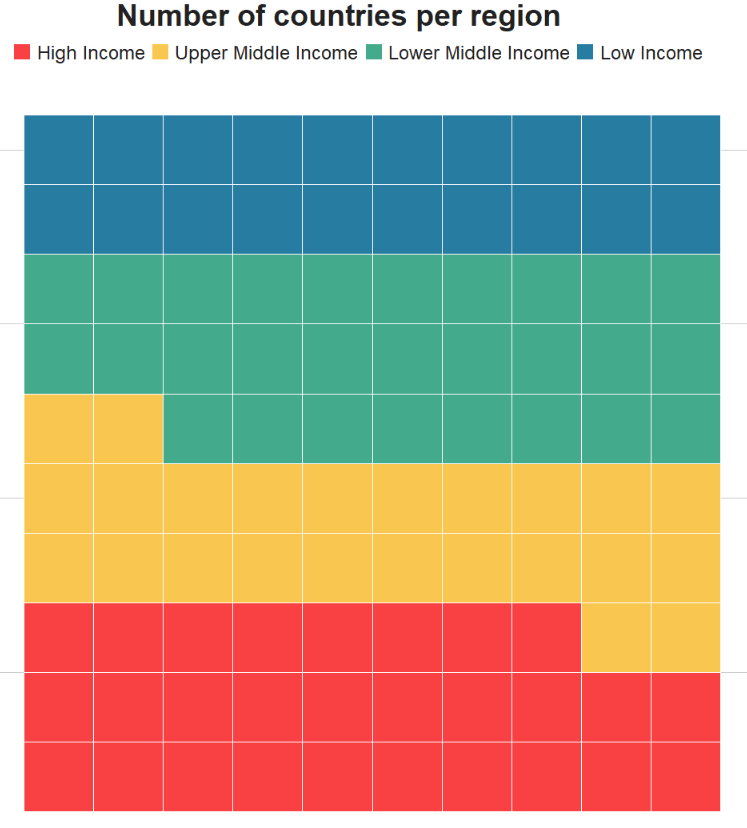
Another variation is the waffle plot!

It is important we do not install the CRAN version, but rather the version in development. I made the mistake of installing the non-github version and nothing worked.

Legally Blonde Liar GIF - Find & Share on GIPHY

It was an ocean of error messages.

So, instead, install the following version:

remotes::install_github("hrbrmstr/waffle")
library(waffle)

When we add the waffle::geom_waffle() there are some arguments we can customise.

  • n_rows – rhe default is 10 but this is something you can play around with to see how long or wide you want the chart
  • size – again we can play around with this number to see what looks best
  • color – I will set to white for the lines in the graph, the default is black but I think that can look a bit too busy.
  • flip – set to TRUE or FALSE for whether you want the coordinates horizontal or vertically stacked
  • make_proportional – if we set to TRUE, compute proportions from the raw values? (i.e. each value n will be replaced with n/sum(n)); default is FALSE

We can also add theme_enhance_waffle() to make the graph cleaner and less cluttered.

states_df %>% 
  filter(year == 2016) %>% 
  filter(!is.na(income_grp)) %>% 
  mutate(income_grp = ifelse(income_grp == "1. High income: OECD",
 "1. High income", ifelse(income_grp == "2. High income: nonOECD", "1. High income", income_grp))) %>% 
  count(income_grp) %>% 
  ggplot(aes(fill = income_grp, values = n)) +
  scale_fill_manual(
values = c("#f94144", "#f9c74f","#43aa8b","#277da1"), 
labels = c("High Income", "Upper Middle Income", 
"Lower Middle Income", "Low Income"), 
name = "Income Level") +
  waffle::geom_waffle(n_rows = 10, size = 0.5, colour = "white",
              flip = TRUE, make_proportional = TRUE) + bbplot::bbc_style() +  
  theme_enhance_waffle() + 
  ggtitle(label = "Number of countries per region")

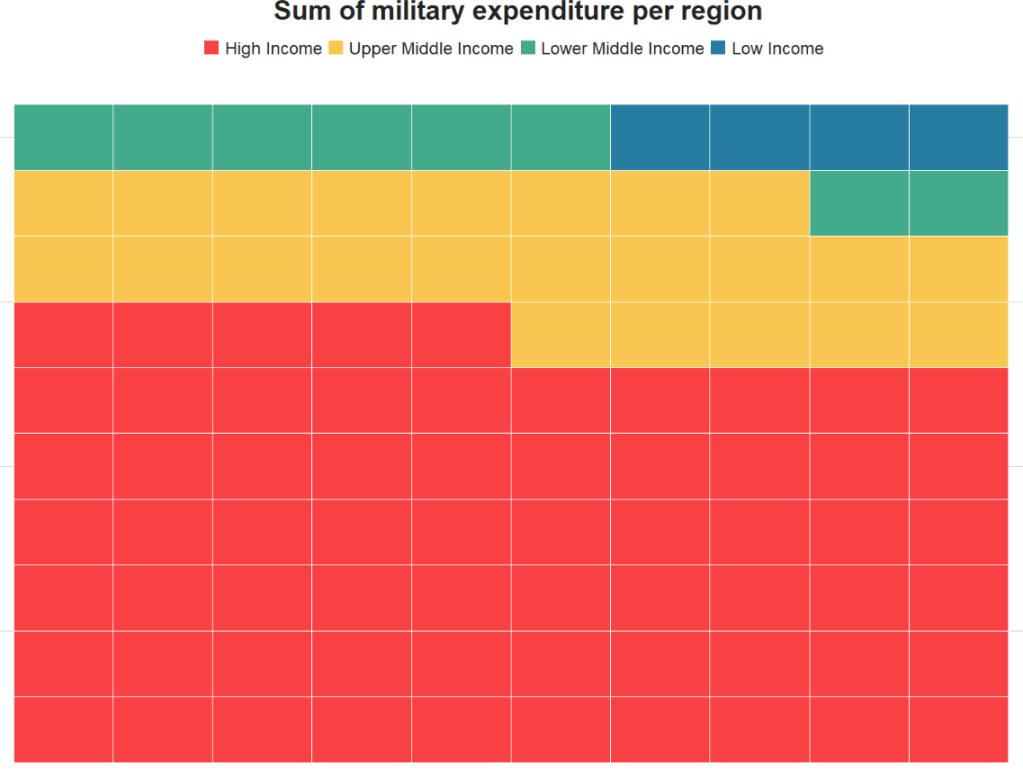
We can also look at the sum of military expenditure across each region

states_df %>% 
  filter(!is.na(income_grp)) %>%
  filter(year > 1899) %>% 
  mutate(income_grp = ifelse(income_grp == "1. High income: OECD",
 "1. High income", ifelse(income_grp == "2. High income: nonOECD", 
"1. High income", income_grp))) %>% 
group_by(income_grp) %>%
  summarise(sum_military = sum(milex, na.rm = TRUE)) %>% 
  ggplot(aes(fill = income_grp, values = sum_military)) +
  scale_fill_manual(
    values = c("#f94144", "#f9c74f","#43aa8b","#277da1"), 
    labels = c("High Income", "Upper Middle Income", 
               "Lower Middle Income", "Low Income"), 
    name = "Income Level") +
  geom_waffle(n_rows = 10, size = 0.3, colour = "white",
              flip = TRUE, make_proportional = TRUE) + bbplot::bbc_style() +  
  theme_enhance_waffle() + 
  ggtitle(label = "Sum of military expenditure per region")
Sexy Girls Rule GIF - Find & Share on GIPHY

Building a dataset for political science analysis in R, PART 2

Packages we will need

library(tidyverse)
library(peacesciencer)
library(countrycode)
library(bbplot)

The main workhorse of this blog is the peacesciencer package by Stephen Miller!

The package will create both dyad datasets and state datasets with all sovereign countries.

Thank you Mr Miller!

There are heaps of options and variables to add.

Go to the page to read about them all in detail.

Here is a short list from the package description of all the key variables that can be quickly added:

We create the dyad dataset with the create_dyadyears() function. A dyad-year dataset focuses on information about the relationship between two countries (such as whether the two countries are at war, how much they trade together, whether they are geographically contiguous et cetera).

In the literature, the study of interstate conflict has adopted a heavy focus on dyads as a unit of analysis.

Alternatively, if we want just state-year data like in the previous blog post, we use the function create_stateyears()

We can add the variables with type D to the create_dyadyears() function and we can add the variables with type S to the create_stateyears() !

Focusing on the create_dyadyears() function, the arguments we can include are directed and mry.

The directed argument indicates whether we want directed or non-directed dyad relationship.

In a directed analysis, data include two observations (i.e. two rows) per dyad per year (such as one for USA – Russia and another row for Russia – USA), but in a nondirected analysis, we include only one observation (one row) per dyad per year.

The mry argument indicates whether they want to extend the data to the most recently concluded calendar year – i.e. 2020 – or not (i.e. until the data was last available).

dyad_df <- create_dyadyears(directed = FALSE, mry = TRUE) %>%
  add_atop_alliance() %>%  
  add_nmc() %>%
  add_cow_trade() %>% 
  add_creg_fractionalization() 

I added dyadic variables for the

You can follow these links to check out the codebooks if you want more information about descriptions about each variable and how the data were collected!

The code comes with the COW code but I like adding the actual names also!

dyad_df$country_1 <- countrycode(dyad_df$ccode1, "cown", "country.name")

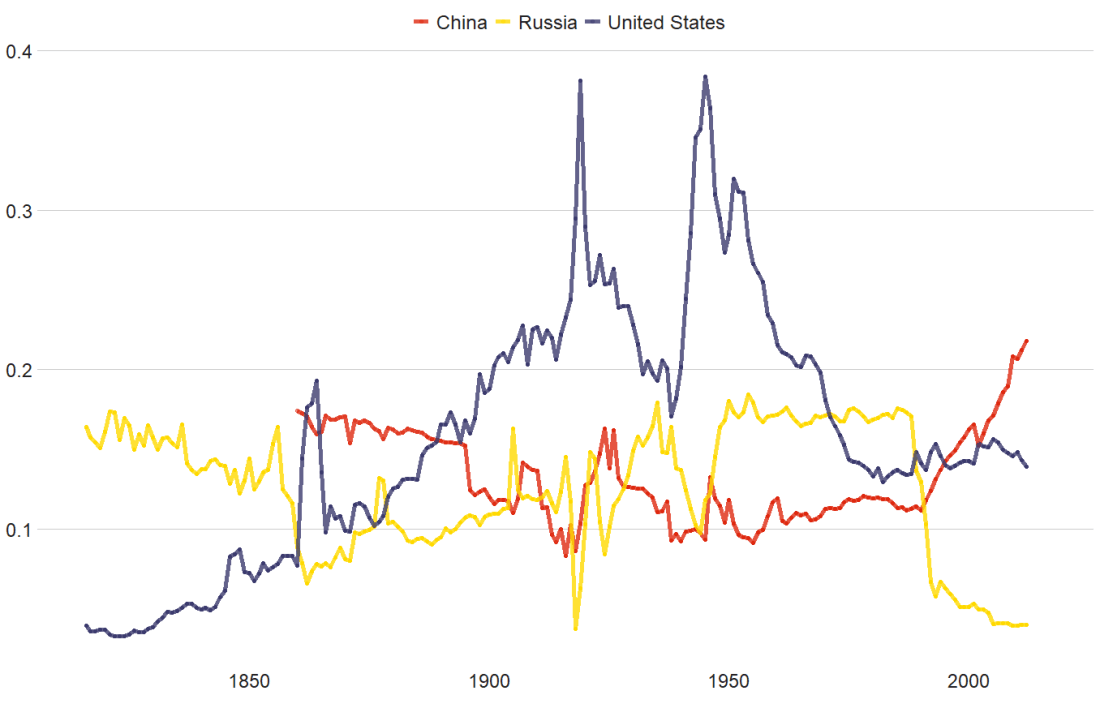
With this dataframe, we can plot the CINC data of the top three superpowers, just looking at any variable that has a 1 at the end and only looking at the corresponding country_1!

According to our pals over at le Wikipedia, the Composite Index of National Capability (CINC) is a statistical measure of national power created by J. David Singer for the Correlates of War project in 1963. It uses an average of percentages of world totals in six different components (such as coal consumption, military expenditure and population). The components represent demographic, economic, and military strength

First, let’s choose some nice hex colors

pal <- c("China" = "#DE2910",
         "United States" = "#3C3B6E", 
         "Russia" = "#FFD900")

And then create the plot

dyad_df %>% 
 filter(country_1 == "Russia" | 
          country_1 == "United States" | 
          country_1 == "China") %>% 
  ggplot(aes(x = year, y = cinc1, group = as.factor(country_1))) +
  geom_line(aes(color = country_1)) +
  geom_line(aes(color = country_1), size = 2, alpha = 0.8) + 
  scale_color_manual(values =  pal) +
  bbplot::bbc_style()

In PART 3, we will merge together our data with our variables from PART 1, look at some descriptive statistics and run some panel data regression analysis with our different variables!

Building a dataset for political science analysis in R, PART 1

When you want to create a dataset for large-n political science analysis from scratch, it can get muddled fast. Some tips I have found helpful to create clean data ready for panel data analysis.

Click here for PART 2 to create dyad-year and state-year variables with conflict, geographic features and alliance data from Correlates of War and Uppsala datasets.

Packages we will need

library(tidyverse)  # of course!
library(states)
library(WDI)
library(countrycode)
library(rnaturalearth)
library(VIM)

The states package by Andreas Beger can provide the skeleton for our panel dataset.

It create a cross-sectional, time-series dataset of independent sovereign countries that stretch back to 1816.

The package includes both the Gleditsch & Ward (G&W) and Correlates of War (COW) lists of independent states.

Click here for a discussion of the difference by Stephen Miller.

With the state_panel function from the states package, we create a data.frame from a start date to an end date, using the following syntax.

state_panel(start, end, by = NULL, partial = "any", useGW = TRUE)

The partial argument indicates how we want to deal with states that is independent for only part of the year. We can indicate “any”, “exact”, “first” or “last”.

For this example, I want to create a dataset starting in 1990 and ending in 2020. I put useGW = FALSE because I want to use the COW list of states.

df <- state_panel(1990, 2020, by = "year", partial = "last", useGW = FALSE)
View(df)

And this is the resulting dataset

So we have our basic data.frame. We can see how many states there have been over the years.

df %>% 
  group_by(year) %>% 
  count() %>%  
  arrange(n) 
# A tibble: 31 x 2
# Groups:   year [31]
    year     n
   <int> <int>
 1  1990   161
 2  1991   177
 3  1992   181
 4  1993   186
 5  1994   187
 6  1995   187
 7  1996   187
 8  1997   187
 9  1998   187
10  1999   190
11  2000   191
12  2001   191
13  2002   192
14  2003   192
15  2004   192
16  2005   192
17  2006   193
18  2007   193
19  2008   194
20  2009   194
# ... with 11 more rows

We can see that the early 1990s saw the creation of many states after the end of the Soviet Union. Since 2011, the dataset levels out at 195 (after the creation of South Sudan)

Next, we can add the country name with the countrycode() function from the countrycode package. We feed in the cowcode variable and add the full country names. Click here to read more about the function in more detail and see other options to add country ISO code, for example.

df$country <- countrycode(df$cowcode, "cown", "country.name")

With our dataset with all states, we can add variables for our analysis

We can use the WDI package to download any World Bank indicator.

Click here for more information about this super easy package.

I’ll first add some basic variables, such as population, GDP per capita and infant mortality. We can do this with the WDI() function. The indicator code for population is SP.POP.TOTL so we add that to the indicator argument. (If we wanted only a few countries, we can add a vector of ISO2 code strings to the country argument).

POP <- WDI(country = "all",
           indicator = 'SP.POP.TOTL',
           start = 1990, 
           end = 2020)

The default variable name for population is the long string, so I’ll quickly change that

POP$population <- POP$SP.POP.TOTL 
POP$SP.POP.TOTL <- NULL

I’ll do the same for GDP and infant mortality

GDP <- WDI(country = "all",
       indicator = 'NY.GDP.MKTP.KD',
       start = 1990, 
       end = 2020)

GDP$gdp <- GD$PNY.GDP.MKTP.KD
GDP$NY.GDP.MKTP.KD <- NULL

INF_MORT <- WDI(country = "all",
       indicator = 'SP.DYN.IMRT.IN',
       start = 1990, 
       end = 2020)

INF_MORT$infant_mortality <- INF_MORT$SP.DYN.IMRT.IN
INF_MORT$SP.DYN.IMRT.IN <- NULL

Next, I’ll bind all the variables them together with cbind()

wb_controls <- cbind(POP, GDP, INF_MORT)

This cbind will copy the country and year variables three times so we can delete any replicated variables:

wb_controls <- wb_controls[, !duplicated(colnames(wb_controls), fromLast = TRUE)] 

When we download World Bank data, it comes with aggregated data for regions and economic groups. If we only want in our dataset the variables for countries, we have to delete the extra rows that we don’t want. We have two options for this.

The first option is to add the cow codes and then filter out all the rows that do not have a cow code (i.e. all non-countries)

wb_controls$cow_code <- countrycode(wb_controls$country, "country.name", 'cown')

Then we re-organise the variables a bit more nicely in the dataset with select() and keep only the countries with filter() and the !is.na argument that will remove any row with NA values in the cow_code column.

df_v2 <- wb_controls %>%
  select(country, iso2c, cow_code, year, everything()) %>%
  filter(!is.na(cow_code))

Alternatively, we can merge the World Bank variables with our states df and it can filter out any row that is not a sovereign, independent state.

In the merge() function, we use by to indicate the columns by which we want to merge the datasets. The all argument indicates which dataset we want to keep and NOT delete rows that do not match. If we typed all = TRUE, it would not delete any rows that do not match.

wb_controls %<>%
  select(cow_code, year, everything()) 

df_v3 <- merge(df, wb_controls, by.x = c("cowcode", "year"), by.y = c("cow_code", "year"), all.x = TRUE)

You can see that df_v2 has 85 more rows that df_v3. So it is up to you which way you want to use, and which countries you want to include each year. The df_v3 contains states that are more likely to be recognised as sovereign. df_v2 contains more territories.

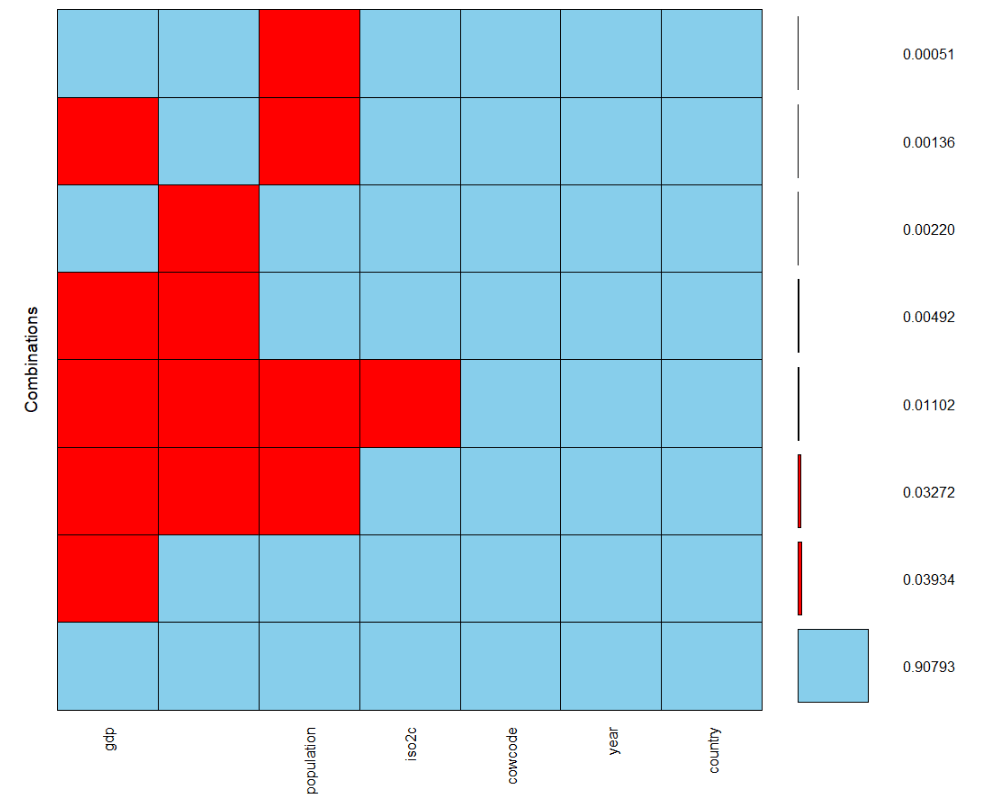
Let’s look at the prevalence of NA values across our dataset.

We can use the plot_missing() function from the states package.

plot_missing(df_v3, ccode = "cowcode")

It is good to see a lot of green!

Let’s add some constant variables, such as geographical information. The rnaturalearth package is great for plotting maps. Click here to see how to plot maps with the package.

For this dataset, we just want the various geography group variables to add to our dataset:

map <- ne_countries(scale = "medium", returnclass = "sf")

We want to take some of the interesting variables from this map object:

map %>% 
  select(admin, economy, income_grp, continent, region_un, subregion, region_wb) -> regions_sf

This regions_sf is not in a data.frame object, it is a simple features dataset. So we delete the variables that make it an sf object and explicitly coerce it to data.frame

regions_sf$geometry<- NULL
regions_df <- as.data.frame(regions_sf)

Finally, we add our COW codes like we did above:

regions_df$cow_code <- countrycode(regions_df$admin, "country.name", "cown")
Warning message:
In countrycode(regions_df$admin, "country.name", "cown") :

Some values were not matched unambiguously: Antarctica, Kashmir, Republic of Serbia, Somaliland, Western Sahara

Sometimes we cannot avoid hand-coding some of our variables. In this case, we don’t want to drop Serbia because the countrycode function couldn’t add the right code.

So we can check what its COW code is and add it to the dataset directly with the mutate function and an ifelse condition:

regions_df %<>% 
  dplyr::mutate(cow_code = ifelse(admin == "Republic of Serbia", 345, cow_code))

If we look at the countries, we can spot a problem. For Cyprus, it was counted twice – due to the control by both Turkish and Greek authorities. We can delete one of the versions because all the other World Bank variables look at Cyprus as one entity so they will be the same across both variables.

regions_df <- regions_df %>% slice(-c(38)) 

Next we merge the new geography variables to our dataset. Note that we only merge by one variable – the COW code – and indicate that we want to merge for every row in the x dataset (i.e. the first dataset in the function). So it will apply to each year row for each country!

df_v4 <- merge(df_v3, regions_df, by.x = "cowcode", by.y = "cow_code", all.x = TRUE)

So far so good! We have some interesting variables all without having to open a single CSV or DTA file!

Let’s look at the NA values in the data.frame

nhanes_miss = VIM::aggr(df_v3,
                   labels = names(df_v3), 
                   sortVars = TRUE,
                   numbers = TRUE)

We with the aggr() function from the VIM package to look at the prevalence of NA values. It’s always good to keep an eye on this and catch badly merged or badly specified datasets!

Click here for PART 2, where we add some Correlates of War data and interesting variables with the peacesciencer package .

Always Sunny Dance GIF by It's Always Sunny in Philadelphia - Find & Share on GIPHY

Compare Irish census years with compareBars and csodata package in R

Packages we will need:

library(csodata)
library(janitor)
library(ggcharts)
library(compareBars)
library(tidyverse)

First, let’s download population data from the Irish census with the Central Statistics Office (CSO) API package, developed by Conor Crowley.

You can search for the data you want to analyse via R or you can go to the CSO website and browse around the site.

I prefer looking through the site because sometimes I stumble across a dataset I didn’t even think to look for!

Keep note of the code beside the red dot star symbol if you’re looking around for datasets.

Click here to check out the CRAN PDF for the CSO package.

You can search for keywords with cso_search_toc(). I want total population counts for the whole country.

cso_search_toc("total population")

We can download the variables we want by entering the code into the cso_get_data() function

irish_pop <- cso_get_data("EY007")
View(irish_pop)

The EY007 code downloads population census data in both 2011 and 2016 at every age.

It needs a little bit of tidying to get it ready for graphing.

irish_pop %<>%  
  clean_names()

First, we can be lazy and use the clean_names() function from the janitor package.

GIF by The Good Place - Find & Share on GIPHY

Next we can get rid of the rows that we don’t want with select().

Then we use the pivot_longer() function to turn the data.frame from wide to long and to turn the x2011 and x2016 variables into one year variable.

irish_pop %>% 
  filter(at_each_year_of_age == "Population") %>% 
  filter(sex == 'Both sexes') %>% 
  filter(age_last_birthday != "All ages") %>% 
  select(!statistic) %>% 
  select(!sex) %>% 
  select(!at_each_year_of_age) -> irish_wide

irish_wide %>% 
  pivot_longer(!age_last_birthday,
    names_to = "year", 
    values_to = "pop_count",
    values_drop_na = TRUE) %>% 
    mutate(year = as.factor(year)) -> irish_long

No we can create our pyramid chart with the pyramid_chart() from the ggcharts package. The first argument is the age category for both the 2011 and 2016 data. The second is the actual population counts for each year. Last, enter the group variable that indicates the year.

irish_long %>%   
  pyramid_chart(age_last_birthday, pop_count, year)

One problem with the pyramid chart is that it is difficult to discern any differences between the two years without really really examining each year.

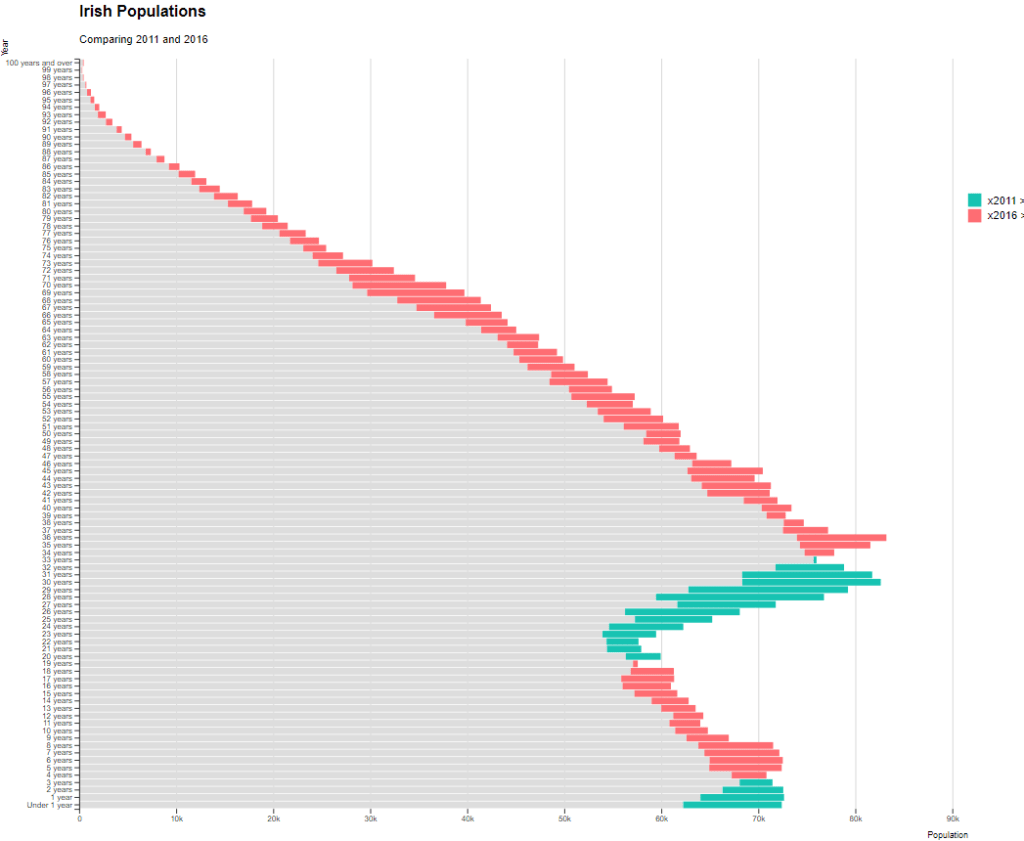
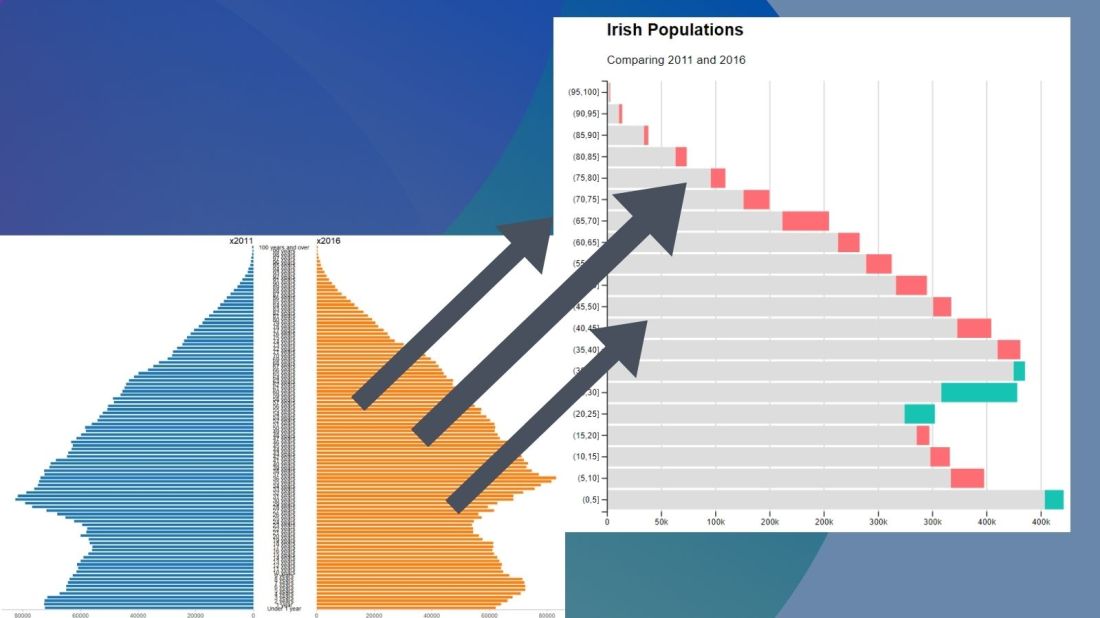
One way to more easily see the differences with the compareBars function

The compareBars package created by David Ranzolin can help to simplify comparative bar charts! It’s a super simple function to use that does a lot of visualisation leg work under the hood!

First we need to pivot the data.frame back to wide format and then input the age, and then the two groups – x2011 and x2016 – in the compareBars() function.

We can add more labels and colors to customise the graph also!

irish_long %>% 
  pivot_wider(names_from = year, values_from = pop_count) %>% 
  compareBars(age_last_birthday, x2011, x2016, orientation = "horizontal",
              xLabel = "Population",
              yLabel = "Year",
              titleLabel = "Irish Populations",
              subtitleLabel = "Comparing 2011 and 2016",
              fontFamily = "Arial",
              compareVarFill1 = "#FE6D73",
              compareVarFill2 = "#17C3B2") 

We can see that under the age of four-ish, 2011 had more at the time. And again, there were people in their twenties in 2011 compared to 2016.

However, there are more older people in 2016 than in 2011.

Similar to above it is a bit busy! So we can create groups for every five age years categories and examine the broader trends with fewer horizontal bars.

First we want to remove the word “years” from the age variable and convert it to a numeric class variable. We can easily do this with the parse_number() function from the readr package

irish_wide %<>% 
mutate(age_num = readr::parse_number(as.character(age_last_birthday))) 

Next we can group the age years together into five year categories, zero to 5 years, 6 to 10 years et cetera.

We use the cut() function to divide the numeric age_num variable into equal groups. We use the seq() function and input age 0 to 100, in increments of 5.

irish_wide$age_group = cut(irish_wide$age_num, seq(0, 100, 5))

Next, we can use group_by() to calculate the sum of each population number in each five year category.

And finally, we use the distinct() function to remove the duplicated rows (i.e. we only want to keep the first row that gives us the five year category’s population count for each category.

irish_wide %<>% 
  group_by(age_group) %>% 
  mutate(five_year_2011 = sum(x2011)) %>% 
  mutate(five_year_2016 = sum(x2016)) %>% 
  distinct(five_year_2011, five_year_2016, .keep_all = TRUE)

Next plot the bar chart with the five year categories

compareBars(irish_wide, age_group, five_year_2011, five_year_2016, orientation = "horizontal",
              xLabel = "Population",
              yLabel = "Year",
              titleLabel = "Irish Populations",
              subtitleLabel = "Comparing 2011 and 2016",
              fontFamily = "Arial",
              compareVarFill1 = "#FE6D73",
              compareVarFill2 = "#17C3B2") 

irish_wide2 %>% 
  select(age_group, five_year_2011, five_year_2016) %>% 
  pivot_longer(!age_group,
             names_to = "year", 
             values_to = "pop_count",
             values_drop_na = TRUE) %>% 
  mutate(year = as.factor(year)) -> irishlong2

irishlong2 %>%   
  pyramid_chart(age_group, pop_count, year)

The Good Place Yes GIF by NBC - Find & Share on GIPHY

Graph linear model plots with sjPlots in R

This blog post will look at the plot_model() function from the sjPlot package. This plot can help simply visualise the coefficients in a model.

Packages we need:

library(sjPlot)
library(kable)

We can look at variables that are related to citizens’ access to public services.

This dependent variable measures equal access access to basic public services, such as access to security, primary education, clean water, and healthcare and whether they are distributed equally or unequally according to socioeconomic position.

Higher scores indicate a more equal society.

I will throw some variables into the model and see what relationships are statistically significant.

The variables in the model are

  • level of judicial constraint on the executive branch,
  • freedom of information (such as freedom of speech and uncensored media),
  • level of democracy,
  • level of regime corruption and
  • strength of civil society.

So first, we run a simple linear regression model with the lm() function:

summary(my_model <- lm(social_access ~ judicial_constraint +
        freedom_information +
        democracy_score + 
        regime_corruption +
        civil_society_strength, 
        data = df))

We can use knitr package to produce a nice table or the regression coefficients with kable().

I write out the independent variable names in the caption argument

I also choose the four number columns in the col.names argument. These numbers are:

  • beta coefficient,
  • standard error,
  • t-score
  • p-value

I can choose how many decimals I want for each number columns with the digits argument.

And lastly, to make the table, I can set the type to "html". This way, I can copy and paste it into my blog post directly.

my_model %>% 
tidy() %>%
kable(caption = "Access to public services by socio-economic position.", 
col.names = c("Predictor", "B", "SE", "t", "p"),
digits = c(0, 2, 3, 2, 3), "html")
Access to public services by socio-economic position
Predictor B SE t p
(Intercept) 1.98 0.380 5.21 0.000
Judicial constraints -0.03 0.485 -0.06 0.956
Freedom information -0.60 0.860 -0.70 0.485
Democracy Score 2.61 0.807 3.24 0.001
Regime Corruption -2.75 0.381 -7.22 0.000
Civil Society Strength -1.67 0.771 -2.17 0.032
Kristin Cavallari GIF by E! - Find & Share on GIPHY

Higher democracy scores are significantly and positively related to equal access to public services for different socio-economic groups.

There is no statistically significant relationship between judicial constraint on the executive.

But we can also graphically show the coefficients in a plot with the sjPlot package.

There are many different arguments you can add to change the colors of bars, the size of the font or the thickness of the lines.

p <-  plot_model(my_model, 
      line.size = 8, 
      show.values = TRUE,
      colors = "Set1",
      vline.color = "#d62828",
      axis.labels = c("Civil Society Strength",  "Regime Corruption", "Democracy Score", "Freedom information", "Judicial constraints"), title = "Equal access to public services distributed by socio-economic position")

p + theme_sjplot(base_size = 20)

So how can we interpret this graph?

If a bar goes across the vertical red line, the coefficient is not significant. The further the bar is from the line, the higher the t-score and the more significant the coefficient!

Make a timeline graph with dates in ggplot2

We will use the geom_segment layer from ggplot2 to make a timeline graph!

This layer takes

  • x and xend for the start of the segment lines
  • y and yend inputs for the end of the segment lines

For our timeline, the x will be the start of each Irish Taoiseach’s term.

The xend will be the end of their term, when they get kicked out of office.

Taoisigh (plural of Taoiseach) are Irish prime ministers and are in charge of the executive branch when their party is in change.

For Ireland, that means that basically every Taoiseach has been the leader of one of the two main parties – Fianna Fail or Fine Gael.

Not very exciting.

Also they have all been men.

This is also not very exciting.

We have a bit more to go with increasing the diversity in Ireland’s top job.

The y argument is the Taoiseach number in office. Although there have been fifteen men that have held the office of Taoiseach, this does not mean that they only held office for one time only.

Ireland has a parliamentary system so when a party loses an election, the former Taoiseach can become the leader of the opposition and hope in the future they can become Taoiseach again. Some men have been Taoiseach two or three times in non-consecutive terms.

When we are adding the labels with the geom_text() layer, I created an order variable which indicates the first time each man took the office of Taoiseach.

This is so I only have the name of each man only once in the graph. If we don’t do this step, if a man held office more than once, their name appears every time on the graph and the plot becomes a crowded mess.

I add the ifelse statement so that the first name appears after the segment line and therefore text does not take up too much room on the left edge of the graph.

Last we use the scale_color_manual() function with nice hex colors for each of the political parties.

time_line <- df %>% 
 ggplot(aes(x = as.Date(start), y = number, color = party_factor)) +
 geom_segment(aes(xend = as.Date(end), yend = number, color =  party_factor), size = 6) +
 geom_text(aes(label = order, hjust = ifelse(taoiseach_number < 2, -0.7, 1.1)), size = 8, show.legend = FALSE) +
 scale_color_manual(values = c("Fine Gael" = "#004266", "Fianna Fáil" = "#FCB322", "Cumann na nGaedheal" = "#D62828"))

I increase the limits of the graph to accommodate the name labels. Most of the time, these extra bits of code in ggplot2 depend on the type of data you have and what fits on the graph plane nicely!

So this stages is often only finished after trial-and-error.

I add a snazzy theme_fivethirtyeight() theme from ggthemes package.

Last, with the theme() function, we can remove most of the elements of the graph to make the graph cleaner.

time_line <- time_line + 
  expand_limits(x = as.Date("1915-01-01")) +
  theme_fivethirtyeight() +
  theme(legend.position = "top",
        legend.title = element_blank(),
        legend.direction = "vertical",
        axis.title.y = element_blank(),
        axis.text.y = element_blank(),
        text = element_text(size = 20)) +
  labs(title = "Taoiseach Terms in Ireland",
 subtitle = "From 1922 to 2021") 

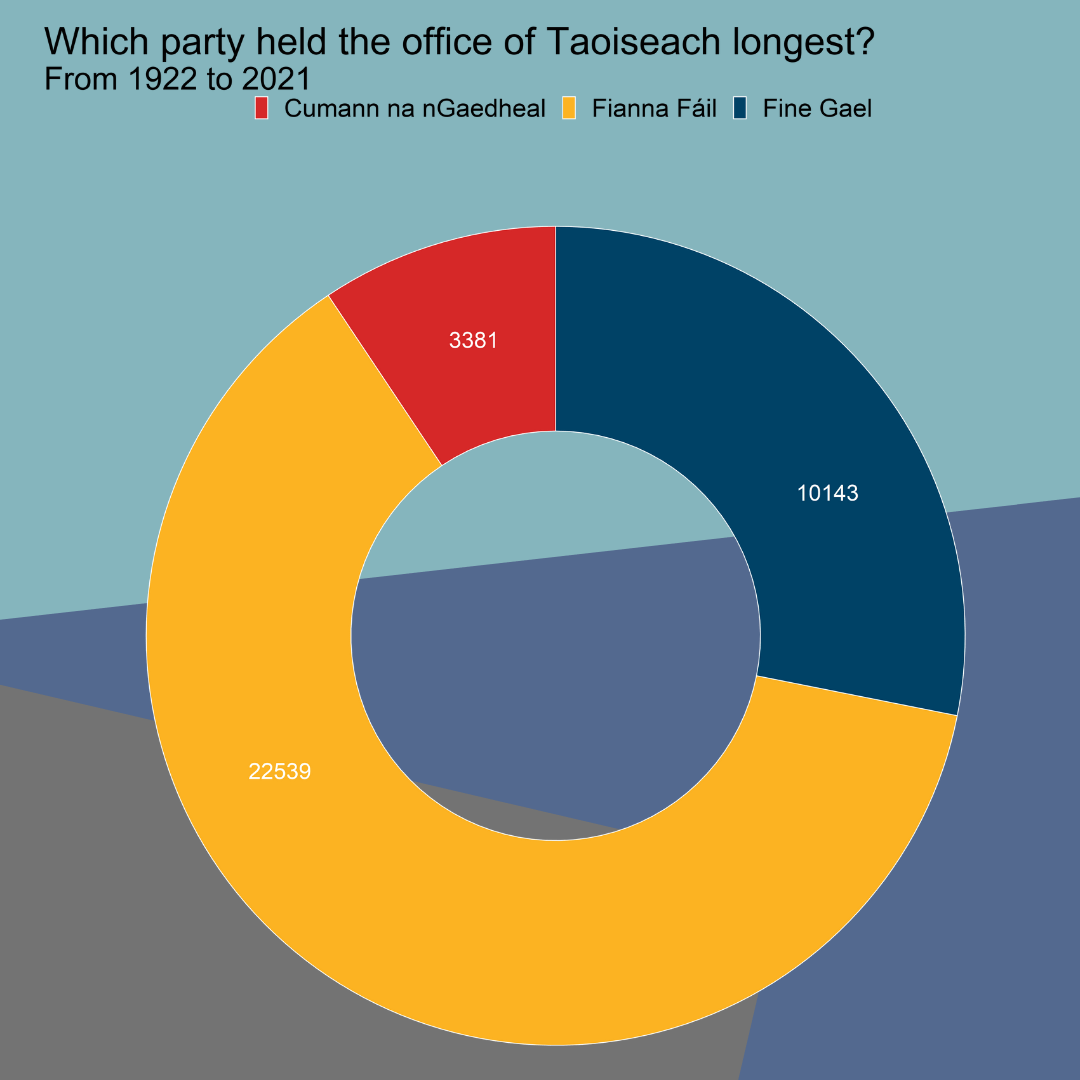
We can also create the pie chart to see which party has held power longest in Ireland.

With dplyr we can subtract the start date from the end date and add all the Taoiseach durations (in days) together with the cumsum() argument.

We then choose the highest duration value for each party with the slice(which.max()) functions.

I was lazy and I just re-wrote the values in a new data.frame and called it counts.

df %>%
  group_by(party_factor) %>% 
  dplyr::summarise(max_count = cumsum(duration_number)) %>%  
  slice(which.max(max_count)) %>% 
  select(party_factor, max_count) %>% 
  arrange(desc(max_count))

counts <- data.frame(group = c("Cumann na nGaedheal", "Fine Gael" ,"Fianna Fáil"), 
                     value = c(3381, 10143, 22539))

Create proportion values for our pie-chart graph. To do this divide value by the sum of the values and multiply by 100.

data <- counts %>% 
  arrange(desc(group)) %>%
  dplyr::mutate(prop = value / sum(value) * 100) 

Change the numeric variables to factors.

data$duration <- as.factor(data$value)
data$party_factor <- as.factor(data$group)

We use the coord_polar() to create the piechart. To learn more, check out the r-graph-gallery page about creating pie-charts:

pie_chart <- ggplot(data, aes(x = ", y = prop, fill = group)) + geom_bar(stat = "identity", width = 1, color = "white") + coord_polar("y", start = 0) +

theme(legend.position = "none") + scale_fill_manual(values = c("Fine Gael" = "#004266", "Fianna Fáil" = "#FCB322", "Cumann na nGaedheal" = "#D62828")) +
 labs(title = "Which party held the office of Taoiseach longest?", subtitle = "From 1922 to 2021")

We can tidy up the plot and get rid of theme elements we don’t want with theme_void()

pie_chart <- pie_chart + theme_void() + theme(legend.title = element_blank(), legend.position = none, text = element_text(size = 40))

I want to add both graphs together so I can save the pie chart with a transparent background with the ggsave() function. I also make sure the lines are not jagged with the type = "cairo" from with Cairo package.

ggsave(pie_chart, file="pie_chart.png", type="cairo", bg = "transparent", width = 50, height = 50, units = "cm")

And we can use canva.com to add them together and create a single chart

And viola!

Examining speeches from the UN Security Council Part 1

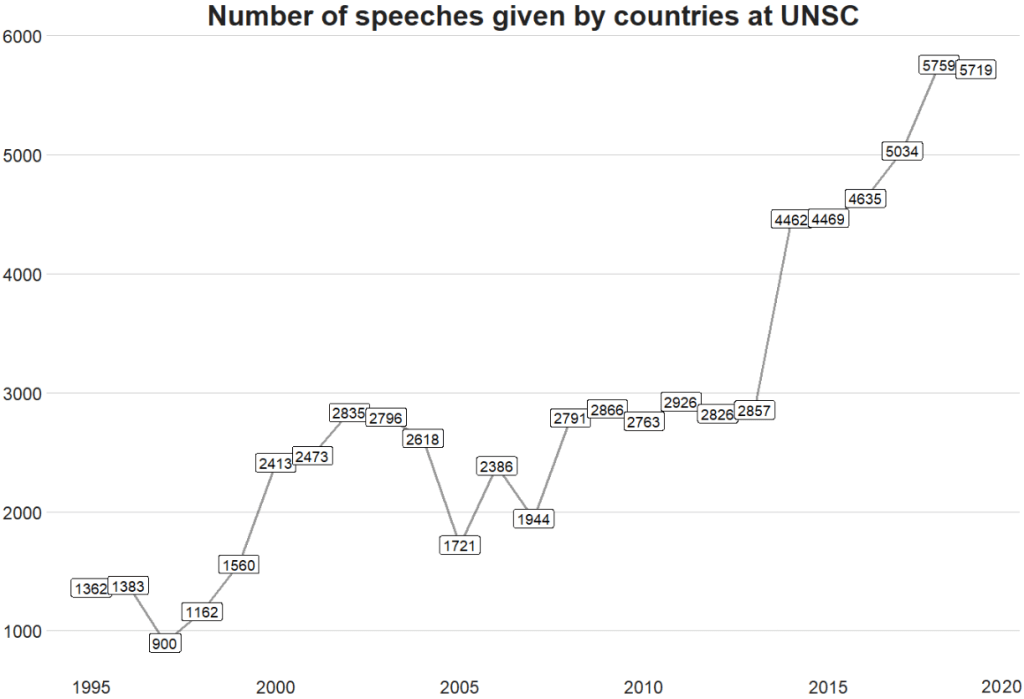
Let’s look at how many speeches took place at the UN Security Council every year from 1995 until 2019.

Hesitate Episode 16 GIF by The Simpsons - Find & Share on GIPHY

I want to only look at countries, not organisations. So a quick way to do that is to add a variable to indicate whether the speaker variable has an ISO code.

Only countries have ISO codes, so I can use this variable to filter away all the organisations that made speeches

library(countrycode)

speech$iso2 <- countrycode(speech$country, "country.name", "iso2c")

library(bbplot)

speech %>% 
  dplyr::filter(!is.na(iso2)) %>% 
  group_by(year) %>% 
  count() %>% 
  ggplot(aes(x = year, y = n)) + 
  geom_line(size = 1.2, alpha = 0.4) +
  geom_label(aes(label = n)) +
  bbplot::bbc_style() +
  theme(plot.title = element_text(hjust = 0.5)) +
  labs(title = "Number of speeches given by countries at UNSC")

We can see there has been a relatively consistent upward trend in the number of speeches that countries are given at the UN SC. Time will tell what impact COVID will have on these trends.

There was a particularly sharp increase in speeches in 2015.

We can look and see who was talking, and in the next post, we can examine what they were talking about in 2015 with some simple text analytic packages and functions.

First, we will filter only the year 2015 and count the number of observations per group (i.e. the number of speeches per country this year).

To add flags to the graph, add the iso2 code to the dataset (and it must be in lower case).

Click here to read more about adding circular flags to graphs and maps

speech %>% 
  dplyr::filter(year == 2015) %>% 
  group_by(country) %>% 
  dplyr::summarise(speech_count = n()) -> speech_2015

speech_2015$iso2_lower <- tolower(speech_2015$iso2)

We can clean up the names and create a variable that indicates whether the country is one of the five Security Council Permanent Members, a Temporary Member elected or a Non-,ember.

I also clean up the names to make the country’s names in the dataset smaller. For example, “United Kingdom Of Great Britain And Northern Ireland”, will be very cluttered in the graph compared to just “UK” so it will be easier to plot.

library(ggflags)
library(ggthemes)

speech_2015 %>% 
# To avoid the graph being too busy, we only look at countries that gave over 20 speeches
  dplyr::filter(speech_count > 20) %>% 

# Clean up some names so the graph is not too crowded
  dplyr::mutate(country = ifelse(country == "United Kingdom Of Great Britain And Northern Ireland", "UK", country)) %>%
  dplyr::mutate(country = ifelse(country == "Russian Federation", "Russia", country)) %>%
  dplyr::mutate(country = ifelse(country == "United States Of America", "USA", country)) %>%
  dplyr::mutate(country = ifelse(country == "Republic Of Korea", "South Korea", country)) %>%
  dplyr::mutate(country = ifelse(country == "Venezuela (Bolivarian Republic Of)", "Venezuela", country)) %>% 
  dplyr::mutate(country = ifelse(country == "Islamic Republic Of Iran", "Iran", country)) %>% 
  dplyr::mutate(country = ifelse(country == "Syrian Arab Republic", "Syria", country)) %>% 
 
# Create a Member status variable:
# China, France, Russia, the United Kingdom, and the United States are UNSC Permanent Members
  dplyr::mutate(Member = ifelse(country == "UK", "Permanent", 
  ifelse(country == "USA", "Permanent",
  ifelse(country == "China", "Permanent",
  ifelse(country == "Russia", "Permanent",
  ifelse(country == "France", "Permanent",

# Non-permanent members in their first year (elected October 2014)
  ifelse(country == "Angola", "Temporary (Elected 2014)",
  ifelse(country == "Malaysia", "Temporary (Elected 2014)",              
  ifelse(country == "Venezuela", "Temporary (Elected 2014)",       
  ifelse(country == "New Zealand", "Temporary (Elected 2014)",
  ifelse(country == "Spain", "Temporary (Elected 2014)",                 

# Non-permanent members in their second year (elected October 2013)        
  ifelse(country == "Chad", "Temporary (Elected 2013)",                                                               
  ifelse(country == "Nigeria", "Temporary (Elected 2013)",
  ifelse(country == "Jordan", "Temporary (Elected 2013)",
  ifelse(country == "Chile", "Temporary (Elected 2013)",
  ifelse(country == "Lithuania", "Temporary (Elected 2013)", 
 
# Non members that will join UNSC next year (elected October 2015)          
  ifelse(country == "Egypt", "Non-Member (Elected 2015)",                                                               
  ifelse(country == "Sengal", "Non-Member (Elected 2015)",
  ifelse(country == "Uruguay", "Non-Member (Elected 2015)",
  ifelse(country == "Japan", "Non-Member (Elected 2015)",
  ifelse(country == "Ukraine", "Non-Member (Elected 2015)", 

# Everyone else is a regular non-member           
               "Non-Member"))))))))))))))))))))) -> speech_2015

When we have over a dozen nested ifelse() statements, we will need to check that we have all our corresponding closing brackets.

Next choose some colours for each Memberships status. I always take my hex values from https://coolors.co/

membership_palette <- c("Permanent" = "#e63946", "Non-Member" = "#2a9d8f", "Non-Member (Elected 2015)" = "#a8dadc", "Temporary (Elected 2013)" = "#457b9d","Temporary (Elected 2014)" = "#1d3557")
Season 4 Applause GIF by The Simpsons - Find & Share on GIPHY

And all that is left to do is create the bar chart.

With geom_bar(), we can indicate stat = "identity" because we are giving the plot the y values and ggplot does not need to do the automatic aggregation on its own.

To make sure the bars are descending from most speeches to fewest speeches, we use the reorder() function. The second argument is the variable according to which we want to order the bars. So for us, we give the speech_count integer variable to order our country bars with x = reorder(country, speech_count).

We can change the bar from vertical to horizontal with coordflip().

I add flags with geom_flag() and feed the lower case ISO code to the country = iso2_lower argument.

I add the bbc_style() again because I like the font, size and sparse lines on the plot.

We can move the title of the plot into the centre with plot.title = element_text(hjust = 0.5))

Finally, we can supply the membership_palette vector to the values = argument in the scale_fill_manual() function to specify the colours we want.

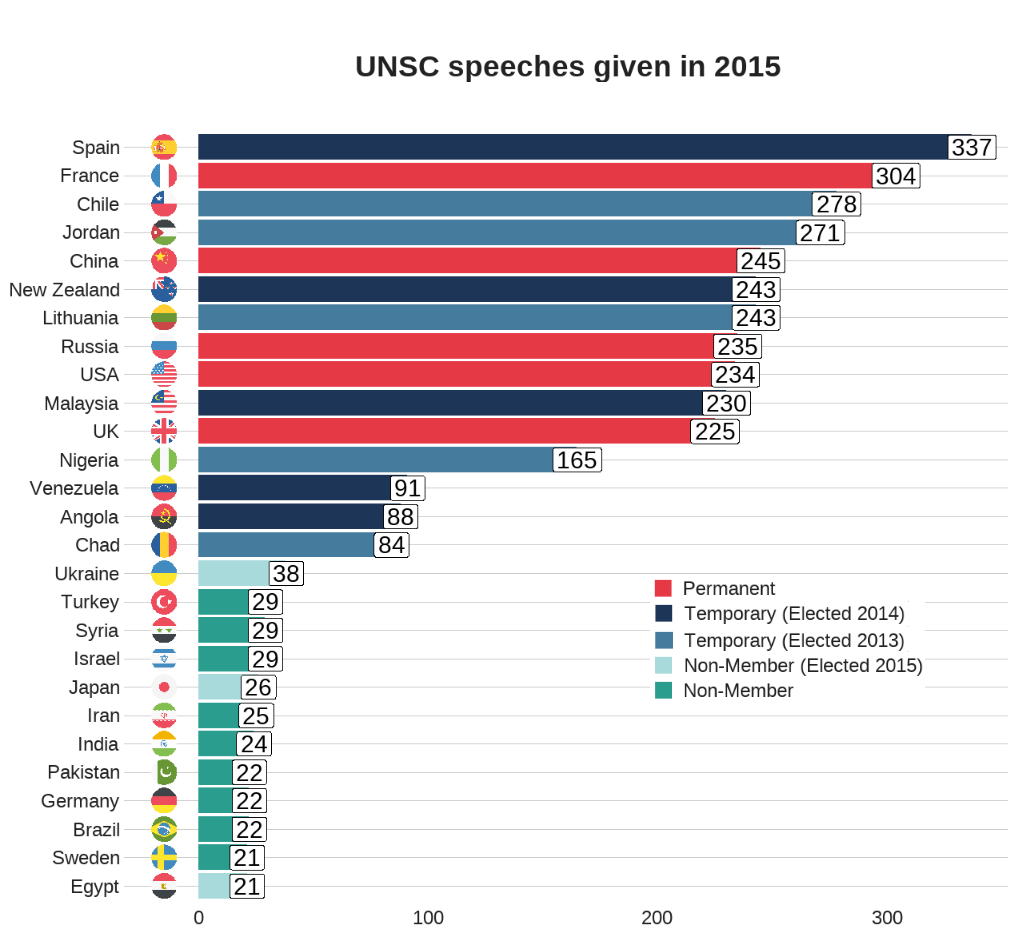
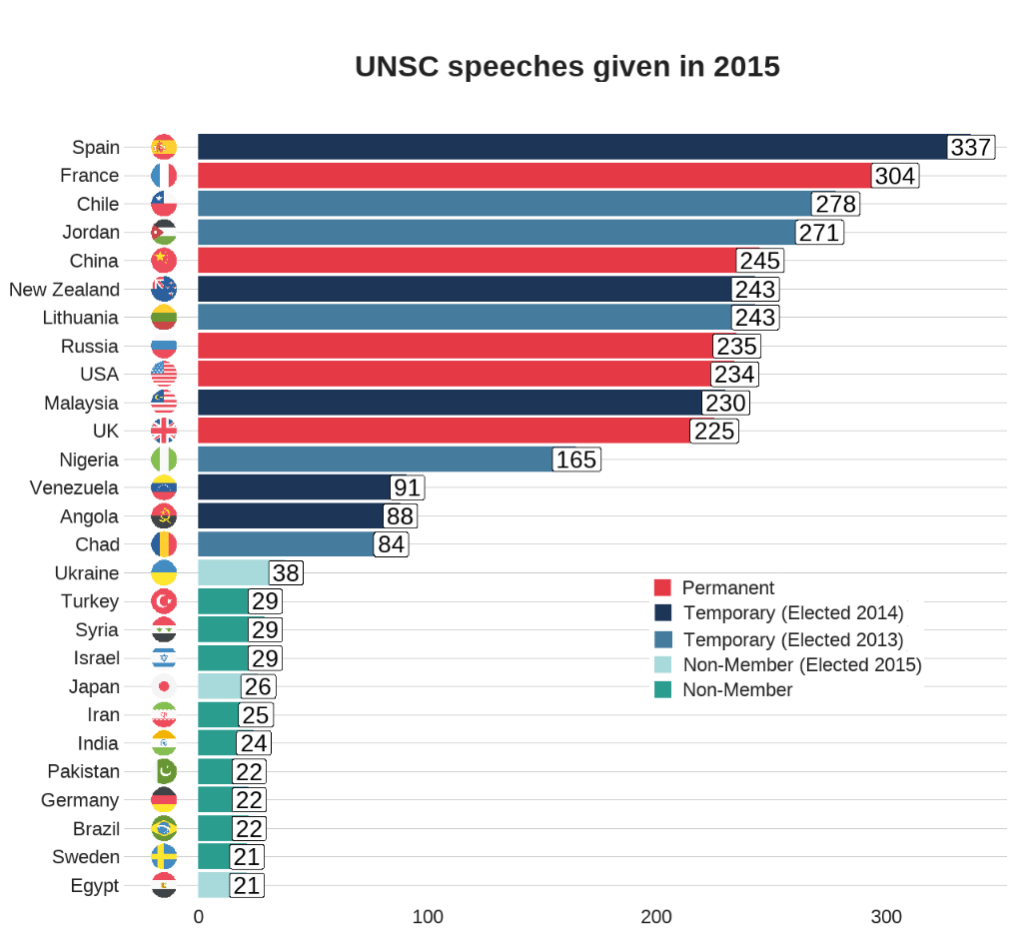
speech_2015 %>%  ggplot(aes(x = reorder(country, speech_count), y = speech_count)) + 
  geom_bar(stat = "identity", aes(fill = as.factor(Member))) +
  coord_flip() +
  ggflags::geom_flag(mapping = aes(y = -15, x = country, country = iso2_lower), size = 10) +
  geom_label(mapping = aes( label = speech_count), size = 8) +
  theme(legend.position = "top") + 
  labs(title = "UNSC speeches given in 2015", y = "Number of speeches", x = "") +
  bbplot::bbc_style() +
  theme(text = element_text(size = 20),
  plot.title = element_text(hjust = 0.5)) +
  scale_fill_manual(values =  membership_palette)

In the next post, we will look at the texts themselves. Here is a quick preview.

library(tidytext)

speech_tokens <- speech %>%
  unnest_tokens(word, text) %>% 

  anti_join(stop_words)

We count the number of tokens (i.e. words) for each country in each year. With the distinct() function we take only one observation per year per country. This reduces the number of rows from 16601520 in speech_tokesn to 3142 rows in speech_words_count :

speech_words_count <- speech_tokens %>%
  group_by(year, country) %>%
  mutate(word_count = n_distinct(word)) %>%
  select(country, year, word_count, permanent, iso2_lower) %>%
  distinct() 

Subset the data.frame to only plot the five Permanent Members. Now we only have 125 rows (25 years of total annual word counts for 5 countries!)

permanent_words_summary <- speech_words_count %>% 
  filter(permanent == 1) 

Choose some nice hex colors for my five countries:

five_pal <- c("#ffbc42","#d81159","#8f2d56","#218380","#73d2de")

It is a bit convoluted to put the flags ONLY at the start and end of the lines. We need to subset the dataset two times with the geom_flag() sections. First, we subset the data.frame to year == 1995 and the flags appear at the start of the word_count on the y axis. Then we subset to year == 2019 and do the same

ggplot(data = permanent_word_summary) +
  geom_line(aes(x = year, y = word_count, group = as.factor(country), color = as.factor(country)), 
size = 2) +
  ggflags::geom_flag(data = subset(permanent_word_summary, year == 1995), aes(x = 1995, y = word_count,  country = iso2_lower), size = 9) +
  ggflags::geom_flag(data = subset(permanent_word_summary, 
year == 2019), 
aes(x = 2019, 
y = word_count, 
country = iso2_lower), 
size = 12) + 
  bbplot::bbc_style() +
 theme(legend.position = "right") + labs(title = "Number of words spoken by Permanent Five in the UN Security Council") + 
  scale_color_manual(values = five_pal)

We can see that China has been the least chattiest country if we are measuring chatty with number of words spoken. Translation considerations must also be taken into account. We can see here again at around the 2015 mark, there was a discernible increase in the number of words spoken by most of the countries!

Episode 16 GIF by The Simpsons - Find & Share on GIPHY

Improve your visualizations with ggsave in R

When we save our plots and graphs in R, we can use the ggsave() function and specify the type, size and look of the file.

We are going to look two features in particular: anti-aliasing lines with the Cairo package and creating transparent backgrounds.

Make your graph background transparent

First, let’s create a pie chart with a transparent background. The pie chart will show which party has held the top spot in Irish politics for the longest.

After we prepare and clean our data of Irish Taoisigh start and end dates in office and create a doughnut chart (see bottom of blog for doughnut graph code), we save it to our working directory with ggsave().

To see where we set that to, we can use getwd().

ggsave(pie_chart, filename = 'pie_chart.png', width = 50, height = 50, units = 'cm')

If we want to add our doughnut chart to a power point but we don’t want it to be a white background, we can ask ggsave to save the chart as transparent and then we can add it to our powerpoint or report!

To do this, we specify bg argument to "transparent"

ggsave(pie_chart, filename = 'pie_chart_transparent.png', bg = "transparent", width = 50, height = 50, units = 'cm')

This final picture was made in canva.com

Hex color values come from coolors.co

Remove aliasing lines

Aliasing lines are jagged and pixelated.

When we save our graph in R with ggsave(), we can specify in the type argument that we want type = cairo.

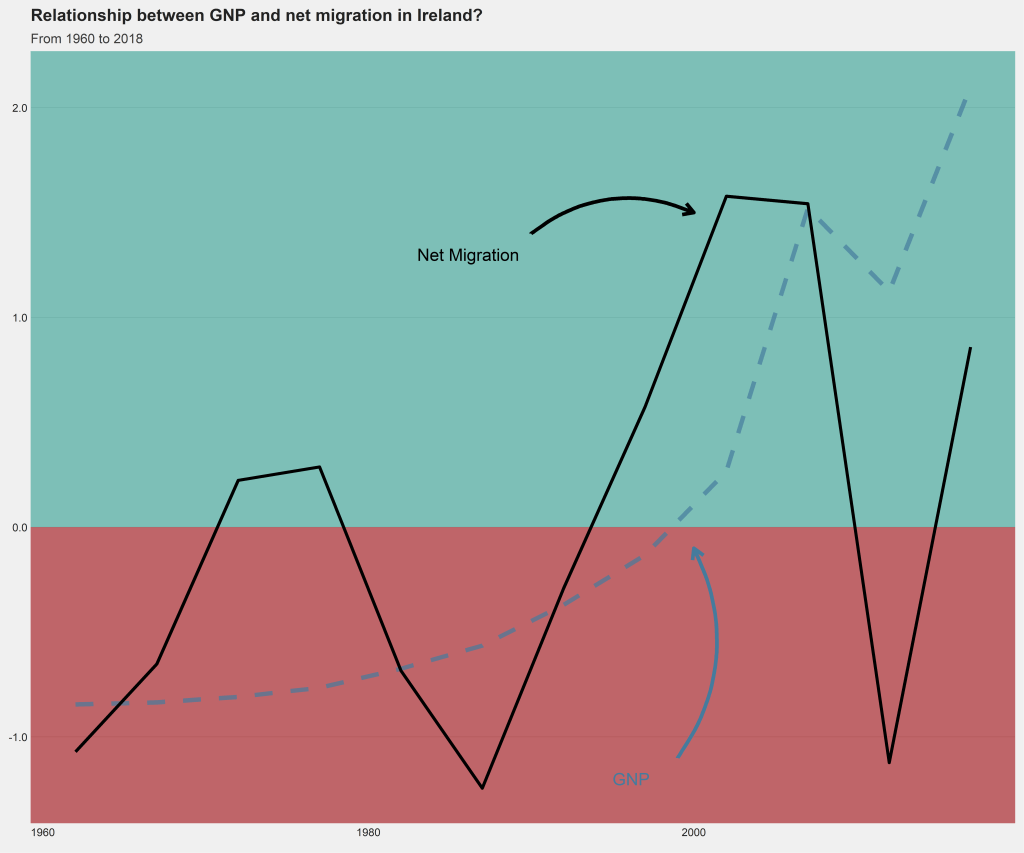
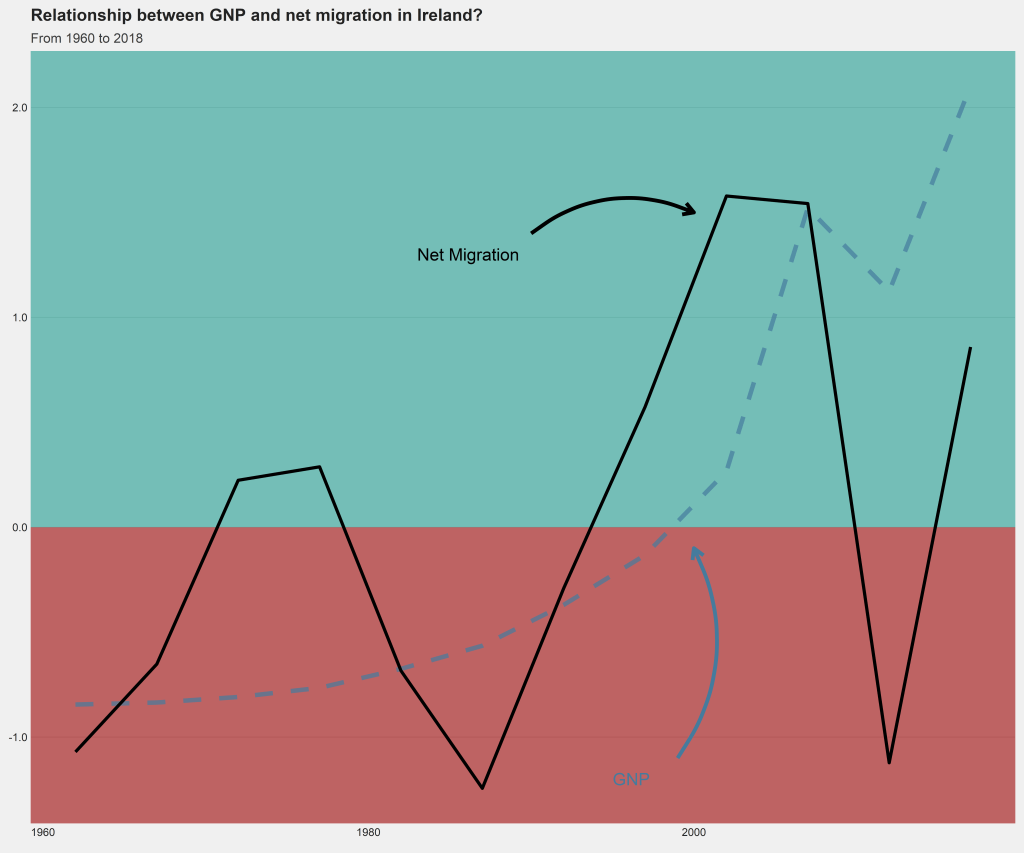
I make a quick graph that looks at the trends in migration and GDP from 1960s to 2018 in Ireland. I made the lines extra large to demonstrate the difference between aliased and anti-aliased lines in the graphs.

library(Cairo)
ggsave(mig_trend, file="mig_alias.png", width = 80, height = 50, units = "cm")
ggsave(mig_trend, file="mig_antialias.png", type="cairo-png", dpi = 300,
 width = 80, height = 50, units = "cm")

When we zoom in, we can see the difference due to the anti-aliasing.

First, picture 1 appears far more jagged when we zoom in :

Figure 1: Aliased lines

And after we add Cairo package adjustment, we can see the lines are smoother in figure 2

Figure 2: Anti-aliasing lines

Doughnut graph code:

terms$duration <- as.Date(terms$end) - as.Date(terms$start)
terms$duration_number <- as.numeric(terms$duration)

terms %>%
  group_by(party) %>% 
  dplyr::summarise(max_count = cumsum(duration_number)) %>%  
  slice(which.max(max_count)) %>% 
  select(party, max_count) %>% 
  arrange(desc(max_count))

counts <- data.frame(party = c("Cumann na nGaedheal", "Fine Gael" ,"Fianna Fáil"), 
                     value = c(3381, 10143, 22539))

data <- counts %>% 
  arrange(desc(party)) %>%
  dplyr::mutate(proportion = value / sum(counts$value)*100) %>%
  dplyr::mutate(ypos = cumsum(prop)- 0.35*proportion)

data$duration <- as.factor(data$value)
data$party_factor <- as.factor(data$party)


pie_chart <- ggplot(data, aes(x = 2, y = proportion, fill = party)) +
  geom_bar(stat = "identity", width = 1, color = "white") +
  coord_polar("y", start = 0) +
  xlim(0.5, 2.5) +
  theme(legend.position="none") +
  geom_text(aes(y = ypos-1, label = duration), color = "white", size = 10) +
  scale_fill_manual(values = c("Fine Gael" = "#004266", "Fianna Fáil" = "#FCB322", "Cumann na nGaedheal" = "#D62828")) +
  labs(title = "Which party held the office of Taoiseach longest?",
       subtitle = "From 1922 to 2021")

pie_chart <- pie_chart + theme_void() + theme(legend.title = element_blank(), 
                                 legend.position = "top",
                                 text = element_text(size = 25))

Migration and GNP trend graph code:

migration_trend <- ire_scale %>% 
  dplyr::filter(!is.na(mig_value)) %>% 
  ggplot() + 
  geom_rect(aes(ymin= 0, ymax = -Inf, xmin =-Inf, xmax =Inf), fill = "#9d0208", colour = NA, alpha = 0.07) +
  geom_rect(aes(ymin= 0, ymax = Inf, xmin =-Inf, xmax =Inf), fill = "#2a9d8f", colour = NA, alpha = 0.07) +
  geom_line(aes(x = year, y = gnp_scale), linetype = "dashed", color = "#457b9d", size = 3.5, alpha = 0.7) +
  geom_line(aes(x = year, y = mig_scale), size = 2.5) +
  labs(title = "Relationship between GNP and net migration in Ireland?",
       subtitle = "From 1960 to 2018")


mig_trend <- migration_trend + 
  annotate(geom = "text", x = 1983, y = 1.3, label = "Net Migration", size = 10, hjust = "left") +
  annotate(geom = "curve", x = 1990, y = 1.4, xend = 2000, yend = 1.5, curvature = -0.3, arrow = arrow(length = unit(0.7, "cm")), size = 3) +
  annotate(geom = "text", x = 1995, y = -1.2, label = "GNP", color = "#457b9d", size = 10, hjust = "left") +
  annotate(geom = "curve", x = 1999, y = -1.1, xend = 2000, color = "#457b9d", yend = -0.1, curvature = 0.3, arrow = arrow(length = unit(0.7, "cm")), size = 3)

mig_trend <- mig_trend  + 
  theme_fivethirtyeight() + 
  scale_y_continuous(name = "Net Migration", labels = comma) +
  bbplot::bbc_style() +
  theme(text = element_text(size = 25))

Create a correlation matrix with GGally package in R

We can create very informative correlation matrix graphs with one function.

Packages we will need:

library(GGally)
library(bbplot) #for pretty themes

First, choose some nice hex colors.

my_palette <- c("#005D8F", "#F2A202")
Happy Friends GIF by netflixlat - Find & Share on GIPHY

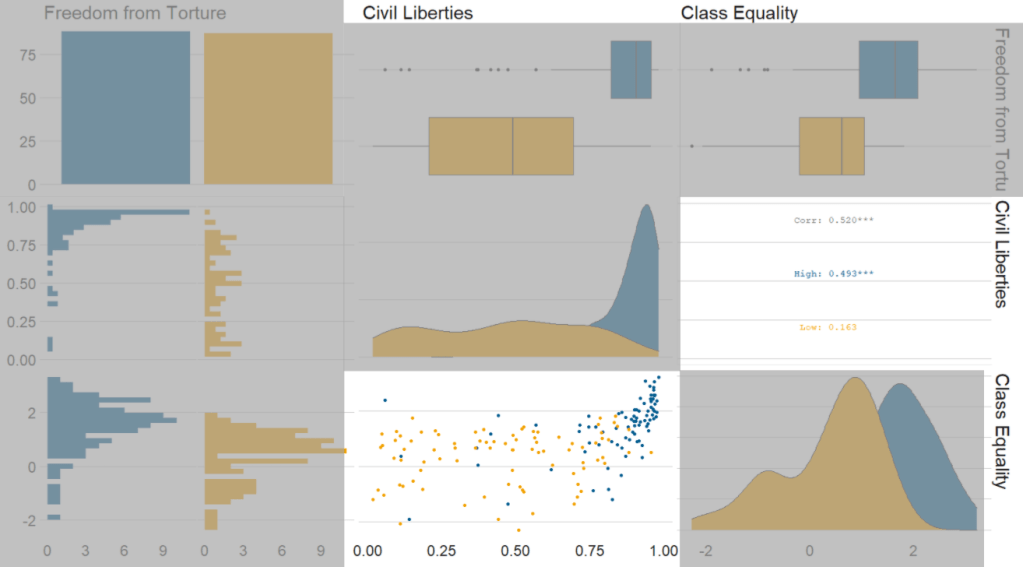
Next, we can go create a dichotomous factor variable and divide the continuous “freedom from torture scale” variable into either above the median or below the median score. It’s a crude measurement but it serves to highlight trends.

Blue means the country enjoys high freedom from torture. Yellow means the county suffers from low freedom from torture and people are more likely to be tortured by their government.

Then we feed our variables into the ggpairs() function from the GGally package.

I use the columnLabels to label the graphs with their full names and the mapping argument to choose my own color palette.

I add the bbc_style() format to the corr_matrix object because I like the font and size of this theme. And voila, we have our basic correlation matrix (Figure 1).

corr_matrix <- vdem90 %>% 
  dplyr::mutate(
    freedom_torture = ifelse(torture >= 0.65, "High", "Low"),
    freedom_torture = as.factor(freedom_t))
  dplyr::select(freedom_torture, civil_lib, class_eq) %>% 
  ggpairs(columnLabels = c('Freedom from Torture', 'Civil Liberties', 'Class Equality'), 
    mapping = ggplot2::aes(colour = freedom_torture)) +
  scale_fill_manual(values = my_palette) +
  scale_color_manual(values = my_palette)

corr_matrix + bbplot::bbc_style()
Figure 1.
Excited Season 4 GIF by Friends - Find & Share on GIPHY

First off, in Figure 2 we can see the centre plots in the diagonal are the distribution plots of each variable in the matrix

Figure 2.

In Figure 3, we can look at the box plot for the ‘civil liberties index’ score for both high (blue) and low (yellow) ‘freedom from torture’ categories.

The median civil liberties score for countries in the high ‘freedom from torture’ countries is far higher than in countries with low ‘freedom from torture’ (i.e. citizens in these countries are more likely to suffer from state torture). The spread / variance is also far great in states with more torture.

Figure 3.

In Figur 4, we can focus below the diagonal and see the scatterplot between the two continuous variables – civil liberties index score and class equality index scores.

We see that there is a positive relationship between civil liberties and class equality. It looks like a slightly U shaped, quadratic relationship but a clear relationship trend is not very clear with the countries with higher torture prevalence (yellow) showing more randomness than the countries with high freedom from torture scores (blue).

Saying that, however, there are a few errant blue points as outliers to the trend in the plot.

The correlation score is also provided between the two categorical variables and the correlation score between civil liberties and class equality scores is 0.52.

Examining at the scatterplot, if we looked only at countries with high freedom from torture, this correlation score could be higher!

Figure 4.

Excited Season 4 GIF by Friends - Find & Share on GIPHY

Add weights to survey data with survey package in R: Part 2

Click here to read why need to add pspwght and pweight to the ESS data in Part 1.

Packages we will need:

library(survey)
library(srvy)
library(stargazer)
library(gtsummary)
library(tidyverse)

Click here to learn how to access and download ESS round data for the thirty-ish European countries (depending on the year).

So with the essurvey package, I have downloaded and cleaned up the most recent round of the ESS survey, conducted in 2018.

We will examine the different demographic variables that relate to levels of trust in politicians across 29 European countries (education level, gender, age et cetera).

Before we create the survey weight objects, we can first make a bar chart to look at the different levels of trust in the different countries.

We can use the cut() function to divide the 10-point scale into three groups of “low”, “mid” and “high” levels of trust in politicians.

I also choose traffic light hex colors in color_palette vector and add full country names with countrycode() so it’s easier to read the graph

color_palette <- c("1" = "#f94144", "2" = "#f8961e", "3" = "#43aa8b")

round9$country_name <- countrycode(round9$country, "iso2c", "country.name")

trust_graph <- round9 %>% 
  dplyr::filter(!is.na(trust_pol)) %>% 
  dplyr::mutate(trust_category = cut(trust_pol, 
                                     breaks=c(-Inf, 3, 7, Inf), 
                                     labels=c(1,2,3))) %>% 
  mutate(trust_category = as.numeric(trust_category)) %>% 
  mutate(trust_pol_fac = as.factor(trust_category)) %>%
  ggplot(aes(x = reorder(country_name, trust_category))) +
  geom_bar(aes(fill = trust_pol_fac), 
               position = "fill") +
  bbplot::bbc_style() +
  coord_flip() 

trust_graph <- trust_graph + scale_fill_manual(values= color_palette, 
                                      name="Trust level",
                                      breaks=c(1,2,3),
                                      labels=c("Low", "Mid", "High")) 

The graph lists countries in descending order according to the percentage of sampled participants that indicated they had low trust levels in politicians.

The respondents in Croatia, Bulgaria and Spain have the most distrust towards politicians.

For this example, I want to compare different analyses to see what impact different weights have on the coefficient estimates and standard errors in the regression analyses:

  • with no weights (dEfIniTelYy not recommended by ESS)
  • with post-stratification weights only (not recommended by ESS) and
  • with the combined post-strat AND population weight (the recommended weighting strategy according to ESS)

First we create two special svydesign objects, with the survey package. To create this, we need to add a squiggly ~ symbol in front of the variables (Google tells me it is called a tilde).

The ids argument takes the cluster ID for each participant.

psu is a numeric variable that indicates the primary sampling unit within which the respondent was selected to take part in the survey. For example in Ireland, this refers to the particular electoral division of each participant.

The strata argument takes the numeric variable that codes which stratum each individual is in, according to the type of sample design each country used.

The first svydesign object uses only post-stratification weights: pspwght

Finally we need to specify the nest argument as TRUE. I don’t know why but it throws an error message if we don’t …

post_design <- svydesign(ids = ~psu, 
                         strata = ~stratum, 
                         weights = ~pspwght
                         data = round9, 
                         nest = TRUE)

To combine the two weights, we can multiply them together and store them as full_weight. We can then use that in the svydesign function

r2$full_weight <- r2$pweight*r2$pspwght
 

full_design <- svydesign(ids = ~psu, 
                         strata = ~stratum, 
                         weights = ~full_weight,
                         data = round9, 
                         nest = TRUE)
class(full_design)

With the srvyr package, we can convert a “survey.design” class object into a “tbl_svy” class object, which we can then use with tidyverse functions.

full_tidy_design <- as_survey(full_design)
class(full_tidy_design)

Click here to read the CRAN PDF for the srvyr package.

We can first look at descriptive statistics and see if the values change because of the inclusion of the weighted survey data.

First, we can compare the means of the survey data with and without the weights.

We can use the gtsummary package, which creates tables with tidyverse commands. It also can take a survey object

library(gtsummary)
round9 %>% select(trust_pol, trust_pol, age, edu_years, gender, religious, left_right, rural_urban) %>% 
  tbl_summary(include = c(trust_pol, age, edu_years, gender, religious, left_right, rural_urban),
                 statistic = list(all_continuous() ~"{mean} ({sd})"))

And we look at the descriptive statistics with the full_design weights:

full_design %>% 
  tbl_svysummary(include = c(trust_pol, age, edu_years, gender, religious, left_right),
                 statistic = list(all_continuous() ~"{mean} ({sd})"))
WITHOUT weights AND WITH weights (post-stratification and population weights)

We can see that gender variable is more equally balanced between males (1) and females (2) in the data with weights

Additionally, average trust in politicians is lower in the sample with full weights.

Participants are more left-leaning on average in the sample with full weights than in the sample with no weights.

Next, we can look at a general linear model without survey weights and then with the two survey weights we just created.

Do we see any effect of the weighting design on the standard errors and significance values?

So, we first run a simple general linear model. In this model, R assumes that the data are independent of each other and based on that assumption, calculates coefficients and standard errors.

simple_glm <- glm(trust_pol ~ left_right + edu_years + rural_urban + age, data = round9)

Next, we will look at only post-stratification weights. We use the svyglm function and instead of using the data = r2, we use design = post_design .

post_strat_glm <- svyglm(trust_pol ~ left_right + edu_years + rural_urban  + age, design = post_design) 

And finally, we will run the regression with the combined post-stratification AND population weight with the design = full_design argument.

full_weight_glm <- svyglm(trust_pol ~ left_right + edu_years + rural_urban + age, design = full_design))

With the stargazer package, we can compare the models side-by-side:

library(stargazer)
stargazer(simple_glm, post_strat_glm, full_weight_glm, type = "text")

We can see that the standard errors in brackets were increased for most of the variables in model (3) with both weights when compared to the first model with no weights.

The biggest change is the rural-urban scale variable. With no weights, it is positive correlated with trust in politicians. That is to say, the more urban a location the respondent lives, the more likely the are to trust politicians. However, after we apply both weights, it becomes negative correlated with trust. It is in fact the more rural the location in which the respondent lives, the more trusting they are of politicians.

Additionally, age becomes statistically significant, after we apply weights.

Of course, this model is probably incorrect as I have assumed that all these variables have a simple linear relationship with trust levels. If I really wanted to build a robust demographic model, I would have to consult the existing academic literature and test to see if any of these variables are related to trust levels in a non-linear way. For example, it could be that there is a polynomial relationship between age and trust levels, for example. This model is purely for illustrative purposes only!

Plus, when I examine the R2 score for my models, it is very low; this model of demographic variables accounts for around 6% of variance in level of trust in politicians. Again, I would have to consult the body of research to find other explanatory variables that can account for more variance in my dependent variable of interest!

We can look at the R2 and VIF score of GLM with the summ() function from the jtools package. The summ() function can take a svyglm object. Click here to read more about various functions in the jtools package.

Sarcastic Nancy Pelosi GIF by MOODMAN - Find & Share on GIPHY

Add circular flags to maps and graphs with ggflags package in R

Packages we will need:

library(ggflags)
library(bbplot) # for pretty BBC style graphs
library(countrycode) # for ISO2 country codes
library(rvest) # for webscrapping 

Click here to add rectangular flags to graphs and click here to add rectangular flags to MAPS!

Always Sunny Charlie GIF by It's Always Sunny in Philadelphia - Find & Share on GIPHY

Apropos of this week’s US news, we are going to graph the number of different or autocoups in South America and display that as both maps and bar charts.

According to our pals at the Wikipedia, a self-coup, or autocoup (from the Spanish autogolpe), is a form of putsch or coup d’état in which a nation’s leader, despite having come to power through legal means, dissolves or renders powerless the national legislature and unlawfully assumes extraordinary powers not granted under normal circumstances.

In order to add flags to maps, we need to make sure our dataset has three variables for each country:

Charlie Day Cat GIF by Maudit - Find & Share on GIPHY
  1. Longitude
  2. Latitude
  3. ISO2 code (in lower case)

In order to add longitude and latitude, I will scrape these from a website with the rvest dataset and merge them with my existing dataset.

Click here to learn more about the rvest pacakge.

library(rvest)

coord <- read_html("https://developers.google.com/public-data/docs/canonical/countries_csv")

coord_tables <- coord %>% html_table(header = TRUE, fill = TRUE)

coord <- coord_tables[[1]]

map_df2 <- merge(map_df, coord, by.x= "iso_a2", by.y = "country", all.y = TRUE)

Click here to learn more about the merge() function

Next we need to add a variable with each country’s ISO code with the countrycode() function

Click here to learn more about the countrycode package.

autocoup_df$iso2c <- countrycode(autocoup_df$country_name, "country.name", "iso2c")

In this case, a warning message pops up to tell me:

Some values were not matched unambiguously: Kosovo, Somaliland, Zanzibar

One important step is to convert the ISO codes from upper case to lower case. The geom_flag() function from the ggflag package only recognises lower case (e.g Chile is cl, not CL).

autocoup_df$iso2_lower <- tolower(autocoup_df$iso_a2)

We have all the variables we will need for our geom_flag() function:

Add some hex colors as a vector that we can add to the graph:

coup_palette  <- c("#7d092f", "#b32520", "#fb8b24", "#57cc99")

Finally we can graph our maps comparing the different types of coups in South America.

Click here to learn how to graph variables onto maps with the rnaturalearth package.

The geom_flag() function requires an x = longitude, y = latitude and a country argument in the form of our lower case ISO2 country codes. You can play around the latitude and longitude flag and also label position by adding or subtracting from them. The size of the flag can be added outside the aes() argument.

We can place the number of coups under the flag with the geom_label() function.

The theme_map() function we add comes from ggthemes package.

autocoup_map <- autocoup_df%>% 
  dplyr::filter(subregion == "South America") %>%
  ggplot() +
  geom_sf(aes(fill = coup_cat)) +
  ggflags::geom_flag(aes(x = longitude, y = latitude+0.5, country = iso2_lower), size = 8) +
  geom_label(aes(x = longitude, y = latitude+3, label = auto_coup_sum, color = auto_coup_sum), fill  =  "white", colour = "black") +
  theme_map()
 
 
autocoup_map + scale_fill_manual(values = coup_palette, name = "Auto Coups", labels = c("No autocoup", "More than 1", "More than 10", "More than 50"))

Not hard at all.

And we can make a quick barchart to rank the countries. For this I will use square flags from the ggimage package. Click here to read more about the ggimage package

Additionally, I will use the theme from the bbplot pacakge. Click here to read more about the bbplot package.

library(ggimage)
library(bbplot)

pretty_colors <- c("#0f4c5c", "#5f0f40","#0b8199","#9a031e","#b32520","#ffca3a", "#fb8b24")

autocoup_df %>% 
  dplyr::filter(auto_coup_sum !=0) %>% 
  dplyr::filter(subregion == "South America") %>%
  ggplot(aes(x = reorder(country_name, auto_coup_sum), 
             y = auto_coup_sum, 
             group = country_name, 
             fill = country_name)) +
  geom_col() +
  coord_flip() +
  bbplot::bbc_style() +
  geom_text(aes(label = auto_coup_sum), 
            hjust = -0.5, size = 10,
            position = position_dodge(width = 1),
            inherit.aes = TRUE) +
  expand_limits(y = 63) +
  labs(title = "Autocoups in South America (1900-2019)",
       subtitle = "Source: Varieties of Democracy, 2019") +
  theme(legend.position = "none") +
  scale_fill_manual(values = pretty_colors) +
  ggimage::geom_flag(aes(y = -4, 
                         image = iso2_lower), 
                         size = 0.1)  

And after a bit of playing around with all three different types of coup data, I created an infographic with canva.com

BBC style graphs with bbplot package in R

Packages we will need:

devtools::install_github('bbc/bbplot')
library(bbplot)

Click here to check out the vignette to read about all the different graphs with which you can use bbplot !

Monty Python Hello GIF - Find & Share on GIPHY

We will look at the Soft Power rankings from Portland Communications. According to Wikipedia, In politics (and particularly in international politics), soft power is the ability to attract and co-opt, rather than coerce or bribe other countries to view your country’s policies and actions favourably. In other words, soft power involves shaping the preferences of others through appeal and attraction.

A defining feature of soft power is that it is non-coercive; the currency of soft power includes culture, political values, and foreign policies.

Joseph Nye’s primary definition, soft power is in fact: 

French Baguette GIF - Find & Share on GIPHY

“the ability to get what you want through attraction rather than coercion or payments. When you can get others to want what you want, you do not have to spend as much on sticks and carrots to move them in your direction. Hard power, the ability to coerce, grows out of a country’s military and economic might. Soft power arises from the attractiveness of a country’s culture, political ideals and policies. When our policies are seen as legitimate in the eyes of others, our soft power is enhanced”

(Nye, 2004: 256).

Every year, Portland Communication ranks the top countries in the world regarding their soft power. In 2019, the winner was la France!

Click here to read the most recent report by Portland on the soft power rankings.

We will also add circular flags to the graphs with the ggflags package. The geom_flag() requires the ISO two letter code as input to the argument … but it will only accept them in lower case. So first we need to make the country code variable suitable:

library(ggflags)
sp$iso2_lower <- tolower(sp$iso2)

Click here to read more about ggflags()

And we create a ggplot line graph with geom_flag() as a replacement to the geom_point() function

sp_graph <- sp %>% 
  ggplot(aes(x = year, y = value, group = country)) +
  geom_line(aes(color = country, alpha = 1.8), size = 1.8) +
  ggflags::geom_flag(aes(country = iso2_lower), size = 8) + 
  scale_color_manual(values = my_pal) +
  labs(title = "Soft Power Ranking ",
       subtitle = "Portland Communications, 2015 - 2019")

And finally call our sp_graph object with the bbc_style() function

sp_graph + bbc_style() + theme(legend.position = "none")

Here I run a simple scatterplot and compare Post-Soviet states and see whether there has been a major change in class equality between 1991 after the fall of the Soviet Empire and today. Is there a relationship between class equality and demolcratisation? Is there a difference in the countries that are now in EU compared to the Post-Soviet states that are not?

library(ggrepel)  # to stop text labels overlapping
library(gridExtra)  # to place two plots side-by-side
library(ggbubr)  # to modify the gridExtra titles

region_liberties_91 <- vdem %>%
  dplyr::filter(year == 1991) %>% 
  dplyr::filter(regions == 'Post-Soviet') %>% 
  dplyr::filter(!is.na(EU_member)) %>% 
  ggplot(aes(x = democracy, y = class_equality, color = EU_member)) +
  geom_point(aes(size = population)) + 
  scale_alpha_continuous(range = c(0.1, 1)) 

plot_91 <- region_liberties_91 + 
  bbplot::bbc_style() + 
  labs(subtitle = "1991") +
  ylim(-2.5, 3.5) +
  xlim(0, 1) +
  geom_text_repel(aes(label = country_name), show.legend = FALSE, size = 7) +
  scale_size(guide="none") 

region_liberties_18 <- vdem %>%
  dplyr::filter(year == 2018) %>% 
  dplyr::filter(regions == 'Post-Soviet') %>% 
  dplyr::filter(!is.na(EU_member)) %>% 
  ggplot(aes(x = democracy_score, y = class_equality, color = EU_member)) +
  geom_point(aes(size = population)) + 
  scale_alpha_continuous(range = c(0.1, 1)) 

plot_18 <- region_liberties_15 + 
  bbplot::bbc_style() + 
  labs(subtitle = "2015") +
  ylim(-2.5, 3.5) +
  xlim(0, 1) +
  geom_text_repel(aes(label = country_name), show.legend = FALSE, size = 7) +
  scale_size(guide = "none") 

my_title = text_grob("Relationship between democracy and class equality in Post-Soviet states", size = 22, face = "bold") 
my_y = text_grob("Democracy Score", size = 20, face = "bold")
my_x = text_grob("Class Equality Score", size = 20, face = "bold", rot = 90)

grid.arrange(plot_1, plot_2, ncol=2,  top = my_title, bottom = my_y, left = my_x)

The BBC cookbook vignette offers the full function. So we can tweak it any way we want.

For example, if I want to change the default axis labels, I can make my own slightly adapted my_bbplot() function

my_bbplot <- function ()
  function ()
  {
    font <- "Helvetica"
    ggplot2::theme(plot.title = ggplot2::element_text(family = font, size = 28, face = "bold", color = "#222222"), 
    plot.subtitle = ggplot2::element_text(family = font,size = 22, margin = ggplot2::margin(9, 0, 9, 0)), 
    plot.caption = ggplot2::element_blank(),
    legend.position = "top", 
    legend.text.align = 0, 
    legend.background = ggplot2::element_blank(),
    legend.title = ggplot2::element_blank(), 
    legend.key = ggplot2::element_blank(),
    legend.text = ggplot2::element_text(family = font, size = 18, color = "#222222"), 
    axis.title = ggplot2::element_blank(),
    axis.text = ggplot2::element_text(family = font, size = 18, color = "#222222"), 
    axis.text.x = ggplot2::element_text(margin = ggplot2::margin(5, b = 10)),
    axis.line = ggplot2::element_blank(), 
    panel.grid.minor = ggplot2::element_blank(),
    panel.grid.major.y = ggplot2::element_line(color = "#cbcbcb"),
    panel.grid.major.x = ggplot2::element_line(color = "#cbcbcb"), 
    panel.background = ggplot2::element_blank(),
    strip.background = ggplot2::element_rect(fill = "white"),
    strip.text = ggplot2::element_text(size = 22, hjust = 0))
  }

The British Broadcasting Corporation, the home of upstanding journalism and subtle weathermen:

Middle Finger GIF - Find & Share on GIPHY

Add weights to survey data with survey package in R: Part 1

With the European Social Survey (ESS), we will examine the different variables that are related to levels of trust in politicians across Europe in the latest round 9 (conducted in 2018).

Click here for Part 2.

Click here to learn about downloading ESS data into R with the essurvey package.

Packages we will need:

library(survey)
library(srvyr)

The survey package was created by Thomas Lumley, a professor from Auckland. The srvyr package is a wrapper packages that allows us to use survey functions with tidyverse.

Why do we need to add weights to the data when we analyse surveys?

When we import our survey data file, R will assume the data are independent of each other and will analyse this survey data as if it were collected using simple random sampling.

However, the reality is that almost no surveys use a simple random sample to collect data (the one exception being Iceland in ESS!)

Excited Rachel Mcadams GIF by NETFLIX - Find & Share on GIPHY

Rather, survey institutions choose complex sampling designs to reduce the time and costs of ultimately getting responses from the public.

Their choice of sampling design can lead to different estimates and the standard errors of the sample they collect.

For example, the sampling weight may affect the sample estimate, and choice of stratification and/or clustering may mean (most likely underestimated) standard errors.

As a result, our analysis of the survey responses will be wrong and not representative to the population we want to understand. The most problematic result is that we would arrive at statistical significance, when in reality there is no significant relationship between our variables of interest.

Therefore it is essential we don’t skip this step of correcting to account for weighting / stratification / clustering and we can make our sample estimates and confidence intervals more reliable.

This table comes from round 8 of the ESS, carried out in 2016. Each of the 23 countries has an institution in charge of carrying out their own survey, but they must do so in a way that meets the ESS standard for scientifically sound survey design (See Table 1).

Sampling weights aim to capture and correct for the differing probabilities that a given individual will be selected and complete the ESS interview.

For example, the population of Lithuania is far smaller than the UK. So the probability of being selected to participate is higher for a random Lithuanian person than it is for a random British person.

Additionally, within each country, if the survey institution chooses households as a sampling element, rather than persons, this will mean that individuals living alone will have a higher probability of being chosen than people in households with many people.

Click here to read in detail the sampling process in each country from round 1 in 2002. For example, if we take my country – Ireland – we can see the many steps involved in the country’s three-stage probability sampling design.

St Patricks Day Snl GIF by Saturday Night Live - Find & Share on GIPHY

The Primary Sampling Unit (PSU) is electoral districts. The institute then takes addresses from the Irish Electoral Register. From each electoral district, around 20 addresses are chosen (based on how spread out they are from each other). This is the second stage of clustering. Finally, one person is randomly chosen in each house to answer the survey, chosen as the person who will have the next birthday (third cluster stage).

Click here for more information about Design Effects (DEFF) and click here to read how ESS calculates design effects.

DEFF p refers to the design effect due to unequal selection probabilities (e.g. a person is more likely to be chosen to participate if they live alone)

DEFF c refers to the design effect due to clustering

According to Gabler et al. (1999), if we multiply these together, we get the overall design effect. The Irish design that was chosen means that the data’s variance is 1.6 times as large as you would expect with simple random sampling design. This 1.6 design effects figure can then help to decide the optimal sample size for the number of survey participants needed to ensure more accurate standard errors.

So, we can use the functions from the survey package to account for these different probabilities of selection and correct for the biases they can cause to our analysis.

In this example, we will look at demographic variables that are related to levels of trust in politicians. But there are hundreds of variables to choose from in the ESS data.

Click here for a list of all the variables in the European Social Survey and in which rounds they were asked. Not all questions are asked every year and there are a bunch of country-specific questions.

We can look at the last few columns in the data.frame for some of Ireland respondents (since we’ve already looked at the sampling design method above).

The dweight is the design weight and it is essentially the inverse of the probability that person would be included in the survey.

The pspwght is the post-stratification weight and it takes into account the probability of an individual being sampled to answer the survey AND ALSO other factors such as non-response error and sampling error. This post-stratificiation weight can be considered a more sophisticated weight as it contains more additional information about the realities survey design.

The pweight is the population size weight and it is the same for everyone in the Irish population.

When we are considering the appropriate weights, we must know the type of analysis we are carrying out. Different types of analyses require different combinations of weights. According to the ESS weighting documentation:

  • when analysing data for one country alone – we only need the design weight or the poststratification weight.
  • when comparing data from two or more countries but without reference to statistics that combine data from more than one country – we only need the design weight or the poststratification weight
  • when comparing data of two or more countries and with reference to the average (or combined total) of those countries – we need BOTH design or post-stratification weight AND population size weights together.
  • when combining different countries to describe a group of countries or a region, such as “EU accession countries” or “EU member states” = we need BOTH design or post-stratification weights AND population size weights.

ESS warn that their survey design was not created to make statistically accurate region-level analysis, so they say to carry out this type of analysis with an abundance of caution about the results.

ESS has a table in their documentation that summarises the types of weights that are suitable for different types of analysis:

Since we are comparing the countries, the optimal weight is a combination of post-stratification weights AND population weights together.

Click here to read Part 2 and run the regression on the ESS data with the survey package weighting design

Below is the code I use to graph the differences in mean level of trust in politicians across the different countries.

library(ggimage) # to add flags
library(countrycode) # to add ISO country codes

# r_agg is the aggregated mean of political trust for each countries' respondents.

r_agg %>% 
  dplyr::mutate(country, EU_member = ifelse(country == "BE" | country == "BG" | country == "CZ" | country == "DK" | country == "DE" | country == "EE" | country == "IE" | country == "EL" | country == "ES" | country == "FR" | country == "HR" | country == "IT" | country == "CY" | country == "LV" | country == "LT" | country == "LU" | country == "HU" | country == "MT" | country == "NL" | country == "AT" | country == "AT" | country == "PL" | country == "PT" | country == "RO" | country == "SI" | country == "SK" | country == "FI" | country == "SE","EU member", "Non EU member")) -> r_agg


r_agg %>% 
  filter(EU_member == "EU member") %>% 
  dplyr::summarize(eu_average = mean(mean_trust_pol)) 


r_agg$country_name <- countrycode(r_agg$country, "iso2c", "country.name")


#eu_average <- r_agg %>%
 # summarise_if(is.numeric, mean, na.rm = TRUE)


eu_avg <- data.frame(country = "EU average",
                     mean_trust_pol = 3.55,
                     EU_member =  "EU average",
                     country_name = "EU average")

r_agg <- rbind(r_agg, eu_avg)

 
my_palette <- c("EU average" = "#ef476f", 
                "Non EU member" = "#06d6a0", 
                "EU member" = "#118ab2")

r_agg <- r_agg %>%          
  dplyr::mutate(ordered_country = fct_reorder(country, mean_trust_pol))


r_graph <- r_agg %>% 
  ggplot(aes(x = ordered_country, y = mean_trust_pol, group = country, fill = EU_member)) +
  geom_col() +
  ggimage::geom_flag(aes(y = -0.4, image = country), size = 0.04) +
  geom_text(aes(y = -0.15 , label = mean_trust_pol)) +
  scale_fill_manual(values = my_palette) + coord_flip()

r_graph 

Analyse Pseudo-R2, VIF scores and robust standard errors for generalised linear models in R

This blog post will look at a simple function from the jtools package that can give us two different pseudo R2 scores, VIF score and robust standard errors for our GLM models in R

Packages we need:

library(jtools)
library(tidyverse)

From the Varieties of Democracy dataset, we can examine the v2regendtype variable, which codes how a country’s governing regime ends.

It turns out that 1994 was a very coup-prone year. Many regimes ended due to either military or non-military coups.

We can extract all the regimes that end due to a coup d’etat in 1994. Click here to read the VDEM codebook on this variable.

vdem_2 <- vdem %>% 
  dplyr::filter(vdem$year == 1994) %>% 
  dplyr::mutate(regime_end = as.numeric(v2regendtype)) %>% 
  dplyr::mutate(coup_binary = ifelse(regime_end == 0 |regime_end ==1 | regime_end == 2, 1, 0))

First we can quickly graph the distribution of coups across different regions in this year:

palette <- c("#228174","#e24d28")

vdem_2$region <- car::recode(vdem_2$e_regionpol_6C, 
    '1 = "Post-Soviet";
     2 = "Latin America";
     3 = "MENA";
     4 = "Africa";
     5 = "West";
     6 = "Asia"')


dist_coup <- vdem_2 %>%
  dplyr::group_by(as.factor(coup_binary), as.factor(region)) %>% 
  dplyr::mutate(count_conflict = length(coup_binary)) %>% 
  ggplot(aes(x = coup_binary, fill = as.factor(coup_binary))) + 
  facet_wrap(~region) +
  geom_bar(stat = "count") +
  scale_fill_manual(values = palette) + 
  labs(title = "Did a regime end with a coup in 1994?",
       fill = "Coup") +
  stat_count(aes(label = count_conflict),
       geom = "text", 
       colour = "black", 
       size = 10, 
       position = position_fill(vjust = 5)

Okay, next on to the modelling.

Happy Season 9 GIF by The Office - Find & Share on GIPHY

With this new binary variable, we run a straightforward logistic regression in R.

To do this in R, we can run a generalised linear model and specify the family argument to be “binomial” :

summary(model_bin_1 <- glm(coup_binary ~ diagonal_accountability + military_control_score,
 family = "binomial", data = vdem_2) 

However some of the key information we want is not printed in the default R summary table.

Help Me New Girl Quotes GIF - Find & Share on GIPHY

This is where the jtools package comes in. It was created by Jacob Long from the University of South Carolina to help create simple summary tables that we can modify in the function. Click here to read the CRAN package PDF.

The summ() function can give us more information about the fit of the binomial model. This function also works with regular OLS lm() type models.

Set the vifs argument to TRUE for a multicollineary check.

summ(model_bin_1, vifs = TRUE)

And we can see there is no problem with multicollinearity with the model; the VIF scores for the two independent variables in this model are well below 5.

Click here to read more about the Variance Inflation Factor and dealing with pesky multicollinearity.

In the above MODEL FIT section, we can see both the Cragg-Uhler (also known as Nagelkerke) and the McFadden Pseudo R2 scores give a measure for the relative model fit. The Cragg-Uhler is just a modification of the Cox and Snell R2.

There is no agreed equivalent to R2 when we run a logistic regression (or other generalized linear models). These two Pseudo measures are just two of the many ways to calculate a Pseudo R2 for logistic regression. Unfortunately, there is no broad consensus on which one is the best metric for a well-fitting model so we can only look at the trends of both scores relative to similar models. Compared to OLS R2 , which has a general rule of thumb (e.g. an R2 over 0.7 is considered a very good model), comparisons between Pseudo R2 are restricted to the same measure within the same data set in order to be at all meaningful to us. However, a McFadden’s Pseudo R2 ranging from 0.3 to 0.4 can loosely indicate a good model fit. So don’t be disheartened if your Pseudo scores seems to be always low.

If we add another continuous variable – judicial corruption score – we can see how this affects the overall fit of the model.

summary(model_bin_2 <- glm(coup_binary ~
     diagonal_accountability + 
     military_control_score + 
     judicial_corruption,
     family = "binomial", 
     data = vdem_2))

And run the summ() function like above:

summ(model_bin_2, vifs = TRUE)

The AIC of the second model is smaller, so this model is considered better. Additionally, both the Pseudo R2 scores are larger! So we can say that the model with the additional judicial corruption variable is a better fitting model.

Season 9 Thank You GIF by The Office - Find & Share on GIPHY

Click here to learn more about the AIC and choosing model variables with a stepwise algorithm function.

stargazer(model_bin, model_bin_2, type = "text")

One additional thing we can specify in the summ() function is the robust argument, which we can use to specify the type of standard errors that we want to correct for.

The assumption of homoskedasticity is does not need to be met in order to run a logistic regression. So I will run a “gaussian” general linear model (i.e. a linear model) to show the impact of changing the robust argument.

We suffer heteroskedasticity when the variance of errors in our model vary (i.e are not consistently random) across observations. It causes inefficient estimators and we cannot trust our p-values.

Click to learn more about checking for and correcting for heteroskedasticity in OLS.

We can set the robust argument to “HC1” This is the default standard error that Stata gives.

Set it to “HC3” to see the default standard error that we get with the sandwich package in R.

Season 6 Netflix GIF by Gilmore Girls  - Find & Share on GIPHY

So run a simple regression to see the relationship between freedom from torture scale and the three independent variables in the model

summary(model_glm1 <- glm(freedom_torture ~ civil_lib + exec_bribe + judicial_corr, data = vdem90, family = "gaussian"))

Now I run the same summ() function but just change the robust argument:

First with no standard error correction. This means the standard errors are calculated with maximum likelihood estimators (MLE). The main problem with MLE is that is assumes normal distribution of the errors in the model.

summ(model_glm1, vifs = TRUE)

Next with the default STATA robust argument:

summ(model_glm1, vifs = TRUE, robust = "HC1")

And last with the default from R’s sandwich package:

summ(model_glm1, vifs = TRUE, robust = "HC3")

If we compare the standard errors in the three models, they are the highest (i.e. most conservative) with HC3 robust correction. Both robust arguments cause a 0.01 increase in the p-value but this is so small that it do not affect the eventual p-value significance level (both under 0.05!)

Season 7 Reaction GIF by The Office - Find & Share on GIPHY

Add rectangular flags to maps in R

We will make a graph to map the different colonial histories of countries in South-East Asia!

Click here to add circular flags.

Packages we will need:

library(ggimage)
library(rnaturalearth)
library(countrycode)
library(ggthemes)
library(reshape2)

I use the COLDAT Colonial Dates Dataset by Bastien Becker (2020). We will only need the first nine columns in the dataset:

col_df <- data.frame(col_df[1:9])

Next we will need to turn the dataset from wide to long with the reshape2 package:

long_col <- melt(col_df, id.vars=c("country"), 
                 measure.vars = c("col.belgium","col.britain", "col.france", "col.germany", 
"col.italy", "col.netherlands",  "col.portugal", "col.spain"),
                 variable.name = "colony", 
                 value.name = "value")

We drop all the 0 values from the dataset:

long_col <- long_col[which(long_col$value == 1),]

Next we use ne_countries() function from the rnaturalearth package to create the map!

map <- ne_countries(scale = "medium", returnclass = "sf")

Click here to read more about the rnaturalearth package.

Next we merge the two datasets together:

col_map <- merge(map, long_col, by.x = "iso_a3", by.y = "iso3", all.x = TRUE)

We can change the class and factors of the colony variable:

library(plyr)
col_map$colony_factor <- as.factor(col_map$colony)
col_map$colony_factor <- revalue(col_map$colony_factor, c("col.belgium"="Belgium", "col.britain" = "Britain",
 "col.france" = "France",
"col.germany" = "Germany",
 "col.italy" = "Italy",
 "col.netherlands" = "Netherlands", "col.portugal" = "Portugal",
 "col.spain" = "Spain",
 "No colony" = "No colony"))

Nearly there.

Next we will need to add the longitude and latitude of the countries. The data comes from the web and I can scrape the table with the rvest package

library(rvest)

coord <- read_html("https://developers.google.com/public-data/docs/canonical/countries_csv")

coord_tables <- coord %>% html_table(header = TRUE, fill = TRUE)

coord <- coord_tables[[1]]

col_map <- merge(col_map, coord, by.x= "iso_a2", by.y = "country", all.y = TRUE)

Click here to read more about the rvest package.

And we can make a vector with some hex colors for each of the European colonial countries.

my_palette <- c("#0d3b66","#e75a7c","#f4d35e","#ee964b","#f95738","#1b998b","#5d22aa","#85f5ff", "#19381F")

Next, to graph a map to look at colonialism in Asia, we can extract countries according to the subregion variable from the rnaturalearth package and graph.

asia_map <- col_map[which(col_map$subregion == "South-Eastern Asia" | col_map$subregion == "Southern Asia"),]

Click here to read more about the geom_flag function.

colony_asia_graph <- asia_map %>%
  ggplot() + geom_sf(aes(fill = colony_factor), 
                     position = "identity") +
  ggimage::geom_flag(aes(longitude-2, latitude-1, image = col_iso), size = 0.04) +
  geom_label(aes(longitude+1, latitude+1, label = factor(sovereignt))) +
  scale_fill_manual(values = my_palette)

And finally call the graph with the theme_map() from ggthemes package

colony_asia_graph + theme_map()

References

Becker, B. (2020). Introducing COLDAT: The Colonial Dates Dataset.

Graph countries on the political left right spectrum

In this post, we can compare countries on the left – right political spectrum and graph the trends.

In the European Social Survey, they ask respondents to indicate where they place themselves on the political spectrum with this question: “In politics people sometimes talk of ‘left’ and ‘right’. Where would you place yourself on this scale, where 0 means the left and 10 means the right?”

Click here to read how to download data from the European Social survey.

round <- import_all_rounds()

Extract all the lists. I just want three of the variables for my graph.

r1 <- round[[1]]

r1 <- data.frame(country = r1$cntry, round= r1$essround, lrscale = r1$lrscale)

Do this for all the data.frames and rbind() them all together.

round_df <- rbind(r1, r2, r3, r4, r5, r6, r7, r8, r9)

Convert all the variables to suitable types:

round_df$country <- as.factor(round_df$country)
round_df$round <- as.numeric(round_df$round)
round_df$lrscale <- as.numeric(round_df$lrscale)

Next we find the mean score for all respondents in each of the countries for each year.

round_df %>% 
  dplyr::filter(!is.na(lrscale)) %>% 
  dplyr::group_by(country, round) %>% 
  dplyr::mutate(mean_lr = mean(lrscale)) -> round_df

We keep only one of the values for each country at each survey year.

round_df <- round_df[!duplicated(round_df$mean_lr),]

Create a vector of hex colors that correspond to the countries I want to look at: Ireland, France, the UK and Germany.

my_palette <- c( "DE" = "#FFCE00", "FR" = "#001489", "GB" = "#CF142B", "IE" = "#169B62")

And graph the plot:

library(ggthemes, ggimage)

lrscale_graph <- round_df %>% 
  dplyr::filter(country == "IE" | country == "GB" | country == "FR" | country == "DE") %>% 
  ggplot(aes(x= round, y = mean_lr, group = country)) +
  geom_line(aes(color = factor(country)), size = 1.5, alpha = 0.5) +
  ggimage::geom_flag(aes(image = country), size = 0.04) + 
  scale_color_manual(values = my_palette) +
  scale_x_discrete(name = "Year", limits=c("2002","2004","2006","2008","2010","2012","2014","2016","2018")) +
  labs(title = "Where would you place yourself on this scale,\n where 0 means the left and 10 means the right?",
       subtitle = "Source: European Social Survey, 2002 - 2018",
       fill="Country",
       x = "Year",
       y = "Left - Right Spectrum")

lrscale_graph + guides(color=guide_legend(title="Country")) + theme_economist()

Download European Social Survey data with essurvey package in R

The European Social Survey (ESS) measure attitudes in thirty-ish countries (depending on the year) across the European continent. It has been conducted every two years since 2001.

The survey consists of a core module and two or more ‘rotating’ modules, on social and public trust; political interest and participation; socio-political orientations; media use; moral, political and social values; social exclusion, national, ethnic and religious allegiances; well-being, health and security; demographics and socio-economics.

So lots of fun data for political scientists to look at.

install.packages("essurvey")
library(essurvey)

The very first thing you need to do before you can download any of the data is set your email address.

set_email("rforpoliticalscience@gmail.com")

Don’t forget the email address goes in as a string in “quotations marks”.

Show what countries are in the survey with the show_countries() function.

show_countries()
[1] "Albania"     "Austria"    "Belgium"           
[4] "Bulgaria"    "Croatia"     "Cyprus"            
[7] "Czechia"     "Denmark"     "Estonia"           
[10] "Finland"    "France"      "Germany"           
[13] "Greece"     "Hungary"     "Iceland"           
[16] "Ireland"    "Israel"      "Italy"             
[19] "Kosovo"     "Latvia"      "Lithuania"         
[22] "Luxembourg" "Montenegro"  "Netherlands"       
[25] "Norway"     "Poland"      "Portugal"          
[28] "Romania" "Russian Federation" "Serbia"            
[31] "Slovakia"   "Slovenia"     "Spain"             
[34] "Sweden"     "Switzerland"  "Turkey"            
[37] "Ukraine"    "United Kingdom"

It’s important to know that country names are case sensitive and you can only use the name printed out by show_countries(). For example, you need to write “Russian Federation” to access Russian survey data; if you write “Russia”…

Kamala Harris Reaction GIF by Markpain - Find & Share on GIPHY

Using these country names, we can download specific rounds or waves (i.e survey years) with import_country.  We have the option to choose the two most recent rounds, 8th (from 2016) and 9th round (from 2018).

ire_data <- import_all_cntrounds("Ireland")

The resulting data comes in the form of nine lists, one for each round

These rounds correspond to the following years:

  • ESS Round 9 – 2018
  • ESS Round 8 – 2016
  • ESS Round 7 – 2014
  • ESS Round 6 – 2012
  • ESS Round 5 – 2010
  • ESS Round 4 – 2008
  • ESS Round 3 – 2006
  • ESS Round 2 – 2004
  • ESS Round 1 – 2002

I want to compare the first round and most recent round to see if Irish people’s views have changed since 2002. In 2002, Ireland was in the middle of an economic boom that we called the “Celtic Tiger”. People did mad things like buy panini presses and second house in Bulgaria to resell. Then the 2008 financial crash hit the country very hard.

Irish people during the Celtic Tiger:

Music Video GIF - Find & Share on GIPHY

Irish people after the Celtic Tiger crash:

Big Cats GIF by NETFLIX - Find & Share on GIPHY

Ireland in 2018 was a very different place. So it will be interesting to see if these social changes translated into attitude changes.

First, we use the import_country() function to download data from ESS. Specify the country and rounds you want to download.

ire <-import_country(country = "Ireland", rounds = c(1, 9))

The resulting ire object is a list, so we’ll need to extract the two data.frames from the list:

ire_1 <- ire[[1]]

ire_9 <- ire[[2]]

The exact same questions are not asked every year in ESS; there are rotating modules, sometimes questions are added or dropped. So to merge round 1 and round 9, first we find the common columns with the intersect() function.

common_cols <- intersect(colnames(ire_1), colnames(ire_9))

And then bind subsets of the two data.frames together that have the same columns with rbind() function.

ire_df <- rbind(subset(ire_1, select = common_cols),
                subset(ire_9, select = common_cols))

Now with my merged data.frame, I only want to look at a few of the variables and clean up the dataset for the analysis.

Click here to look at all the variables in the different rounds of the survey.

att9 <- data.frame(country = data9$cntry,
                   round = data9$essround,
                   imm_same_eth = data9$imsmetn,
                   imm_diff_eth = data9$imdfetn,
                   imm_poor = data9$impcntr,
                   imm_econ = data9$imbgeco,
                   imm_culture = data9$imueclt,
                   imm_qual_life = data9$imwbcnt,
                   left_right = data9$lrscale)

class(att9$imm_same_eth)

All the variables in the dataset are a special class called “haven_labelled“. So we must convert them to numeric variables with a quick function. We exclude the first variable because we want to keep country name as a string character variable.

att_df[2:15] <- lapply(att_df[2:15], function(x) as.numeric(as.character(x)))

We can look at the distribution of our variables and count how many missing values there are with the skim() function from the skimr package

library(skimr)

skim(att_df)

We can run a quick t-test to compare the mean attitudes to immigrants on the statement: “Immigrants make country worse or better place to live” across the two survey rounds.

Lower scores indicate an attitude that immigrants undermine Ireland’ quality of life and higher scores indicate agreement that they enrich it!

t.test(att_df$imm_qual_life ~ att_df$round)

In future blog, I will look at converting the raw output of R into publishable tables.

The results of the independent-sample t-test show that if we compare Ireland in 2002 and Ireland in 2018, there has been a statistically significant increase in positive attitudes towards immigrants and belief that Ireland’s quality of life is more enriched by their presence in the country.

As I am currently an immigrant in a foreign country myself, I am glad to come from a country that sees the benefits of immigrants!

Donald Glover Yes GIF - Find & Share on GIPHY

If we load the ggpubr package, we can graphically look at the difference in mean attitude scores.

library(ggpubr)

box1 <- ggpubr::ggboxplot(att_df, x = "round", y = "imm_qual_life", color = "round", palette = c("#d11141", "#00aedb"),
 ylab = "Attitude", xlab = "Round")

box1 + stat_compare_means(method = "t.test")

It’s not the most glamorous graph but it conveys the shift in Ireland to more positive attitudes to immigration!

I suspect that a country’s economic growth correlates with attitudes to immigration.

So let’s take the mean annual score values

ire_agg <- ireland[!duplicated(ireland$mean_imm_qual_life),]
ire_agg <- ire_agg %>% 
select(year, everything())

Next we can take data from Quandl website on annual Irish GDP growth (click here to learn how to access economic data via a Quandl API on R.)

gdp <- Quandl('ODA/IRL_LE', start_date='2002-01-01', end_date='2020-01-01',type="raw")

Create a year variable from the date variable

gdp$year <- substr(gdp$Date, start = 1, stop = 4)

Add year variable to the ire_agg data.frame that correspond to the ESS survey rounds.

year =c("2002","2004","2006","2008","2010","2012","2014","2016","2018")
year <- data.frame(year)
ire_agg <- cbind(ire_agg, year)

Merge the GDP and ESS datasets

ire_agg <- merge(ire_agg, gdp, by.x = "year", by.y = "year", all.x = TRUE)

Scale the GDP and immigrant attitudes variables so we can put them on the same plot.

ire_agg$scaled_gdp <- scale(ire_agg$Value)

ire_agg$scaled_imm_attitude <- scale(ire_agg$mean_imm_qual_life)

In order to graph both variables on the same graph, we turn the two scaled variables into two factors of a single variable.

ire_agg <- ire_agg %>%
  select(year, scaled_imm_attitude, scaled_gdp) %>%
  gather(key = "variable", value = "value", -year)

Next, we can change the names of the factors

ire_agg$variable <- revalue(ire_agg$variable, c("scaled_gdp"="GDP (scaled)", "scaled_imm_attitude" = "Attitudes (scaled)"))

And finally, we can graph the plot.

The geom_rect() function graphs the coloured rectangles on the plot. I take colours from this color-hex website; the green rectangle for times of economic growth and red for times of recession. Makes sure the geom-rect() comes before the geom_line().

library(ggpthemes)

ggplot(ire_agg, aes(x = year, y = value, group = variable)) + geom_rect(aes(xmin= "2008",xmax= "2012",ymin=-Inf, ymax=Inf),fill="#d11141",colour=NA, alpha=0.01) +
  geom_rect(aes(xmin= "2002" ,xmax= "2008",ymin=-Inf, ymax=Inf),fill="#00b159",colour=NA, alpha=0.01) +
  geom_rect(aes(xmin= "2012" ,xmax= "2020",ymin=-Inf, ymax=Inf),fill="#00b159",colour=NA, alpha=0.01) +
  geom_line(aes(color = as.factor(variable), linetype = as.factor(variable)), size = 1.3) + 
  scale_color_manual(values = c("#00aedb", "#f37735")) + 
  geom_point() +
  geom_text(data=. %>%
              arrange(desc(year)) %>%
              group_by(variable) %>%
              slice(1), aes(label=variable), position= position_jitter(height = 0.3), vjust =0.3, hjust = 0.1, 
              size = 4, angle= 0) + ggtitle("Relationship between Immigration Attitudes and GDP Growth") + labs(value = " ") + xlab("Year") + ylab("scaled") + theme_hc()

And we can see that there is a relationship between attitudes to immigrants in Ireland and Irish GDP growth. When GDP is growing, Irish people see that immigrants improve quality of life in Ireland and vice versa. The red section of the graph corresponds to the financial crisis.

Add rectangular flags to graphs with ggimage package in R

This quick function can add rectangular flags to graphs.

Click here to add circular flags with the ggflags package.

Latina GIF by Latinx Heritage Month - Find & Share on GIPHY

The data comes from a Wikipedia table on a recent report by OECD’s Overseas Development Aid (ODA) from donor countries in 2019.

Click here to read about scraping tables from Wikipedia with the rvest package in R.

library(countrycode)
library(ggimage)

In order to use the geom_flag() function, we need a country’s two-digit ISO code (For example, Ireland is IE!)

To add the ISO code, we can use the countrycode() function. Click here to read about a quick blog about the countrycode() function.

In one function we can quickly add a new variable that converts the country name in our dataset into to ISO codes.

oda$iso2 <- countrycode(oda$donor, "country.name", "iso2c")

Also we can use the countrycode() function to add a continent variable. We will use that to fill the colors of our bars in the graph.

oda$continent <- countrycode(oda$iso2, "iso2c", "continent")

We can now add the the geom_flag() function to the graph. The y = -50 prevents the flags overlapping with the bars and places them beside their name label. The image argument takes the iso2 variable.

Quick tip: with the reorder argument, if we wanted descending order (rather than ascending order of ODA amounts, we would put a minus sign in front of the oda_per_capita in the reorder() function for the x axis value.

oda_bar <- oda %>% 
  ggplot(aes(x = reorder(donor, oda_per_capita), y = oda_per_capita, fill = continent)) + 
  geom_flag(y = -50, aes(image = iso2))  +
       geom_bar(stat = "identity") + 
       labs(title = "ODA donor spending ",
                   subtitle = "Source: OECD's Development Assistance Committee, 2019 ",
                   x = "Donor Country",
                   y = "ODA per capita")

The fill argument categorises the continents of the ODA donors. Sometimes I take my hex colors from https://www.color-hex.com/ website.

my_palette <- c("Americas" = "#0084ff", "Asia" = "#44bec7", "Europe" = "#ffc300", "Oceania" = "#fa3c4c")

Last we print out the bar graph. The expand_limits() function moves the graph to fit the flags to the left of the y-axis.

Seth Meyers Omg GIF by Late Night with Seth Meyers - Find & Share on GIPHY
oda_bar +
  coord_flip() +
  expand_limits(y = -50) + scale_fill_manual(values = my_palette)

Scrape NATO defense expenditure data from Wikipedia with the rvest package in R

We can all agree that Wikipedia is often our go-to site when we want to get information quick. When we’re doing IR or Poli Sci reesarch, Wikipedia will most likely have the most up-to-date data compared to other databases on the web that can quickly become out of date.

Jennifers Body Truth GIF - Find & Share on GIPHY

So in R, we can scrape a table from Wikipedia and turn into a database with the rvest package .

First, we copy and paste the Wikipedia page we want to scrape into the read_html() function as a string:

nato_members <- read_html("https://en.wikipedia.org/wiki/Member_states_of_NATO")

Next we save all the tables on the Wikipedia page as a list. Turn the header = TRUE.

nato_tables <- nato_members %>% html_table(header = TRUE, fill = TRUE)

The table that I want is the third table on the page, so use [[two brackets]] to access the third list.

nato_exp <- nato_tables[[3]]

The dataset is not perfect, but it is handy to have access to data this up-to-date. It comes from the most recent NATO report, published in 2019.

Some problems we will have to fix.

  1. The first row is a messy replication of the header / more information across two cells in Wikipedia.
  2. The headers are long and convoluted.
  3. There are a few values in as N/A in the dataset, which R thinks is a string.
  4. All the numbers have commas, so R thinks all the numeric values are all strings.

There are a few NA values that I would not want to impute because they are probably zero. Iceland has no armed forces and manages only a small coast guard. North Macedonia joined NATO in March 2020, so it doesn’t have all the data completely.

So first, let’s do some quick data cleaning:

Clean the variable names to remove symbols and adds underscores with a function from the janitor package

library(janitor)
nato_exp  <- nato_exp %>% clean_names()

Delete the first row. which contains some extra header text:

nato_exp <- nato_exp[-c(1),]

Rename the headers to better reflect the original Wikipedia table headings In this rename() function,

  • the first string in the variable name we want and
  • the second string is the original heading as it was cleaned from the above clean_names() function:
nato_exp <- nato_exp %>%
 rename("def_exp_millions" = "defence_expenditure_us_f",
 "def_exp_gdp" = "defence_expenditure_us_f_2",
 "def_exp_per_capita" = "defence_expenditure_us_f_3",
 "population" = "population_a",
 "gdp" = "gdp_nominal_e",
 "personnel" = "personnel_f")

Next turn all the N/A value strings to NULL. The na_strings object we create can be used with other instances of pesky missing data varieties, other than just N/A string.

na_strings <- c("N A", "N / A", "N/A", "N/ A", "Not Available", "Not available")

nato_exp <- nato_exp %>% replace_with_na_all(condition = ~.x %in% na_strings)

Remove all the commas from the number columns and convert the character strings to numeric values with a quick function we apply to all numeric columns in the data.frame.

remove_comma <- function(x) {as.numeric(gsub(",", "", x, fixed = TRUE))}

nato_exp[2:7] <- sapply(nato_exp[2:7], remove_comma)   

Next, we can calculate the average NATO score of all the countries (excluding the member_state variable, which is a character string).

We’ll exclude the NATO total column (as it is not a member_state but an aggregate of them all) and the data about Iceland and North Macedonia, which have missing values.

nato_average <- nato_exp %>%
filter(member_state != 'NATO' & member_state != 'Iceland' & member_state != 'North Macedonia') %>%
summarise_if(is.numeric, mean, na.rm = TRUE)

Re-arrange the columns so the two data.frames match:

nato_average$member_state = "NATO average"
nato_average <- nato_average %>% select(member_state, everything())

Bind the two data.frames together

nato_exp <- rbind(nato_exp, nato_average)

Create a new factor variable that categorises countries into either above or below the NATO average defense spending.

Also we can specify a category to distinguish those countries that have reached the NATO target of their defense spending equal to 2% of their GDP.

nato_exp <- nato_exp %>% 
filter(member_state != 'NATO' & member_state!= "North Macedonia" & member_state!= "Iceland") %>% 
dplyr::mutate(difference = case_when(def_exp_gdp >= 2 ~ "Above NATO 2% GDP quota", between(def_exp_gdp, 1.6143, 2) ~ "Above NATO average", between(def_exp_gdp, 1.61427, 1.61429) ~ "NATO average", def_exp_gdp <= 1.613 ~ "Below NATO average"))

Create a vector of hex colours to correspond to the different categories. I choose traffic light colors to indicate the

  • green countries (those who have reached the NATO 2% quota),
  • orange countries (above the NATO average but below the spending target) and
  • red countries (below the NATO spending average).

The blue colour is for the NATO average bar,

my_palette <- c( "Below NATO average" = "#E60000", "NATO average" = "#012169", "Above NATO average" = "#FF7800", "Above NATO 2% GDP quota" = "#4CBB17")

Finally, we create a graph with ggplot, and use the reorder() function to arrange the bars in ascending order.

NATO allies are encouraged to hit the target of 2% of gross domestic product. So, we add a geom_vline() to demarcate the NATO 2% quota.

nato_bar <- nato_exp %>% 
  filter(member_state != 'NATO' & member_state!= "North Macedonia" & member_state!= "Iceland") %>%
  ggplot(aes(x= reorder(member_state, def_exp_gdp), y = def_exp_gdp, 
fill=factor(difference))) + 
  geom_bar(stat = "identity") +
  geom_vline(xintercept = 22.55, colour="firebrick", linetype = "longdash", size = 1) +
  geom_text(aes(x=22, label="NATO 2% quota", y=3), colour="firebrick", text=element_text(size=20)) +
  labs(title = "NATO members Defense Expenditure as a percentage GDP ",
       subtitle = "Source: NATO, 2019",
       x = "NATO Member States",
       y = "Defense Expenditure (as % GDP) ")
  

Click here to read about adding flags to graphs with the ggimage package.

library(countrycode)
library(ggimage)

nato_exp$iso2 <- countrycode(nato_exp$member_state, "country.name", "iso2c")

Finally, we can print out the nato_bar graph!

nato_bar + 
geom_flag(y = -0.2, aes(image = nato_exp$iso2)) +
coord_flip() +
expand_limits(y = -0.2) +
theme(legend.title = element_blank(), axis.text.x=element_text(angle=45, hjust=1)) + scale_fill_manual(values = my_palette)

Pushing Donald Trump GIF - Find & Share on GIPHY

Download WorldBank data with WDI package in R

Packages we will need:

library(WDI)
library(tidyverse)
library(magrittr) # for pipes
library(ggthemes)
library(rnaturalearth)
 # to create maps
library(viridis) # for pretty colors

We will use this package to really quickly access all the indicators from the World Bank website.

Below is a screenshot of the World Bank’s data page where you can search through all the data with nice maps and information about their sources, their available years and the unit of measurement et cetera.

You can look at the World Bank website and browse all the indicators available.

In R when we download the WDI package, we can download the datasets directly into our environment.

With the WDIsearch() function we can look for the World Bank indicator.

For this blog, we want to map out how dependent countries are on oil. We will download the dataset that measures oil rents as a percentage of a country’s GDP.

WDIsearch('oil rent')

The output is:

indicator             name 
"NY.GDP.PETR.RT.ZS"   "Oil rents (% of GDP)"

Copy the indicator string and paste it into the WDI() function. The country codes are the iso2 codes, which you can input as many as you want in the c().

If you want all countries that the World Bank has, do not add country argument.

We can compare Iran and Saudi Arabian oil rents from 1970 until the most recent value.

data = WDI(indicator='NY.GDP.PETR.RT.ZS', country=c('IR', 'SA'), start=1970, end=2019)

And graph out the output. All only takes a few steps.

my_palette = c("#DA0000", "#239f40")
 #both the hex colors are from the maps of the countries

oil_graph <- ggplot(oil_data, aes(year, NY.GDP.PETR.RT.ZS, color =  country)) + 
  geom_line(size = 1.4) +
  labs(title = "Oil rents as a percentage of GDP",
       subtitle = "In Iran and Saudi Arabia from 1970 to 2019",
       x = "Year",
       y = "Average oil rent as percentage of GDP",
       color = " ") +
  scale_color_manual(values = my_palette)

oil_graph + 
ggthemes::theme_fivethirtyeight() + 
theme(
plot.title = element_text(size = 30), 
      axis.title.y = element_text(size = 20),
      axis.title.x = element_text(size = 20))

For some reason the World Bank does not have data for Iran for most of the early 1990s. But I would imagine that they broadly follow the trends in Saudi Arabia.

I added the flags myself manually after I got frustrated with geom_flag() . It is something I will need to figure out for a future blog post!

It is really something that in the late 1970s, oil accounted for over 80% of all Saudi Arabia’s Gross Domestic Product.

Now we see both countries rely on a far smaller percentage. Due both to the fact that oil prices are volatile, climate change is a new constant threat and resource exhaustion is on the horizon, both countries have adjusted policies in attempts to diversify their sources of income.

Next we can use the World Bank data to create maps and compare regions on any World Bank scores.

We will compare all Asian and Middle Eastern countries with regard to all natural rents (not just oil) as a percentage of their GDP.

So, first we create a map with the rnaturalearth package. Click here to read a previous tutorial about all the features of this package.

I will choose only the geographical continent of Asia, which covers the majority of Middle East also.

asia_map <- ne_countries(scale = "medium", continent = 'Asia', returnclass = "sf")

Then, once again we use the WDI() function to download our World Bank data.

nat_rents = WDI(indicator='NY.GDP.TOTL.RT.ZS', start=2016, end=2018)

Next I’ll merge the with the asia_map object I created.

asia_rents <- merge(asia_map, nat_rents, by.x = "iso_a2", by.y = "iso2c", all = TRUE)

We only want the value from one year, so we can subset the dataset

map_2017 <- asia_rents [which(asia_rents$year == 2017),]

And finally, graph out the data:

nat_rent_graph <- ggplot(data = map_2017) +
  geom_sf(aes(fill = NY.GDP.TOTL.RT.ZS), 
          position = "identity") + 
  labs(fill ='Natural Resource Rents as % GDP') +
  scale_fill_viridis_c(option = "viridis")

nat_rent_graph + theme_map()

Interpret multicollinearity tests from the mctest package in R

Packages we will need :

library(mctest)

The mctest package’s functions have many multicollinearity diagnostic tests for overall and individual multicollinearity. Additionally, the package can show which regressors may be the reason of for the collinearity problem in your model.

Click here to read the CRAN PDF for all the function arguments available.

So – as always – we first fit a model.

Given the amount of news we have had about elections in the news recently, let’s look at variables that capture different aspects of elections and see how they relate to scores of democracy. These different election components will probably overlap.

In fact, I suspect multicollinearity will be problematic with the variables I am looking at.

Click here for a previous blog post on Variance Inflation Factor (VIF) score, the easiest and fastest way to test for multicollinearity in R.

The variables in my model are:

  • emb_autonomy – the extent to which the election management body of the country has autonomy from the government to apply election laws and administrative rules impartially in national elections.
  • election_multiparty – the extent to which the elections involved real multiparty competition.
  • election_votebuy – the extent to which there was evidence of vote and/or turnout buying.
  • election_intimidate – the extent to which opposition candidates/parties/campaign workers subjected to repression, intimidation, violence, or harassment by the government, the ruling party, or their agents.
  • election_free – the extent to which the election was judged free and fair.

In this model the dependent variable is democracy score for each of the 178 countries in this dataset. The score measures the extent to which a country ensures responsiveness and accountability between leaders and citizens. This is when suffrage is extensive; political and civil society organizations can operate freely; governmental positions are clean and not marred by fraud, corruption or irregularities; and the chief executive of a country is selected directly or indirectly through elections.

election_model <- lm(democracy ~ ., data = election_df)
stargazer(election_model, type = "text")

However, I suspect these variables suffer from high multicollinearity. Usually your knowledge of the variables – and how they were operationalised – will give you a hunch. But it is good practice to check everytime, regardless.

The eigprop() function can be used to detect the existence of multicollinearity among regressors. The function computes eigenvalues, condition indices and variance decomposition proportions for each of the regression coefficients in my election model.

To check the linear dependencies associated with the corresponding eigenvalue, the eigprop compares variance proportion with threshold value (default is 0.5) and displays the proportions greater than given threshold from each row and column, if any.

So first, let’s run the overall multicollinearity test with the eigprop() function :

mctest::eigprop(election_model)

If many of the Eigenvalues are near to 0, this indicates that there is multicollinearity.

Unfortunately, the phrase “near to” is not a clear numerical threshold. So we can look next door to the Condition Index score in the next column.

This takes the Eigenvalue index and takes a square root of the ratio of the largest eigenvalue (dimension 1) over the eigenvalue of the dimension.

Condition Index values over 10 risk multicollinearity problems.

In our model, we see the last variable – the extent to which an election is free and fair – suffers from high multicollinearity with other regressors in the model. The Eigenvalue is close to zero and the Condition Index (CI) is near 10. Maybe we can consider dropping this variable, if our research theory allows its.

Another battery of tests that the mctest package offers is the imcdiag( ) function. This looks at individual multicollinearity. That is, when we add or subtract individual variables from the model.

mctest::imcdiag(election_model)

A value of 1 means that the predictor is not correlated with other variables.  As in a previous blog post on Variance Inflation Factor (VIF) score, we want low scores. Scores over 5 are moderately multicollinear. Scores over 10 are very problematic.

And, once again, we see the last variable is HIGHLY problematic, with a score of 14.7. However, all of the VIF scores are not very good.

The Tolerance (TOL) score is related to the VIF score; it is the reciprocal of VIF.

The Wi score is calculated by the Farrar Wi, which an F-test for locating the regressors which are collinear with others and it makes use of multiple correlation coefficients among regressors. Higher scores indicate more problematic multicollinearity.

The Leamer score is measured by Leamer’s Method : calculating the square root of the ratio of variances of estimated coefficients when estimated without and with the other regressors. Lower scores indicate more problematic multicollinearity.

The CVIF score is calculated by evaluating the impact of the correlation among regressors in the variance of the OLSEs. Higher scores indicate more problematic multicollinearity.

The Klein score is calculated by Klein’s Rule, which argues that if Rj from any one of the models minus one regressor is greater than the overall R2 (obtained from the regression of y on all the regressors) then multicollinearity may be troublesome. All scores are 0, which means that the R2 score of any model minus one regression is not greater than the R2 with full model.

Click here to read the mctest paper by its authors – Imdadullah et al. (2016) – that discusses all of the mathematics behind all of the tests in the package.

In conclusion, my model suffers from multicollinearity so I will need to drop some variables or rethink what I am trying to measure.

Click here to run Stepwise regression analysis and see which variables we can drop and come up with a more parsimonious model (the first suspect I would drop would be the free and fair elections variable)

Perhaps, I am capturing the same concept in many variables. Therefore I can run Principal Component Analysis (PCA) and create a new index that covers all of these electoral features.

Next blog will look at running PCA in R and examining the components we can extract.

References

Imdadullah, M., Aslam, M., & Altaf, S. (2016). mctest: An R Package for Detection of Collinearity among Regressors. R J.8(2), 495.

Check linear regression assumptions with gvlma package in R

Packages we will need:

library(gvlma)

gvlma stands for Global Validation of Linear Models Assumptions. See Peña and Slate’s (2006) paper on the package if you want to check out the math!

Linear regression analysis rests on many MANY assumptions. If we ignore them, and these assumptions are not met, we will not be able to trust that the regression results are true.

Luckily, R has many packages that can do a lot of the heavy lifting for us. We can check assumptions of our linear regression with a simple function.

So first, fit a simple regression model:

 data(mtcars)
 summary(car_model <- lm(mpg ~ wt, data = mtcars)) 

We then feed our car_model into the gvlma() function:

gvlma_object <- gvlma(car_model)
  • Global Stat checks whether the relationship between the dependent and independent relationship roughly linear. We can see that the assumption is met.
  • Skewness and kurtosis assumptions show that the distribution of the residuals are normal.

  • Link function checks to see if the dependent variable is continuous or categorical. Our variable is continuous.

  • Heteroskedasticity assumption means the error variance is equally random and we have homoskedasticity!

Often the best way to check these assumptions is to plot them out and look at them in graph form.

Next we can plot out the model assumptions:

plot.gvlma(glvma_object)

The relationship is a negative linear relationship between the two variables.

This scatterplot of residuals on the y axis and fitted values (estimated responses) on the x axis. The plot is used to detect non-linearity, unequal error variances, and outliers.

As explained in this Penn State webpage on interpreting residuals versus fitted plots:

  • The residuals “bounce randomly” around the 0 line. This suggests that the assumption that the relationship is linear is reasonable.
  • The residuals roughly form a “horizontal band” around the 0 line. This suggests that the variances of the error terms are equal.
  • No one residual “stands out” from the basic random pattern of residuals. This suggests that there are no outliers.

In this histograpm of standardised residuals, we see they are relatively normal-ish (not too skewed, and there is a single peak).

Next, the normal probability standardized residuals plot, Q-Q plot of sample (y axis) versus theoretical quantiles (x axis). The points do not deviate too far from the line, and so we can visually see how the residuals are normally distributed.

Click here to check out the CRAN pdf for the gvlma package.

References

Peña, E. A., & Slate, E. H. (2006). Global validation of linear model assumptions. Journal of the American Statistical Association101(473), 341-354.

Download economic and financial time series data with Quandl package in R

Packages we will need:

library(Quandl)
library(forecast) #for time series analysis and graphing

The website Quandl.com is a great resource I came across a while ago, where you can download heaps of datasets for variables such as energy prices, stock prices, World Bank indicators, OECD data other random data.

In order to download the data from the site, you need to first set up an account on the website, and indicate your intended use for the data.

Then you can access your API key, when you go to your “Account Setting” page.

Back on R, you call the API key with Quandl.api_key() function and now you can directly download data!

Quandl.api_key("StRiNgOfNuMbErSaNdLeTtErs")

Now, I click to search only through the free datasets. I have no idea how much a subscription costs but I imagine it is not cheap.

You can browse through the database and when you find the dataset you want, you copy and paste the string code into Quandl() function.

We can choose the class of the time series object we will download with the type = argument.

We also toggle the start_date and end_data of the time series.

So I will download employment data for Ireland from 1980 until 2019 as a zoo object. We can check the Quandl page for the Irish employment data to learn about the data source and the unit of measurement

emp <- Quandl('ODA/IRL_LE', start_date='1980-01-01', end_date='2020-01-01',type="zoo")

Click here to check out the Quandl CRAN pdf documentation and learn more about the differen arguments you can use with this function. Here is the generic arguments you can play with when downloading your dataset:

 Quandl(code, type = c("raw", "ts", "zoo", "xts", "timeSeries"),
 transform = c("", "diff", "rdiff", "normalize", "cumul", "rdiff_from"),
 collapse = c("", "daily", "weekly", "monthly", "quarterly", "annual")

Now we can graph the emp data:

autoplot(emp[,"V1"]) +
   ggtitle("Employment level in Ireland") +
   labs("Source: International Monetary Fund data") + 
   xlab("Year") +
   ylab("Employed people (in millions)")

The 1980s were a rough time for unemployment in Ireland. Also the 2008 recession had a sizeable impact on unemployment too. I am afraid how this graph will look with 2020 data.

Next, we can visually examine the autocorrelation plot.

With time series data, it is natural to assume that the value at the current time period is highly related (i.e. serially correlated) to its value in the previous period. This is autocorrelation, and it can be problematic when we want to forecast or run statistics. This is because it violates the assumption that values are independent of each other.

emp_ts <- ts(emp)
forecast::ggAcf(emp_ts)

There is very high autocorrelation in employment level in Ireland over the years.

In next blog, we will look at how to correct for autocorrelation in time series data.

Visualise panel data regression with ExPanDaR package in R

The ExPand package is an example of a shiny app.

What is a shiny app, you ask? Click to look at a quick Youtube explainer. It’s basically a handy GUI for R.

When we feed a panel data.frame into the ExPanD() function, a new screen pops up from R IDE (in my case, RStudio) and we can interactively toggle with various options and settings to run a bunch of statistical and visualisation analyses.

Click here to see how to convert your data.frame to pdata.frame object with the plm package.

Be careful your pdata.frame is not too large with too many variables in the mix. This will make ExPanD upset enough to crash. Which, of course, I learned the hard way.

Also I don’t know why there are random capitalizations in the PaCkaGe name. Whenever I read it, I think of that Sponge Bob meme.

If anyone knows why they capitalised the package this way. please let me know!

So to open up the new window, we just need to feed the pdata.frame into the function:

ExPanD(mil_pdf)

For my computer, I got error messages for the graphing sections, because I had an old version of Cairo package. So to rectify this, I had to first install a source version of Cairo and restart my R session. Then, the error message gods were placated and they went away.

install.packages("Cairo", type="source")

Then press command + shift + F10 to restart R session

library(Cairo)

You may not have this problem, so just ignore if you have an up-to-date version of the necessary packages.

When the new window opens up, the first section allows you to filter subsections of the panel data.frame. Similar to the filter() argument in the dplyr package.

For example, I can look at just the year 1989:

But let’s look at the full sample

We can toggle with variables to look at mean scores for certain variables across different groups. For example, I look at physical integrity scores across regime types.

  • Purple plot: closed autocracy
  • Turquoise plot: electoral autocracy
  • Khaki plot: electoral democracy:
  • Peach plot: liberal democracy

The plots show that there is a high mean score for physical integrity scores for liberal democracies and less variance. However with the closed and electoral autocracies, the variance is greater.

We can look at a visualisation of the correlation matrix between the variables in the dataset.

Next we can look at a scatter plot, with option for loess smoother line, to graph the relationship between democracy score and physical integrity scores. Bigger dots indicate larger GDP level.

Last we can run regression analysis, and add different independent variables to the model.

We can add fixed effects.

And we can subset the model by groups.

The first column, the full sample is for all regions in the dataset.

The second column, column 1 is

Column 2 Post Soviet countries

Column 3: Latin America

Column 4: AFRICA

Column 5: Europe, North America

Column 6: Asia

Choose model variables by AIC in a stepwise algorithm with the MASS package in R

Running a regression model with too many variables – especially irrelevant ones – will lead to a needlessly complex model. Stepwise can help to choose the best variables to add.

Packages you need:

library(olsrr)
library(MASS)
library(stargazer)

First, choose a model and throw every variable you think has an impact on your dependent variable!

I hear the voice of my undergrad professor in my ear: ” DO NOT go for the “throw spaghetti at the wall and just see what STICKS” approach. A cardinal sin.

We must choose variables because we have some theoretical rationale for any potential relationship. Or else we could end up stumbling on spurious relationships.

Like the one between Nick Cage movies and incidence of pool drowning.

However …

… beyond just using our sound theoretical understanding of the complex phenomena we study in order to choose our model variables …

… one additional way to supplement and gauge which variables add to – or more importantly omit from – the model is to choose the one with the smallest amount of error.

We can operationalise this as the model with the lowest Akaike information criterion (AIC).

AIC is an estimator of in-sample prediction error and is similar to the adjusted R-squared measures we see in our regression output summaries.

It effectively penalises us for adding more variables to the model.

Lower scores can indicate a more parsimonious model, relative to a model fit with a higher AIC. It can therefore give an indication of the relative quality of statistical models for a given set of data.

As a caveat, we can only compare AIC scores with models that are fit to explain variance of the same dependent / response variable.

data(mtcars)
car_model <- lm(mpg ~., data = mtcars) %>% stargazer

Very many variables and not many stars.

With our model, we can now feed it into the stepwise function. Hopefully, we can remove variables that are not contributing to the model!

For the direction argument, you can choose between backward and forward stepwise selection,

  • Forward steps: start the model with no predictors, just one intercept and search through all the single-variable models, adding variables, until we find the the best one (the one that results in the lowest residual sum of squares)
  • Backward steps: we start stepwise with all the predictors and removes variable with the least statistically significant (the largest p-value) one by one until we find the lost AIC.

Backward stepwise is generally better because starting with the full model has the advantage of considering the effects of all variables simultaneously.

Unlike backward elimination, forward stepwise selection is more suitable in settings where the number of variables is bigger than the sample size.

So tldr: unless the number of candidate variables is greater than the sample size (such as dealing with genes), using a backward stepwise approach is default choice.

You can also choose direction = "both":

step_car <- stepAIC(car_model, trace = TRUE, direction= "both")

If you add the trace = TRUE, R prints out all the steps.

I’ll show the last step to show you the output.

The goal is to have the combination of variables that has the lowest AIC or lowest residual sum of squares (RSS).

BThe best model, based on the lowest AIC, includes the predictors wt (weight), qsec (quarter-mile time), and am (automatic/manual transmission). The formula is mpg ~ wt + qsec + am.

If we dropped the wt variable, the AIC would shoot up 82.79, so we won’t do that.

Model Comparison:

The initial model (null model) has an AIC of 61.31.
Each row in the table corresponds to a different model with additional predictors.
For example, adding the predictor hp reduces the AIC to 61.515, and adding carb reduces it further to 61.751.

The coefficients for the “best” model are given under “Call.” For the formula mpg ~ wt + qsec + am, the intercept is 9.618, and the coefficients for wt, qsec, and am are -3.917, 1.226, and 2.936, respectively.

stargazer(car_model, step_car, type = "text")

We can see that the stepwise model has only three variables compared to the ten variables in my original model.

And even with far fewer variables, the R2 has decreased by an insignificant amount. In fact the Adjusted R2 increased because we are not being penalised for throwing so many unnecessary variables.

So we can quickly find a model that loses no explanatory power by is far more parsimonious.

Plus in the original model, only one variable is significant but in the stepwise variable all three of the variables are significant.

We can plot out the stepwise regression with the oslrr package

car_model %>% 
   ols_step_backward_p() %>% plot()

car_model %>% 
   ols_step_backward_p(details = TRUE)

With this, we can iterate over the steps. First, we can look at the first step:

The removal of cyl suggests that, after evaluating its p-value, it was found to be not statistically significant in predicting the response variable.


The model is iteratively refining itself by removing variables that do not provide significant information.

In total, it runs five steps and we arrive at the final step and the final model.

Below, we can look at the Final Model Output: